Nettio Designs

Design + Creativity + Adventure = LOVE

  • HOME
  • JOIN THE 2023 MONTHLY FAVES
  • THE SHOP
  • ABOUT
  • CONTACT
You are here: Home / Archives for Adventures in Organizing

The Key to Matching Your Organizing Style to Your Scrapbooking Style

POSTED ON March 20, 2012 IN Memory Keeping, The Great Computer Spring Clean-a-thon 2012

Welcome to the 2nd Annual Great Computer Spring Clean-a-thon Day 2! If you’re just popping in for the first time, be sure to check out Monday’s post explaining the details of this week-long organizing event! I’ll be back this afternoon to share my Day 1 progress but in the meantime I wanted to share some tips about the importance of matching your organizing style to your scrapbooking style.

As scrapbookers, we all understand this idea of finding your scrapbooking style – that common thread that runs through each of your layouts and makes them “yours”. But have you ever stopped to think about how your scrapbooking style relates to your organizing style?

I can tell you as a newbie scrapbooker, I never did. And as a result, I wasted a LOT of time following the organizing advice of much more established scrapbookers than I, building systems that didn’t mesh with the way I scrapped. Even though I felt like my supplies were technically “organized,” there were times when I felt like I couldn’t find anything! But what I learned overtime was it wasn’t that their advice or system was bad or that I had done anything wrong, it’s just what they were doing wasn’t right for me.

The Key to Organizing Anything

And ultimately that’s the key to organizing anything. It’s not about finding the perfect solution or system, it’s about finding the perfect solution or system for you.

Easy peasy, right?

I know, you’re probably thinking, yeah right Lynnette, if it was so easy we’d all be organizing gurus by now.

So perhaps easy isn’t the right word, but there is a simple key to organizing anything and that is this:

Before you begin organizing anything, whether it be scrapbooking supplies, photos or anything else, you need to first understand HOW you actually LOOK for those items. What goes through your head in that moment?

Because once you understand how you look for things, you can then tailor your organizing system to help you find things in a way that matches how your brain works.

How to Match Your Organizing Style to Your Scrapbooking Style

Let’s take for example scrapbooking. When you’re working on a layout and find yourself in need of something, say an element, what runs through your head?

For me it’s two things:

1) The basic type of element – ex: a flower

2) A color – ex: red

Essentially, I’ll think, I would really love to add a red flower right here.

Which means for me, organizing my elements into fairly broad categories like flowers, ribbons, etc and then tagging those elements by color so I can narrow them down is probably the way to go. Since I don’t ever think, say, I need a red gingham ribbon or I need a piece of twine not string, it’s probably not the best use of my time organize my elements to that level of detail.
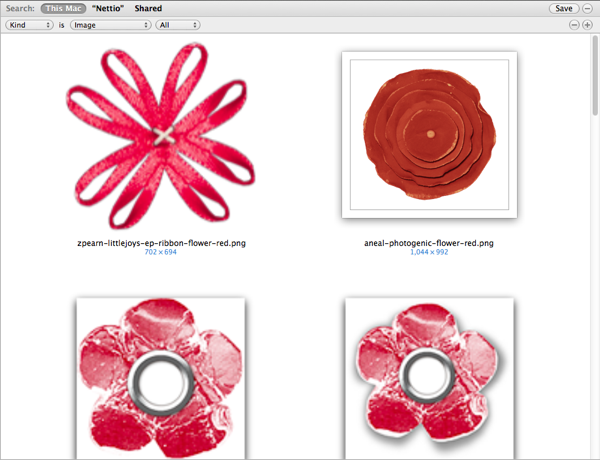
Nettio organizingelements

The Key Questions to Ask Yourself Before Organizing

But of course we all think about things differently when it comes to our creative process, so how can you determine how the key to matching your organizing style to your scrapbooking style?

Well here’s a couple of questions to ask yourself:

  • Are you a kit scrapbooker or do you like to mix and match?
  • Do you look for supplies by designer or store?
  • Do you think about color? Style? Pattern?

The more detailed you can get about HOW you look for things, the easier it’ll be to know how to organize your files and more importantly how detailed to get in your organizing. No point tagging all your files when you only scrap from kits, right?

And, the same key to organizing holds true for your photos. Ask yourself, what are the most common types of photos you look for?

For me it tends to be people, seasons and themes because of my CT requirements, but for you it might be something else. Maybe you’re big on chronology or maybe you’re not. Do you think in terms of seasons or months/years?

Choose a Style That Works For You

Ultimately, what it comes down to is this: there is no right or wrong way to organize your supplies.

Yes, you heard that right.

There is no right or wrong way to organize your supplies. There is only a right or wrong way to organize your supplies for YOU. And the more attention you pay to your scrapbooking style and how your brain works when looking for things, the better and more efficient your organizing system will be.

Well, I hope you found today’s organizing tip helpful! I’d love to hear your thoughts about matching your organizing style to your scrapbooking style so feel free to share in the comments.


How Can Customers Lower Their Remedy Costs

POSTED IN Memory Keeping, The Great Computer Spring Clean-a-thon 2012, Digital Scrapbooking, Tips & Tricks

The 2nd Annual Great Computer Spring Clean-a-thon

POSTED ON March 19, 2012 IN The Great Computer Spring Clean-a-thon 2012

3.8 percent.

Let me repeat that.

3.8 percent.

That is the current amount of free space available on my 500 GB hard drive right now. It’s so bad I’m almost ashamed to admit it.

Photoshop is running mind-blowingly slow and randomly throwing out program errors at me. My photos are in a state of disarray. Forget about running more than a few programs at a time. I’ll be here all day watching the spinning beach ball of doom go round and round and round.

My poor compy is fat and bloated and in need of some major slimming and trimming.

Which can only mean one thing…

It’s time for the 2nd Annual Great Computer Spring Clean-a-thon!

Springcleanathon blog

If you were around at the end of March last year, the Great Computer Spring Clean-a-thon is my week long celebration devoted to whipping my computer back into tip-top shape. A spring cleaning for the technology world if you will and of course you’re invited to play along!

Starting today, Monday, March 19th and going until Monday, March 26th, my blog will be all organizing, all the time. This year I’m taking things even bigger than last, so in addition to sharing updates of my organizing progress through out the week, there will also be a daily post here on the blog devoted to organizing your computer. Some of the topics on the agenda: finding your organizing style, Aperture vs Lightroom, how to back up all your hard work, and more.

My Spring Clean-a-thon Goals for the 2012

So what are my goals for the week?

Here are my Computer Spring Clean-a-thon goals:

1) Clean out my Downloads, Documents and Current Projects folders. I set these up last year and have mostly kept them updated so they should only need a little work.

2) Reorganize my NettioDesigns folder. This folder is a hot mess right now. And not in a template-y goodness kind of way.

3) Get started organizing my photos in Aperture. This is a major major task and definitely not one I will complete this week but I am going to get started on it and see what I can get done. Started is better than nothing, right?

Join in the Fun!

So how can you play along? It’s easy! All you have to do is share your goal for the Great Computer Spring Clean-a-thon in the comments section of this blog post. It can be as small as clearing out your Downloads folder or email inbox or as big as organizing your scrap supplies. The only rule is it has to be computer related – this ain’t no ordinary spring cleaning week!

If you’re seeing this post after Monday, March 19th, feel free to jump in at any time but remember you only have until Monday, March 26th to complete your task so be sure to keep that in mind!

At the end of the week next Monday, March 26th, there will be another post where you will be able to share your final result. There may even be some prizes involved! Of course if you want to keep us updated on your progress during the week, feel free to post updates to the NettioDesigns Facebook Page or use the hashtag #cleanathon on Twitter.

Ok, ready to whip those digital scrapbooking machines into shape? Let’s do this!

Can diabetes cause erectile dysfunction

POSTED IN The Great Computer Spring Clean-a-thon 2012

Burning Question: Are Your Photos Organized?

POSTED ON July 13, 2011 IN Adventures in Organizing, Burning Questions


Organizing is always a hot topic around the scrapbooking world but today I want to focus on one specific aspect of scrapbook organization: photos.

As I’ve been working my way through Stacy Julian’s Finding Photo Freedom class over at Big Picture Classes, I’ve been thinking a lot about photo organizing, scrapbooking and how the two work together.

Here is what I have realized:

1) Having unorganized photos limits my scrapbooking creativity

As much as I hate the thought of spending valuable scrapbooking time tagging and organizing photos, I’m quickly realizing that being able to find photos to go with my stories is key to getting those stories scrapped.

While a simple keyword search for “red button” may work for my digital scrapbooking supplies, it’s a whole lot harder to find a photo of say “Adam” in a sea of generic photo names like IMG_10234. 

If I want to be able to find my photos in a more inspiring way, I need to take the time to make it happen. My creativity will thank me.

2) Simplicity is key

The key to any organizing system: easy maintenance over time. If the system or software is too complicated to maintain, I’m not going to stick with it.

3) I need a better system for tracking ideas

The more time I spend with my photos, the more ideas I have…and the more ideas I forget. I need to figure out a way to keep track of all the story and project ideas so when I sit down to scrapbook I can actually remember them.

It’s Time for a Poll

So where do you stand on the photo organizing home front? Have you whipped your photos into tip-top shape? Or are you drowning in a sea of I-take-WAY-too-many-photos?

I’d love to hear what you have to say and to make things nice and easy, I even whipped up this handy little poll:

[poll id=”2″]

I’d love to hear more about why you voted the way you did, so feel free to comment away with more details.

Aperture photo from Apple.

How do I purchase Levitra without going to the doctor

POSTED IN Adventures in Organizing, Burning Questions

Why Having 4 New Goodies Folders is 3 Too Many: The Great Computer Spring Clean-a-thon Days 2-4 Roundup

POSTED ON April 5, 2011 IN Adventures in Organizing, Memory Keeping, The Great Computer Spring Clean-a-Thon 2011

The Great Computer Spring Clean-a-Thon four-day event officially ended Friday so I am back to say I survived my crazy cleaning adventure!

When I originally started this project, I had planned to post a daily update of my progress. And to be honest, I still really really love the idea of doing that. Nothing like capturing a project in action! But after spending the majority of my Day 2 organizing time writing my Day 1 post, I quickly realized it simply wasn’t going to be do-able given my other commitments (namely the two creative team layouts that I had managed to leave until the veeerrrry end of the month to complete. My old friend Procrastination definitely won that point).

So instead I am back today to share my organizing adventures for Days 2-4 as well as a roundup of the lessons I learned from this project. Because what’s a good project without a lesson learned, right?

Day 2: The DigiScrap Cleaning Begins…or Not

So in the interest of keeping it real here on the ol’ blog, I’m just going to say that Day 2? Total bust. That’s right, absolutely zero spring cleaning got done, which considering the tight deadline I’d set for myself was not good. Between writing my Day 1 post and working on one of the two CT layouts I had to finish, I simply ran out of time to make any real digiscrapy-cleaning happen. But I’d argue it was still time well spent based on this rather cute layout I created…

10 Faves at 28 Layout

Credits: Social Butterfly by Meghan Mullens; Write On 5 by Misty Cato; Alpha Files No 17 by Krystal Hartley; Simply Stamped Alpha by Zoe Pearn; Punchy Edges by Julie Billingsley; Straight Line Stitched No 1 by Anna Apnes; Curvy Corner Stitched Blocks No 2 by Anna Apnes; Font is Museo Slab.

Now normally this would have been the point where I would say to myself, “oh well, it was a good attempt” and move on to something else, but since I had shared my computer spring cleaning intentions here on the blog, I was determined to see it through. Take that procrastination tendencies!

Day 3: The DigiScrap Cleaning Begins…For Real This Time

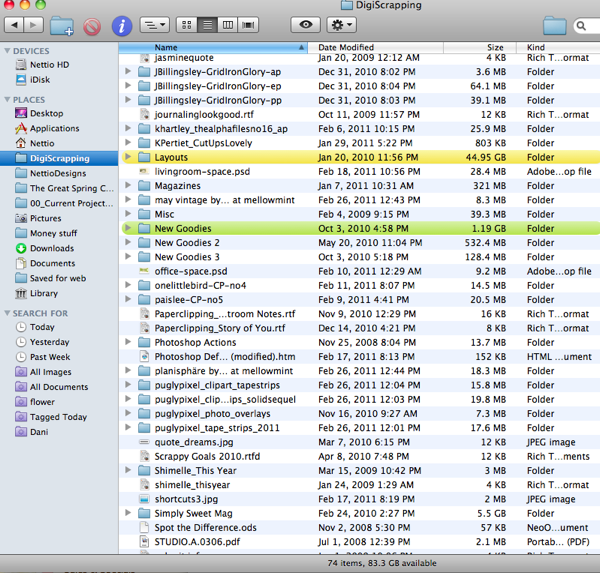
Thursday I was determined to tackle my DigiScrapping folder. This folder holds all my layouts, scrap goodies and CT supplies. Unlike a lot of digiscrappers, I prefer to store a majority of my files on my internal hard drive rather than an external hard drive. I have my reasons for this (which I’ll likely share in a future post) but for now all you really need to know is other than some CT supplies and my completed and printed layered .PSD layout files, everything else stays on my hard drive – photos, purchased supplies, layouts that haven’t been printed, flattened full-size jpgs, etc. It does mean my drives get fuller quicker but as long as I stay on top of things it seems to work out ok. Or at least it did until all the laziness kicked in and the need for The Great Computer Spring Clean-a-Thon became evident.

Now normally my DigiScrapping folder is pretty neat and organized but thanks to the Day 1 cleaning of my Documents, Downloads and Desktop, a bunch of stray files had taken up residence in the DigiScrap folder leaving me with this mess:

DigiScrapping-before

Sadly one thing I can’t blame on the Day 1 cleaning would be the New Goodies, New Goodies 2 and New Goodies 3 folders. Those are there because I created them. Yes, I tend to create a new folder when the New Goodies in the previous folder start to feel like they’re a bit, well, old. Haha.

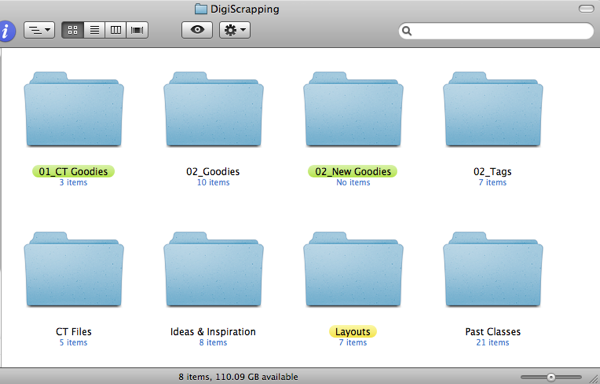
My clean up process for the DigiScrap folder was very similar to how I dealt with my folders on Day 1. I created a Random Files folder, moved all the orphaned files into that folder and then slowly started deleting and moving them into their proper folders until I was left with only this:

DigiScrapping-after

At this point I sorted through my CT Goodies and Goodies folder (aka purchased files) and deleted anything I felt like I wouldn’t likely use again (and in some cases have sadly never used). I’m pretty good at purging so this part when pretty quickly for me.

For any of you delete-shy scrapbookers, here’s my number one rule for purging:

Ask yourself:

“Am I going to use this?”

If your first gut reaction is NO, DELETE it. Do not pass go. Do not collect $200. Just hit that delete key. Because I guarantee if you stop to think about it, you will always always always find a reason why you need to keep that kit/element/alpha when in fact, you really don’t.

Go with your gut. I promise it will feel oh so good.

I also sorted through ALL of my font folders (and discovered I still had the font folder from my old PC hiding on the Mac, haha) and deleted any fonts I don’t plan on using anytime soon. I figure especially if it’s a free font, I can always download it again if I really really decide I need it.

The final organizing push for Day 3 was to clean out the NettioDesigns folder. I’m not going to share a ton about this because a) it’s not really all that exciting and b) it contains super secret information for the NettioDesigns Shoppe. Or ya know, something like that, haha. But mostly all I did was rearrange some files and folders, delete some duplicate freebie template files and clean out any unnecessary WordPress/site related files. I didn’t entirely finish this on Day 3 so I spent part of Day 4 working on this folder as well.

Day 4: Holy Photos, Batman!

I knew coming into Day 4 that once I finished organizing the NettioDesigns folder, I would have to tackle the Pictures folder and possibly Lightroom. Eek. I’ll admit the idea made me a bit nervous. Or perhaps more like completely terrified. Sorting through 200+GB of photos sounded like a TON of work.

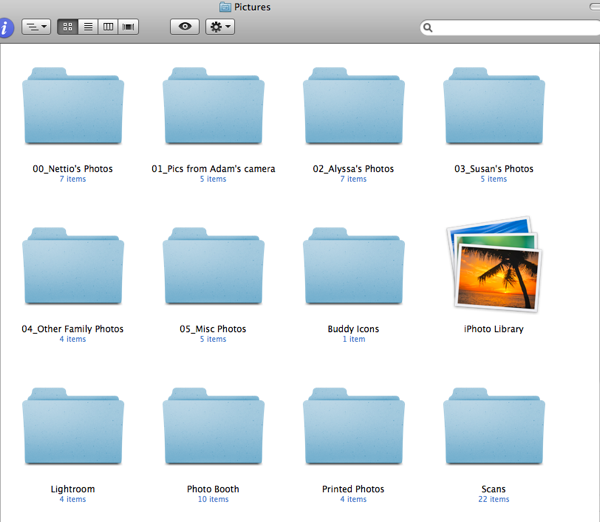
So I decided instead to take it step by step by organizing the folders in the Pictures folder first. Luckily as I import my photos by capture date, the folders themselves are pretty organized already. It was mostly an issue of reorganizing the photos sent to me by the other family members, screenshots, stock photos, etc. Eventually I ended up with this:

Pictures-after

Once I finished organizing the folder itself, I knew it was time to open up Lightroom. Boo. I’ll admit the majority of my time spent in Lightroom involved browsing through some old photos I had never looked at (Hawaii trip! Disney!) and once again debating the merits between Collections & Smart Collections vs Keywords. Score 1 point for Procrastination. In the end, I spent more time moving around keywords and collections than I did purging my photos. Computer Spring Cleaning Fail. I’m thinking this is going to have to be a task I do in short 15 minute increments rather than in one big sitting. It was just way too overwhelming to try to do it all at once.

One good thing that did come from organizing the Pictures folder? I discovered that Lightroom had apparently saved every.single.catalog.backup it had ever created since I installed Lightroom 2 in 2009. The grand total of these backups? 6GB!! I deleted all but the last few backups, keeping just the last three in case one was corrupted. So a heads up, if you’re a long time user of Lightroom, you may want to check your Lightroom backups folder too. It might be hogging a bunch of space!

And Now for the Grand Result

So now for the all important question. After four days of The Great Computer Spring Clean-a-Thon, just how much hard drive space have I freed up on my computer?

When I started this project last Tuesday, I had just 76GB of free space on my 500GB hard drive which actually sounds like a lot. I’ve certainly had a drive that was much much fuller than that before. But the reality is that actually worked out to being just a mere 15% of empty space on the drive. And while technically Adobe argues you only need like 1GB minimum of space for Photoshop to run, we all know that the more free space on the drive, the better Photoshop runs.

As of today, I now have 106.57GB of free space on my drive for a grand total of…

drum roll please…

30.57GB!

Not too shabby for four days of work especially considering I knew this week would be limited in just how much organizing time I would actually have. Yay me! I can already tell Photoshop is running a bit smoother. I finished a layout yesterday and other than a slight delay when I used the brush tool to adjust my shadows, I didn’t receive any weird program errors or anything, which is a definitely improvement from even just a week ago. I can already feel my missing scrap mojo returning!

I know there are still a few more things I want to do to get my Mac back into tip-top shape but I love that this project has given me a much more solid foundation from which to build my future organizing adventures, especially when it comes to checking off #21 on my 28 @ 28 List.

What’s Next On the Horizon

Although the progress I made during The Great Computer Spring Clean-a-Thon was great, there are still quite a few things on my list that I didn’t get to. So here’s what I’ll be working on over the next few weeks:

  • Organizing the files on my EHD
  • Moving all my printed layered .PSD files to my EHD
  • Moving all my CT Goodies onto my EHD
  • Purging, sorting and organizing my photos in Lightroom
  • Deleting unused Applications from both the Dock & my computer
  • Running a cleaning program (like CleanMyMac) to clean up any leftover files
  • Calibrating my laptop battery
  • Reorganizing my Google Reader and deleting any blogs I no longer read
  • Reorganizing my internet bookmarks
  • Clearing out my email inbox
  • Down the road I would also like to set up some kind of tagging system for my DigiScrap files

Lessons Learned from The Great Spring Clean-a-Thon

So what exactly has this crazy four-day organizing sprint taught me about myself and my organizing tendencies? Well a few things actually…

  1. I loved loved loved having a tight deadline

    Procrastination for me is always a combination of two things: fear and indecision. I overanalyze things a lot so having a tight deadline forced me to make decisions quickly. It also kept me much more focused knowing that there was an defined endpoint in sight. I will definitely be using this technique again. Deadlines=action.

  2. I really don’t enjoy organizing my photos

    I’m not sure whether it’s Lightroom or just the sheer number of photos I’m dealing with (most likely a combination) but there is very clearly a reason why I procrastinated the most when it came to this task. I definitely need to figure out a way to make this photo process work better for me.

  3. Maintenance is key

    I know this is a cardinal rule of organizing but this project really reinforced to me the importance of this. I will definitely be working on creating better habits to keep things organized over time.

  4. Putting goals out in the open makes them happen

    I tend to be pretty shy when it comes to sharing my ideas so broadcasting my intentions in such a public manner was a HUGE step outside my comfort zone. But I also have no doubt jknowing that I was not the only unorganized digiscrapper out there and had people cheering me on kept this project from becoming just another in a sea of unfinished projects. A HUGE thank you to each and every one of you who left me a comment, thought or words of encouragement. I sincerely appreciated every one.

Overall, the most important thing I learned from The Great Spring Clean-a-Thon is that I am definitely on the right track. I love doing projects like this. Working on a clear, focused goal with a group of supportive peeps is totally my cup of tea. You will definitely be seeing more projects like this here on NettioDesigns. For sure.

So How Did You Do?

First off, if you’ve made it thru this rather long post, 1000 awesomeness points to you!

For anyone who played along I would love to hear how your own Spring Clean-a-Thons went! Did you clean-out the chub from your schlumpy computer? Or are you in the same boat as me and still have a little ways to go? Let me know in the comments!

Editor’s note: This post is the final post in a series of posts documenting my quest to get my beloved Mac back into svelte, sexy shape. You can see all posts about The Great Computer Spring Clean-a-Thon here.

How Can Customers Lower Their Remedy Costs

POSTED IN Adventures in Organizing, Memory Keeping, The Great Computer Spring Clean-a-Thon 2011

Downloads, Desktops and Documents, Oh My!: The Great Computer Spring Clean-a-Thon Day 1

POSTED ON March 30, 2011 IN Adventures in Organizing, The Great Computer Spring Clean-a-Thon 2011

Hello fellow digiscrapping spring cleaners!

Day 1 of The Great Computer Spring Clean-a-Thon has officially come and gone and I am back to share all the juicy details of my progress. (And if today is your first day joining us, you can read all the details about this project right here.)

Last night when I told Adam about my grand plan for whipping my computer back into tip-top shape in just 4 short days, his response went something like this:

“Well, I guess I’ll see you next week!” And then he waved goodbye and laughed. Laughed!

Clearly he was well aware of just how much work I had committed myself to doing this week and to be honest, even I had found myself having slight reservations. Or to be a bit more accurate, random moments of gut-wrenching panic followed by “Holy crap, what have I just publicly committed myself to??”

But rather than frittering my day away by reading the design adventures over at Young House Love (dang that John & Sherry with their two posts-a-day awesomeness!) as I might normally have done, I decided to face my procrastination tendencies head-on and push through my fears and reservations in the name of action.

Today’s letter of the day is A for Action

Well perhaps it should really be B for Backup as that is always the first step I take before I do any major-level file deleting or moving. Better to be safe than sorry in the event that I inadvertently delete a file I really really need! But after a quick Time Machine backup onto my backup EHD, I was ready to go.

I had always intended that for Day 1 of The Great Computer Spring Clean-a-Thon, I would ease myself into things by taking baby steps so as not to get too overwhelmed. So rather than tackling the bloated and in much need of help DigiScrapping or Pictures folders first, I decided to start with three sets of files that I thought would be fairly easy to make progress on: Downloads, Documents and the Desktop.

My original plan was to clear out the Downloads and Desktop files first before moving on to the Documents folder figuring that the files in those two folders would be easier to sort through than the ones that have been sitting forever in my Documents folder.

But after spending about 5 minutes browsing through the 198 files of complete randomness in the Downloads folder, I quickly realized that the reason 99% of those files were still in there was because they had no other place to go. Yes, poor things, they were adrift in a sea of random files, fonts and unzipped scrappy products. So instead I turned my attention to the Documents folder in hopes of giving all those poor orphan files a shiny new home.

I’m Not Sure I Want This Mess Documented

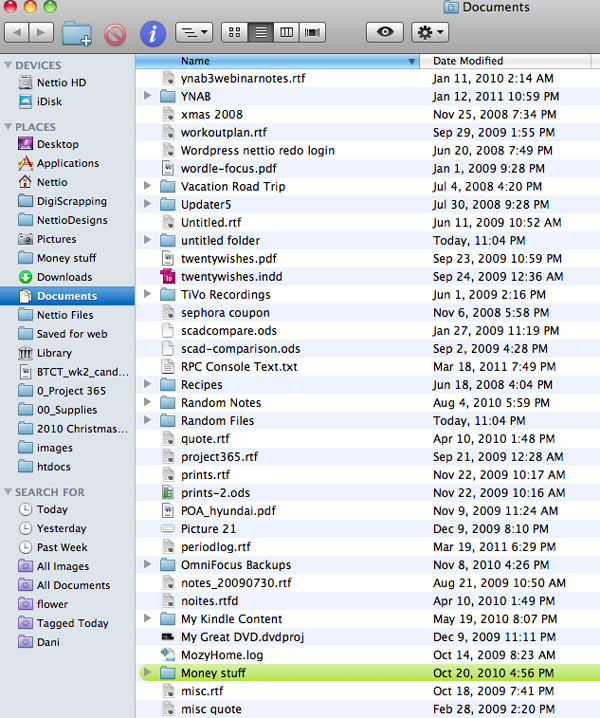
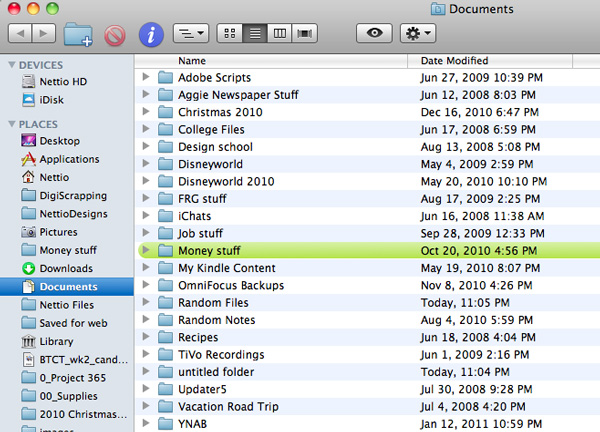
So here’s what the Documents folder looked like when I started:

Day1 Documents before crop

Basically a ginormous mess of random file and folders with the occasional note thrown in for good measure. As you can see based on the files names, I clearly run a very tight file-naming ship around here. A few of my personal favorites:

  • The Untitled file and folder Ooo, very descriptive.
  • the folder of Random Notes
  • Another set of random notes or noites. Perhaps that’s french for notes?
  • Quote which is not to be confused with its good friend Misc Quote

And sadly, this is only one screen’s worth of file names. I’m sure there were many more hidden gems lurking below. Sadly the only folder that actually sees any regular use here is the “Money Stuff” folder which is why it’s colored green. It was the only way I could find it easily in the sea of files, which probably should have been a sign, no?

I’ll admit at this point I was really starting to feel overwhelmed. In fact, I had a text file I was using to keep track of my process and how long things were taking me and this is a direct quote:

started clearing out documents folder – feeling overwhelmed by all the files!!

Yes, double-exclamation points and all. So in an attempt to get things feeling a bit less overwhelm-y, I created a folder called Random Files (ah, the irony!) and moved all the floating single files into that folder. (If you look closely in the image above you can see I had already created it, haha.) After consolidating all the orphaned files, I was left with this:

Day1 Documents midway crop

Doesn’t that look so much nicer and neater already? Still not really organized but it at least looks like it could be!

At this point, I did a quick audit of all the files in the Documents folder and it became clear that the majority of these files fell into three categories:

  • References – files containing useful information
  • Memorabilia – files that I’d like to keep for memory-keeping related reasons
  • Action Files – files for projects or classes I’m currently working on (or have in the past)

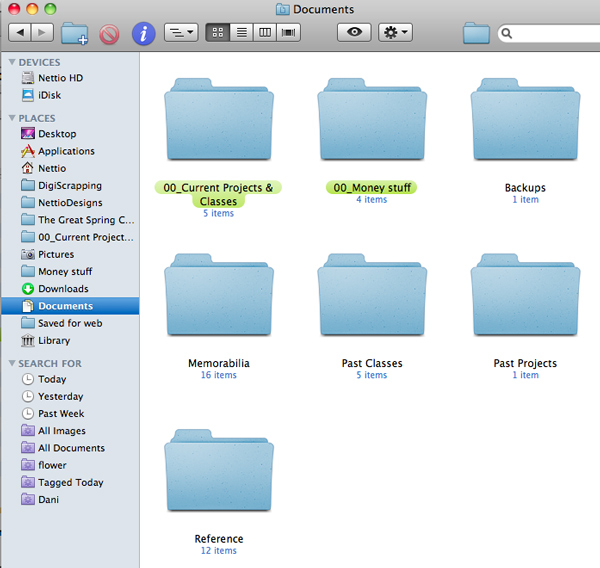
So I created folders for those items in the Documents folder and started sorting and deleting. Eventually I was left with just seven folders in my Documents folder:

Day1 Documents after thumb

SO much better.

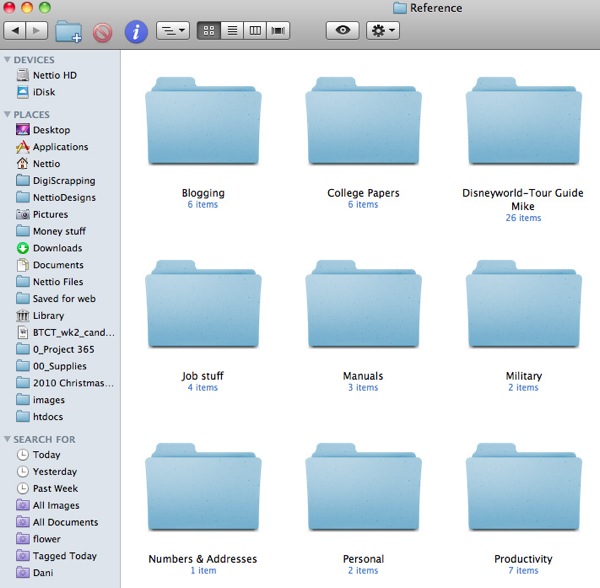
In case you’re curious about the internal workings of the folders (I know I always am!), here’s a little peek into the Reference folder:

Day1 Documents reference crop

Dealing With Downloads and Desktops

Once I had done the dirty work of getting the Documents folder organized, clearing everything out of the Downloads folder and Desktop was a snap.

Any files that didn’t belong in these categories (like DigiScrap, NettioDesigns or Pictures related) were moved into their proper folders elsewhere. Of course those folders are now a bit of a mess but that’s for another day, right? Haha.

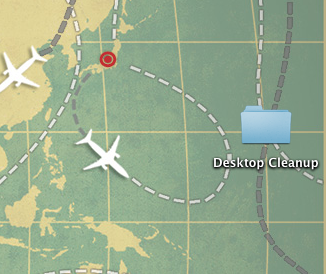
Day0 Desktop before

The only real surprise was when I discovered a folder on the Desktop called “Desktop Cleanup” which was in fact, full of several GB worth of files, mostly photos, that I had cleared off the Desktop surface with the intention that they would be filed away on a later date. Oops. On the plus side, Susan, I found those photos from Disneyworld you were looking for! LOL!

Day 1 By the Numbers

All told, it only took me about 2 and half hours to go from a sad, embarrassing, disorganized Documents folder and bursting-at-the-brim Downloads and Desktop folders to an organized Documents Folder and completely empty Downloads and Desktop. Not too bad for Day 1, right?

But the important question here is, did I free up any space so Photoshop can have room to breathe again?

And sadly, the short answer is no.

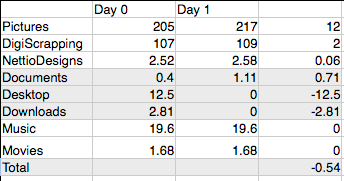
Documents by the Numbers

Although I managed to clear out about 15GB of files out of the Desktop and Downloads folders, the majority of those files were moved into other folders. As you can see the Pictures, DigiScrap, NettioDesigns and Documents folders all grew in size with the worst being the Pictures files increasing by 12GB. Dang you sneaky Desktop Cleanup folder photos!

I did feel like I was a deleting machine as I was working but as we all know, documents in general are pretty tiny to begin with, so all told they only added up to about half a GB of space. Wah wah. But I know it’s a step in the right direction and the real progress will begin once I start tackling those dauntingly large Pictures and DigiScrap folders. So for now I’m content with the progress that I have made.

Now It’s Your Turn

So what about all you? Do you have a system for managing your documents? How do you treat your downloads folder? Do you store files in there for good or is it just a stop over until you get around to filing them? Anyone else make some good progress on Day 1 of The Great Computer Spring Clean-a-thon?

Let me know in the comments!

Editor’s note: This post is the second post in a series of posts documenting my quest to get my beloved Mac back into svelte, sexy shape. You can see all posts about The Great Computer Spring Clean-a-Thon here.

Can diabetes cause erectile dysfunction

POSTED IN Adventures in Organizing, The Great Computer Spring Clean-a-Thon 2011

The Great Computer Spring Clean-a-Thon

POSTED ON March 29, 2011 IN Adventures in Organizing, The Great Computer Spring Clean-a-Thon 2011

My scrap mojo is gone. Gone! And not just in an oh, I’ll take a break and it’ll come back eventually kind of way.

But gone in an omg, what if it never ever returns??? kind of a way.

Now I know what you’re all thinking.

“Just relax, it’s no big deal.”

“It’ll return eventually.”

“Every scrapbooker worries their mojo is gone for good when it disappears.”

Believe me, I know. And if this were just your run of the mill missing mojo, I would totally agree with you.

But this time it’s different. This time we’re talking defcon level five missing mojo. You see the reason for my missing mojo has nothing to do with creativity or lack of ideas. Those old standards of  “take new photos,” “use a template” or “buy a hot new product” aren’t going to work in this case.

Because the reason for my mojo going on this not-so-brief hiatus?

Complete disorganization.

For months now, I’ve been finding it hard to get motivated to scrap. I just chalked it up to outside factors – the gorgeous weather we’ve been having, other fun projects I’ve been working on, the fact that my awesome hubby is finally home for a change.

But last week while working on a layout for the Take Out Tuesday challenge at Sweet Shoppe Designs, I had a bit of a revelation.

Enter Exhibit A.

Totphotocluster 250

At first glance, I’m sure this layout seems quite innocent. It’s cute, it’s fun, it’s in my signature I’ve-never-met-a-paper-I-didn’t-love style. I actually quite like it! And despite my missing mojo, it came together fairly easily once I got started.

But let’s dig a little deeper here, shall we? Specifically, let’s focus in on the photo.

You see, I’ve scrapped this photo before.

Enter Exhibit B.

3layouts

Now normally this wouldn’t be an issue for me. I don’t believe in being “caught up” so I have no problem scrapping a photo I love more than once. And lord knows I must love this photo considering this is the 1st 2nd 3rd 4th time I’ve now scrapped it. It’s even got a primo spot on the photo shelves in our living room – which brings me to the real problem here.

Because the real reason I scrapped this photo again had absolutely nothing to do with how much I loved it and everything to do with it’s placement on my harddrive.

Enter Exhibit C.

Folder Image

It’s Time for a Confession

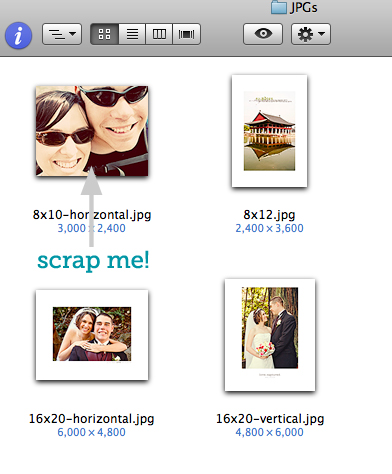
Last year when I had prints made for our photo wall, I saved the edited jpg files into a separate folder outside of my normal organizing program, Adobe Photoshop Lightroom. The reason at the time was harmless enough – it would make it easier to upload the images to the online printer later on. But ever since then, these photos have found themselves playing a recurring role in my scrapbook layouts for one reason and one reason alone: I could scrap these photos without having to open Lightroom.

I know. I’m embarrassed to even admit it (and seriously, if you saw the state of my files, you’d be embarrassed for me too, haha). But my beloved Mac is in need of a serious Biggest Loser-style diet and exercise plan.

In compy’s (as he’s affectionally known around here, haha) defense, it’s all my fault.

  • I got lazy about paring down photos when I uploaded them.
  • I stopped moving completed layouts onto my external harddrive.
  • I let my Downloads folder get so full of crap, it’s like trying to find a needle in a haystack whenever I download new files.
  • I started relying heavily on Spotlight searches to find products on my computer because I had no idea which folder they were currently hiding in.

Unfortunately the effects of all this laziness have finally caught up with me and I’m paying for it with some serious Photoshop, Lightroom and Mac slowness (which the occasional random program error thrown in for good measure). That spinning beach ball-of-doom and I have become good friends and it’s seriously cramping my scrapbooking style.

It’s Time to Take Some Action

So I’ve decided that between now and Friday, April 1st, I am going to be doing some major computer spring cleaning.

Clearing out the Downloads folder. Deleting blurry/repeat photos. Consolidating the 4 different “New Goodies” folders I have sitting in my DigiScrap folder (appropriately named “New Goodies”, “New Goodies 2,” “New Goodies 3” and “New Goodies_MOVE.” See, I told you it was bad!).

I’ll be sharing my adventures here on the blog and I’d love for you to join me. 1000 points of awesomeness to anyone who plays along.

Join In the Fun

So who’s up for the challenge? Anyone else have a computer desperately in need of some spring cleaning? Please tell I’m not the only one who’s files are in such embarrassingly bad shape? If you’re in, leave a comment in the comments section so we can cheer each other on.

The Great Computer Spring Clean-a-Thon. 4 Days to a fitter, faster, more awesome compy.

Let’s whip our computer loves back into the svelte, sexy machines they were meant to be.

Editor’s note (and by editor, I mean me, haha): Originally I had planned to give myself until the 5th of April to complete the Great Spring Clean-a-Thon. But as I am an absolute terrible procrastinator, I knew doing so would just mean I would wait until like, the 3rd ,haha, and then try and do everything at once. So in the interest of  focusing on action for a change, I have purposely given myself what is admittedly a crazy tight deadline. Even more so as I have two creative team layouts that have to get done this week as well. But I’m looking at this as a challenge and figuring whatever progress I do make this week will get me one step closer to scrapbook organizing zen. If you’d like to adjust the timeline so it works better for you, please feel free to share your plan in the comments!

How do I purchase Levitra without going to the doctor

POSTED IN Adventures in Organizing, The Great Computer Spring Clean-a-Thon 2011

  • « Previous Page
  • 1
  • 2
HI I'M LYNNETTE. Graphic designer, tech-lovin’ memory keeper and lover of bold colors & patterns, good food and the great outdoors. Here at Nettio Designs, I share a behind the scenes peek at my own creative & life adventures. Read more...

KICKSTART YOUR CREATIVITY


By popular demand, photo book templates are back! Grab all three sets in the shop.
ADVENTURES IN ORGANIZING
GOAL-SETTING
MEMORY KEEPING
PROJECT LOVE
LIFE ADVENTURES
TIPS & TRICKS
BEHIND THE SCENES

POPULAR PROJECTS

TO SEE ALL MY PROJECTS, CLICK HERE

MUST READ POSTS

  • WHY EVERY SCRAPPER SHOULD SCRAP A FAVES PAGE
  • HOW TO CREATE A SCRAP-WORTHY MAP WITH PHOTOSHOP
  • REMEMBERING THE IMPORTANCE OF TELLING YOUR STORY
  • WHAT DOES IT MEAN TO CREATIVELY CAPTURE YOUR LIFE ADVENTURES?
  • BROWSE BY CATEGORY

    BROWSE THE ARCHIVES

    GET IT FOR FREE

    Copyright © 2026 ·Dynamik Website Builder · Genesis Framework by StudioPress · WordPress · Log in