Nettio Designs

Design + Creativity + Adventure = LOVE

  • HOME
  • JOIN THE 2023 MONTHLY FAVES
  • THE SHOP
  • ABOUT
  • CONTACT
You are here: Home / Archives for Memory Keeping / Tips from Team Awesome

From A to Z: How To Organize Your Alphas Without Tearing Out Your Hair

POSTED ON March 22, 2012 IN The Great Computer Spring Clean-a-thon 2012, Tips from Team Awesome


The 2nd Annual Great Computer Spring Clean-a-thon continues on today with the lovely Natalie sharing a peek into her adventure in organizing her alphas. Take it away, Natalie!

Hello, everyone, it’s Natalie(KW) today, talking about alphas. I love to use multiple alphas on a page in my title work. Personally, I find that I just like my pages better when I do.

However, I don’t like the time it takes me to find an alpha that will match or recolor well. I’m not a tagger either, so when someone suggested in the Sweet Shoppe forums to put all of one letter into a folder so you could see all your alphas in one place, I knew I had found my answer.

Fast forward half a year or more, and I’m still sitting in the same spot. I haven’t done a single thing to get this ball rolling. When Nettio mentioned the Spring-clean-a-thon, I knew what my project would be. Organizing my alpha stash!

I started by making myself a folder:
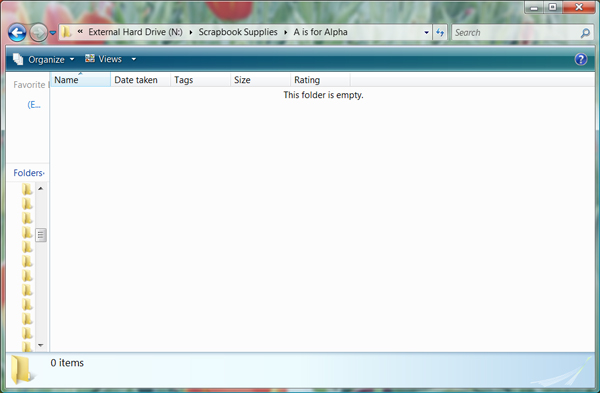
Natalie alphas1

My stash is organized by designer: Scrapbook Supplies>Designer>Kit Name.

My plan was to go through each designers folder and each kit/alpha I have from the designer and COPY the alpha into my “A is for Alpha” folder. After I copied the A from each kit, I would rename the copied file Designer Name_Kit Name or Alpha Name if the alpha is a stand alone alpha.

That was the plan…

Immediately, I noticed some issues that would make my process a little harder.

Problem #1: Collaborations

The first thing is that when I save a kit, I save it in the designers folder. No problem.

Except for collabs.

Oh how I love them! Oh, how they made this process a little more complicated. Just because I save a kit in one designer’s folder, doesn’t mean that designer is the one who made the alpha.

I still saved the copied a file in my “A is for Alpha” folder under the designer’s name and kit such as: Traci Reed_Christmas Countdown. The problem is that this kit is actually in my Meg Mullens’ folder.

As of right now, I didn’t rearrange any kits into the collab partner’s folder because I like to keep collections together. I also like to keep my collabs in the designer’s folder that I CT for. I knew if I decided to start moving folders around that I would make a mess, not be consistent or get confused and I didn’t want to make this process any longer than it was already going to be.

In the end, I hope that when I’m browsing my “A is for Alpha” folding looking for items to use on my page, that if I pick a collab kit’s alpha, that I’ll just remember who the collab partner is. If not, I’ll search it in my Scrap Supplies file or in the store.

Problem #2: Sheet Alphas

The second problem I came across is when the alpha is not broken up into individual png files, but the is on an alpha sheet. I didn’t really want to go to all the work of cutting the A off of the alpha sheet and saving it as a separate png, but my OCD wouldn’t really allow me to do anything different.

So, I actually started cutting the A off of the alpha sheet and saving it as it’s own png file. This added a very significant amount to time to the process and after doing this for approximately 40 alphas, I threw my OCD to the wind and just started saving the whole alpha sheet to my “A is for Alpha” folder. I don’t love that I had to do this, but the amount of time that it saved me was probably at least 6 hours. I have a lot of alpha sheets!

Problem #3: Multi-Colored Alphas

Another thing I learned about half way through was I have several stand alone alphas that come with six alphas packaged together that are the exact same but recolored. I was taking the A from each one of the colors and saving them in my alpha folder.

However, I realized I could just save the alpha preview that shows all the colors on it instead. Here’s a picture, in case you are having a hard time visualizing what I’m talking about:
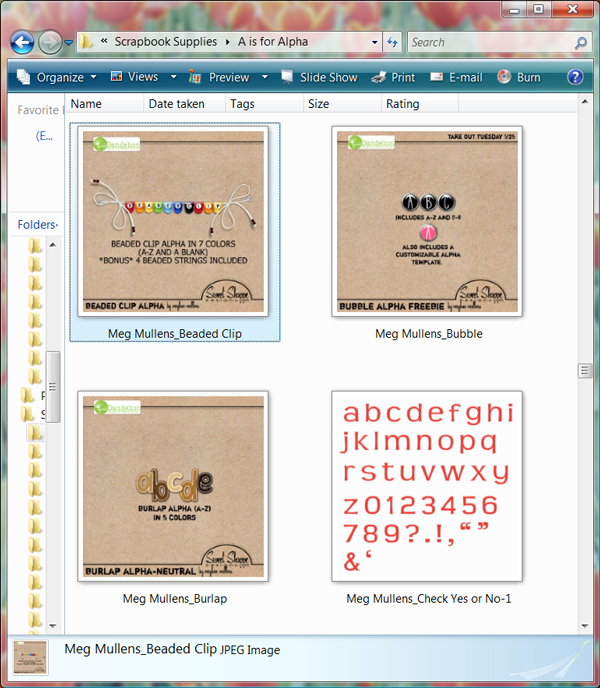
Natalie alphas2

Problem #4: Kit Specific Alphas

One other thing I decided is that there are some alphas that are so kit specific that I’m never going to use them on a page using any other kit than the kit it came with.

You know the alphas…the ones that are made using a stripe from the kit. It just isn’t realistic that I will ever be able to put it on another kit’s page.

After a while, I stopped copying these alphas to my “A is for Alpha” folder. I feel great about this decision because even on the very off chance that I would use one of these alphas again on a page, realistically, there will be a better choice in my huge alpha folder.

How To Save Time Renaming Alphas

I did learn a little time saver when it comes to renaming multiple alphas the same thing.

If you select all of the alphas from a kit, right-click on one and rename it, it will rename all the selected alphas at once and just number them 1, 2, 3, etc. Great time saver.

HOWEVER, there is a warning with this!! When designers cut apart their alphas, and they have several alphas in a kit, usually they put the separated alphas into different folders. While I was going through each folder, copying the different alphas into my alpha folder, I discovered something bad.

If after I copied one of the alphas to the alpha folder, went back to the kit folder and copied the second alpha to the alpha folder and did this for all the kit alphas, when you go to the alpha folder to rename the files, you have to be careful. It is when you go to rename them that you have to be careful that only the alphas you want to rename are selected.

At one point in my process, I renamed 45 alphas at once instead of the three I needed to. I had to pull out all of the misnamed alphas and figure out what kit and designer they belonged to, and rename them correctly. It was pretty discouraging.

The End Result

After all is said and done, here’s a little look at what my folder looks like:
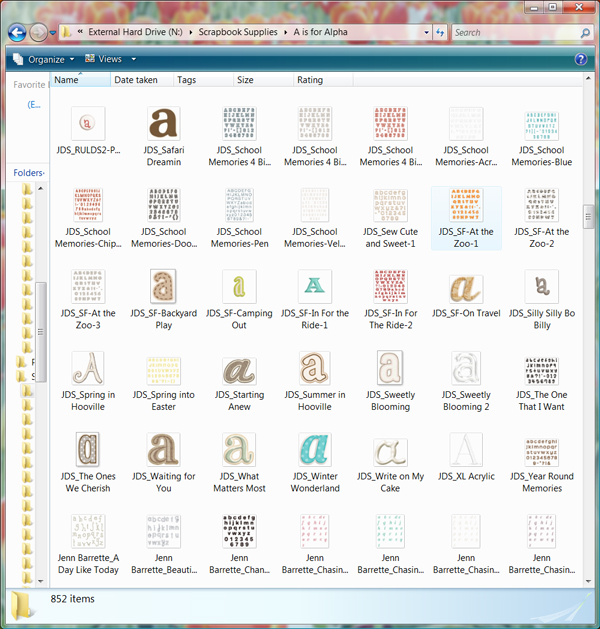
Natalie alphas3

A whole 836 alphas copied and renamed later! Now, I’m itching to make a page! Now the key part is to make sure I copy the A or alpha sheet from ever kit I download into the folder so it stays up to date.

I really hope you’ll jump on the band wagon with me and get your alphas organized! Especially now that I figured out some ways to save time, not make mistakes and do it more efficiently! Let me know how your process goes or if you have any questions!

Woohoo, fantastic progress Natalie! I’ve been wanting to do this for forever and you’ve definitely answered some of the questions I had! Have a question for Natalie? Feel free to ask it in the comments.
Can diabetes cause erectile dysfunction

POSTED IN The Great Computer Spring Clean-a-thon 2012, Tips from Team Awesome, Digital Scrapbooking

How To Organize Your DigiScrap Supplies Using Adobe Bridge

POSTED ON March 21, 2012 IN The Great Computer Spring Clean-a-thon 2012, Tips from Team Awesome

Happy Great Computer Spring Clean-a-thon Day 3 everyone! Today’s post is being brought to you by one of my awesome Creative Team members, Inga! She’s going to share a peek into how she organizes her digital scrapbooking supplies using Adobe Bridge, so take it away, Inga!

Hello fellow digi scrappers!

Today I will tell you a  little bit about how I use Adobe Bridge to organise my scrapbooking supplies.

Why I Decided to Use Adobe Bridge

There was that day, you know. That day when I realised, my titles needed to get better and that maybe it would help, if I could find my alphas. And not just use the same three over and over again, because I liked them and knew where they were. Or that questions like “Which summer kit would match those photos?” or “Didn’t I have a perfect mask set for this?” shouldn’t be that hard to answer.

It was the day, I knew I needed to think about organising my supplies.

For a few glorious seconds I thought, I might tag everything. Oh envision the joy of scrapping, if I can just search for a red and pink patterned paper and all options appear! Then reality kicked back in and I reminded myself, that a) I rarely search for these things, but scrap mostly with kits. And that b) I would fail miserably. Tagging all of my existing stuff like that and keeping it up? Hahaha, good joke.

So I started with the most important thing, if you want to get organised. I figured out, what I really wanted and what would really be helpful for me. Working full time and juggling family activities and household work at the weekends, my free time is precious. I definitely didn’t want to spend as much time organising as scrapping. Also, I have a folder system that is ok for saving things, just not great for browsing through them (it’s pretty much shop/designer/kit). With that in mind I came up with a list of what I wanted and what I expected from the program, I intended to use for it:

  1. I scrap with kits mostly, so I just want to be able to browse all my kits in one place easily
  2. I want to find alpha options by seeing all my alphas
  3. Same goes for my templates
  4. I need a certain category for helpful little extras like masks, frame packs, date stamps, tape sets ect.
  5. The program needs to show previews of PSD files
  6. I want to add to my categories by drag and drop, so I can assemble my categories quickly
  7. It needs to be fairly simple
  8. If possible, it should work well with Photoshop
  9. I don’t really want to spend money on it.

 
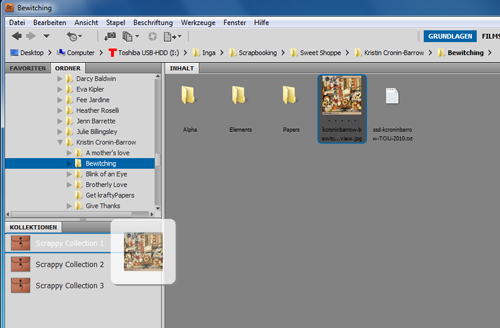
I looked around a bit, before I realised I already own the right program for me. If you buy Adobe Photoshop, it will usually come with a program called Adobe Bridge. It’s an image browser/organiser that works just great with Photoshop.

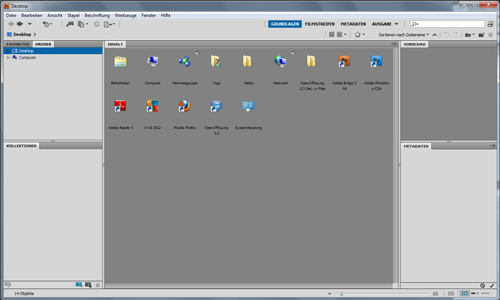
Inga Image1

In fact, you can directly start the program from the PS work space. I found that to be a nice little bonus, that I do not have to swich to my desktop or program list. If you go the Datei/File menu in PS, you will see an option called In Bridge suchen/Search with Bridge. If you click it, Bridge will open.

Btw, I apologize for all the German screen shots. I will always give you button and menu names in the way German/English translation. I’m sure you will be able to figure them out in the English version, even if my translation isn’t exact.

Inga Image2

How Adobe Bridge Works for My Scrapbooking Needs

Right, so how did Bridge work with my scrapbooking needs? From my list I knew, I just needed very few categories: Kits and element or paper packs,  alphas, templates, quickpages and extras. All of this categories I wanted to browse very quick or very detailed, depending on my purposes.

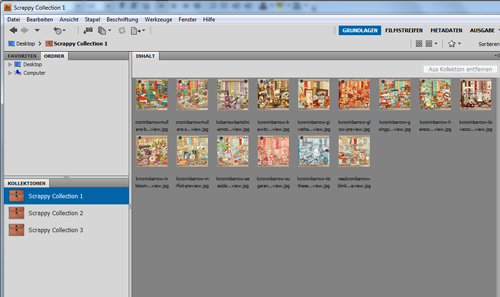
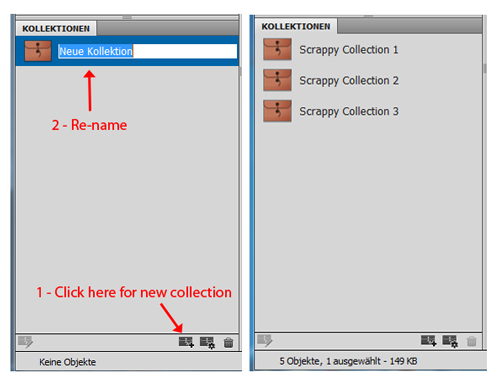
In Bridge the easiest way to achieve that, are the so called Kollektionen/Collections. The collections allow you to quickly assemble certain files into themed collections. Perfect! I quickly set up my desired collections. For this tutorial I have done some sample collections.

Now it was time to fill them. This is done super easy. You just use the browsing function, click trough your folders and drag and drop the files into the collection. A big help with browsing was the “back” button in the top corner. Here I added previews of all my kits by the talented Kristin Cronin-Barrow to “Scrappy Collection 1”.

Inga Image3

Inga Image4

Back then I systematically browsed through my folders and added previews. The only exception was my alphas, where I added an example letter. I originally thought it would take me weeks to get the initial organising done, but all it took was maybe four evenings with one to two hours each.

The collections allow me to scan my stash very efficiently now. If I’m not sure which kit to use, I will just have a look at all my kits in one place. Same for alphas, templates or quickpages.

You can of course make collections for specific scrapping needs like “Christmas kits” or “Designer XYZ”. However, you cannot make sub-collections to an existing collection. So this approach is only practical, if you want a very basic and simple organising structure. As I wanted to keep my organising a reasonable minimum, it worked great for me.

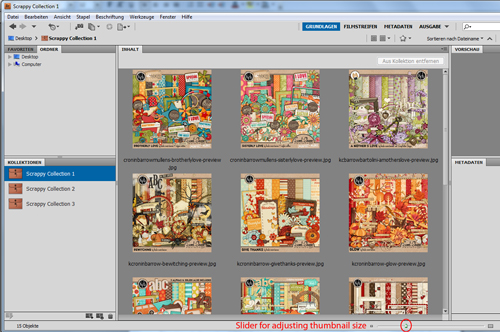
You have many different viewing modes, from full screen previews to lists, thumbnails or the very fun Überprüfungsmodus/Review mode. I mostly use thumbnails for quick browsing, adjusting the size of them to my needs by a simple slider at the bottom.

Inga Image5

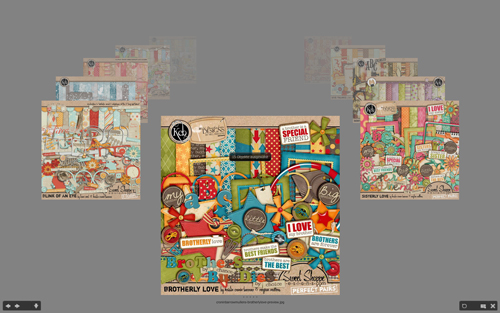
Überprüfungsmodus/Review mode is great for relaxed browsing through all the images. I use it a lot, when I want to look at kit options and don’t have anything specific in mind. It will show you each image in a sort of gallery reel.

Inga Image6

As you can see this very simple set-up pretty much covers everything, I had on my wish list. It helped me a great deal with my scrapping, but didn’t cost me a lot of time.

Maintaining My System & Backing Up

Now, how do I keep it up?

When I download supplies, they automatically end up in my download folder. Every few days… or directly if I cannot wait to see and use them… I move them to a folder in my scrap supply folder system called “to be sorted”. I unzip them all (I use a freeware called 7-zip, but I know many prefer WinRar) and then there they sit until I do a short organising session next time. Those sessions include me putting everything nicely sorted into my folder system.

Once I’m done with that, I open Bridge and browse through the folders, adding all the new stuff to the collections. I will usually remember, if I just put something new in a certain shop or designer folder, so that doesn’t take long. Sometimes I do two sessions in one week, sometimes one in a month. It depends on how much I buy, how motivated I am and when the filling up “to be sorted” folder starts to annoy me. I never tried to establish any kind of schedule for it. I’m all about guild-free scrapping and organising.

But how about back-up? To make sure, my collections won’t get lost when I back up and/or re-install my system, I use the Stichwörter/Key words option. They are practically tags written into the meta data of the image files. But as I don’t want anybody to hurt themselves by falling asleep and off their chair (if that hasn’t happened already…), I will just tell you, that there is an option. If you wish to use Bridge for your organising, please feel free to contact me about it!

This is my organising system wrapped up. I hope it might give you some useful ideas for your own way of getting organised. Bridge does have a ton more options, that are great for photos. Things like filters, more complex keywords/tags, rating with a star system, doing batch re-naming, using zoom windows in review mode as well as options, that work with Adobe Camera Raw. I haven’t tried it out much, but I will likely do so in the future, when I start using Bridge for my photos, too. But so far I just love using it as a slightly abused scrap supplies organiser.

Inga

Thanks so much Inga! Awesome tips! I haven’t done much with Adobe Bridge but I’ll definitely be checking it out! Have a question for Inga? Feel free to ask it in the comments section of this post.

Can diabetes cause erectile dysfunction

POSTED IN The Great Computer Spring Clean-a-thon 2012, Tips from Team Awesome, Digital Scrapbooking

Tips & Tricks from Team Awesome: Jennifer

POSTED ON March 15, 2012 IN Tips from Team Awesome

Editor’s Note: Happy Thursday everyone! Welcome to the first ever installment of Tips & Tricks from Team Awesome, where the amazingly talented ladies from my Creative Team will be sharing how they use NettioDesigns templates to embrace their scrapbooking awesomeness. Our first brave soul is Jennifer so if you like her post and want to see more posts like this in the future, be sure to leave her some love in the comments!

Hi Everyone!

Lynnette asked me to post today on how I take her awesome templates, and put my own spin on them.

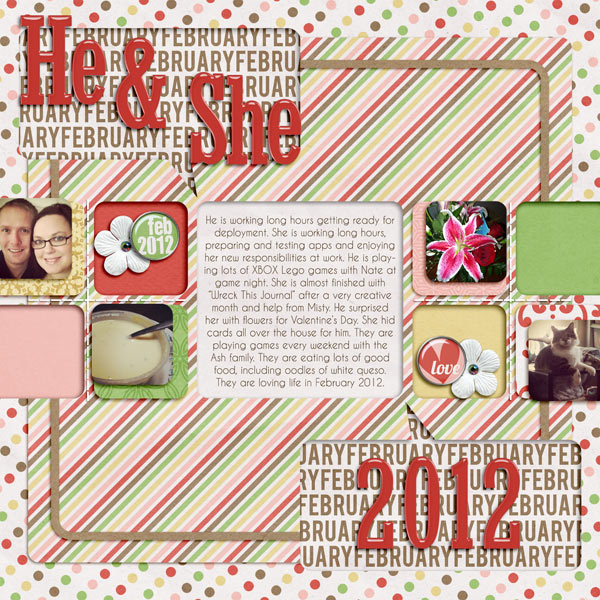
One of the reasons Lynnette’s templates work so great for me is that I love yearlong projects. One of my projects this year is to do a monthly He & She layout, based on the idea by Elise Blaha. I try to use a different template every month to make this project a lot of fun, and for my February layout I have chosen to use a template from the It’s Goal-tastic Template set.

Jenn guest screenshot 01

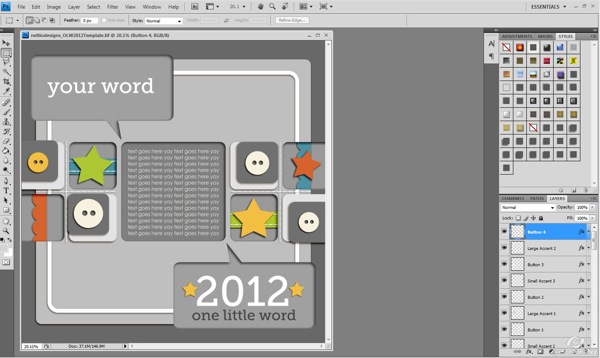
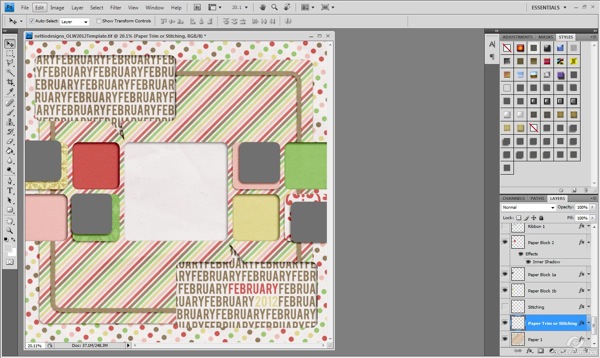
I’ve chosen to use Penny Springmann’s This Life series for my layouts, and will be using the February Edition for this particular layout. The first thing I do when I start a layout is turn off all text and element layers and start playing with the papers I want to use. I start by placing my patterns, then filling in with solids to add contrast.

Jenn guest screenshot 02

Once I have all my papers in place, I start turning back on the element layers. I look at which elements I want to use, and how I want to change things. I knew I wanted to include some photos, so I chose to remove the buttons and swap them out for photos. I wanted to focus on the story, and decided to remove the paper strips from the inset blocks as well to help clean things up.

Jenn guest screenshot 03

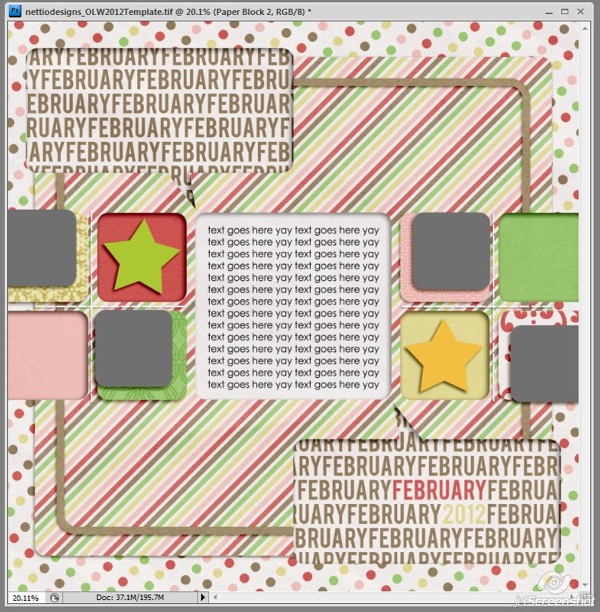
This left me with a few basic elements placed, and space for four photos. Now it was time to fill those spaces and add any additional elements I felt were needed.

Jenn guest screenshot 04

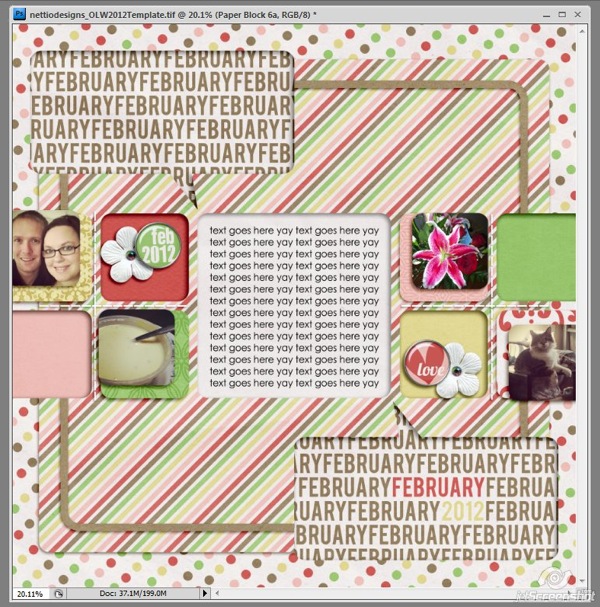
Once the elements and photos are in place, it’s time to add journaling and a title. I wanted to keep things really simple, and just played with alphas to ensure that. Then I take a look at the page and start tweaking. After I’ve completed this much, I know I need to change my papers a bit to make things work. I tweak little things until it sits right. Then, it’s time to save and walk away.

Jenn guest web

I’m really happy with how this page turned out. I don’t take notes throughout the month on what happened, but I pull photos from our phones to see just what we did in the last month, and it’s been a fun way to capture snippets of our lives.

If I have any tips to share with you guys for embracing your own awesomeness, it would be these three things:

  • Perfection is highly overrated. Just enjoy the page, use what photos you have, and tell your story. In 10 years you won’t care that the photos aren’t perfect, just that you have the story told.
  • Phoneography is fun. I love my nice camera, but it’s so much easier to just use my phone camera. Most cell phone cameras are pretty good these days, and can make for some fun photos to scrap. Add a filter, change it to black and white, crop it, just do whatever it takes to embrace those photos.
  • Scrap for YOU. Don’t spend time worrying about if you are doing things right, or if someone else will like it. Tell your story, your way. You are awesome, and don’t doubt that.

 
Happy Scrapbooking Everyone!

Jennifer

Thanks so much Jennifer! Awesome tips!

Psst…Is your computer in need of a spring cleaning? Then you won’t want to miss what we’ve got coming for you next week! The fun begins Monday morning so be sure to stop by!

Benefits Of Using Canadian Pharmacy

POSTED IN Tips from Team Awesome, Template-y Goodness

  • « Previous Page
  • 1
  • 2
HI I'M LYNNETTE. Graphic designer, tech-lovin’ memory keeper and lover of bold colors & patterns, good food and the great outdoors. Here at Nettio Designs, I share a behind the scenes peek at my own creative & life adventures. Read more...

KICKSTART YOUR CREATIVITY


By popular demand, photo book templates are back! Grab all three sets in the shop.
ADVENTURES IN ORGANIZING
GOAL-SETTING
MEMORY KEEPING
PROJECT LOVE
LIFE ADVENTURES
TIPS & TRICKS
BEHIND THE SCENES

POPULAR PROJECTS

TO SEE ALL MY PROJECTS, CLICK HERE

MUST READ POSTS

  • WHY EVERY SCRAPPER SHOULD SCRAP A FAVES PAGE
  • HOW TO CREATE A SCRAP-WORTHY MAP WITH PHOTOSHOP
  • REMEMBERING THE IMPORTANCE OF TELLING YOUR STORY
  • WHAT DOES IT MEAN TO CREATIVELY CAPTURE YOUR LIFE ADVENTURES?
  • BROWSE BY CATEGORY

    BROWSE THE ARCHIVES

    GET IT FOR FREE

    Testing testing

    links goes here

    Copyright © 2026 ·Dynamik Website Builder · Genesis Framework by StudioPress · WordPress · Log in