Nettio Designs

Design + Creativity + Adventure = LOVE

  • HOME
  • JOIN THE 2023 MONTHLY FAVES
  • THE SHOP
  • ABOUT
  • CONTACT
You are here: Home / Archives for Memory Keeping

How to Design a Wedding Album with the Photo Book Frenzy Templates

POSTED ON April 18, 2012 IN Tips from Team Awesome

Hello, hello and welcome to another installment of Tips from Team Awesome where the lovely ladies from my awesome Creative Team share their favorite scrapbooking tips and tricks. In today’s post, Jen shares how she used the Photo Book Frenzy templates to design her wedding album. Enjoy!

Hey Everyone, I’m back again to share some thoughts with you on how to use Lynnette’s awesome A Week In The Life and Photo Book Frenzy templates for a completely different project.

When Lynnette first released these templates, I was in love, but I had no idea what I wanted to use them for. I’ve never done A Week In The Life, and these templates were just begging for an awesome project.

Then inspiration struck: my wedding album.

When I first started scrapping 4.5 years ago, the first real project I did was scrap my wedding album. It had been a great learning experience, but I almost immediately regretted how I had scrapped it, but I had no idea how I wanted to change it.

Originally, the focus had ended up being on the kits and templates I used, rather than on the photos and story. This was my chance to redo my wedding album in a cohesive design that focused on the photos and story- and I was crazy enough to see just how fast I could do it.

I decided to start at the beginning of our wedding story- our engagement- and to work through the templates in order, roughly.
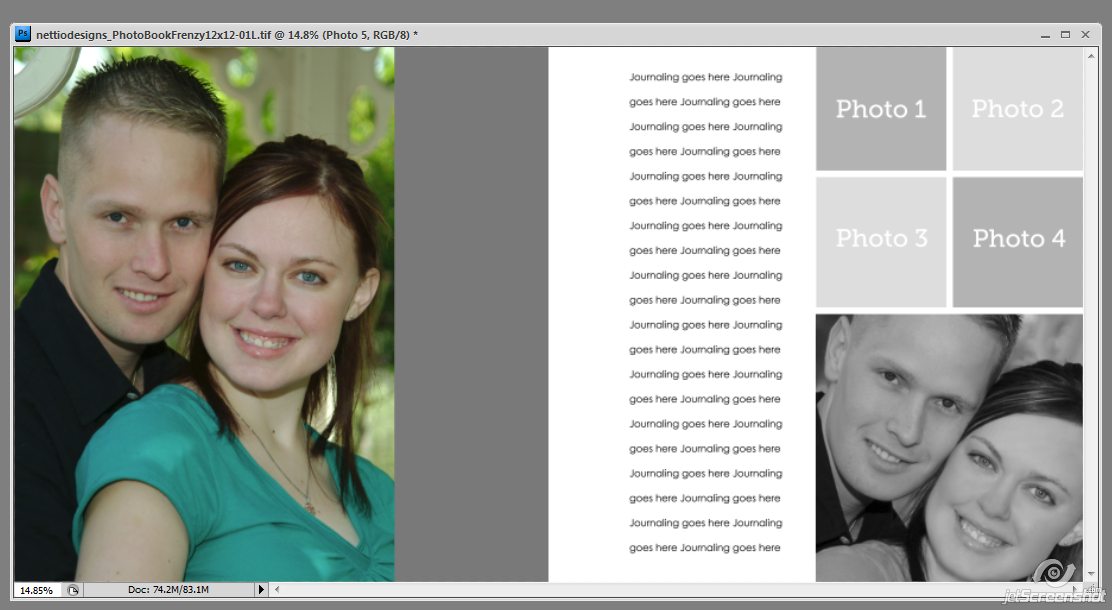
The first thing I did was pick photos. Because I’ve been married 5 years now, and digital cameras back then were nowhere near as nice as they are now, I couldn’t blow my photos up to 12×12 without losing a lot of focus. I also wanted to designate a place on each page for the title, rather than write on my photos.
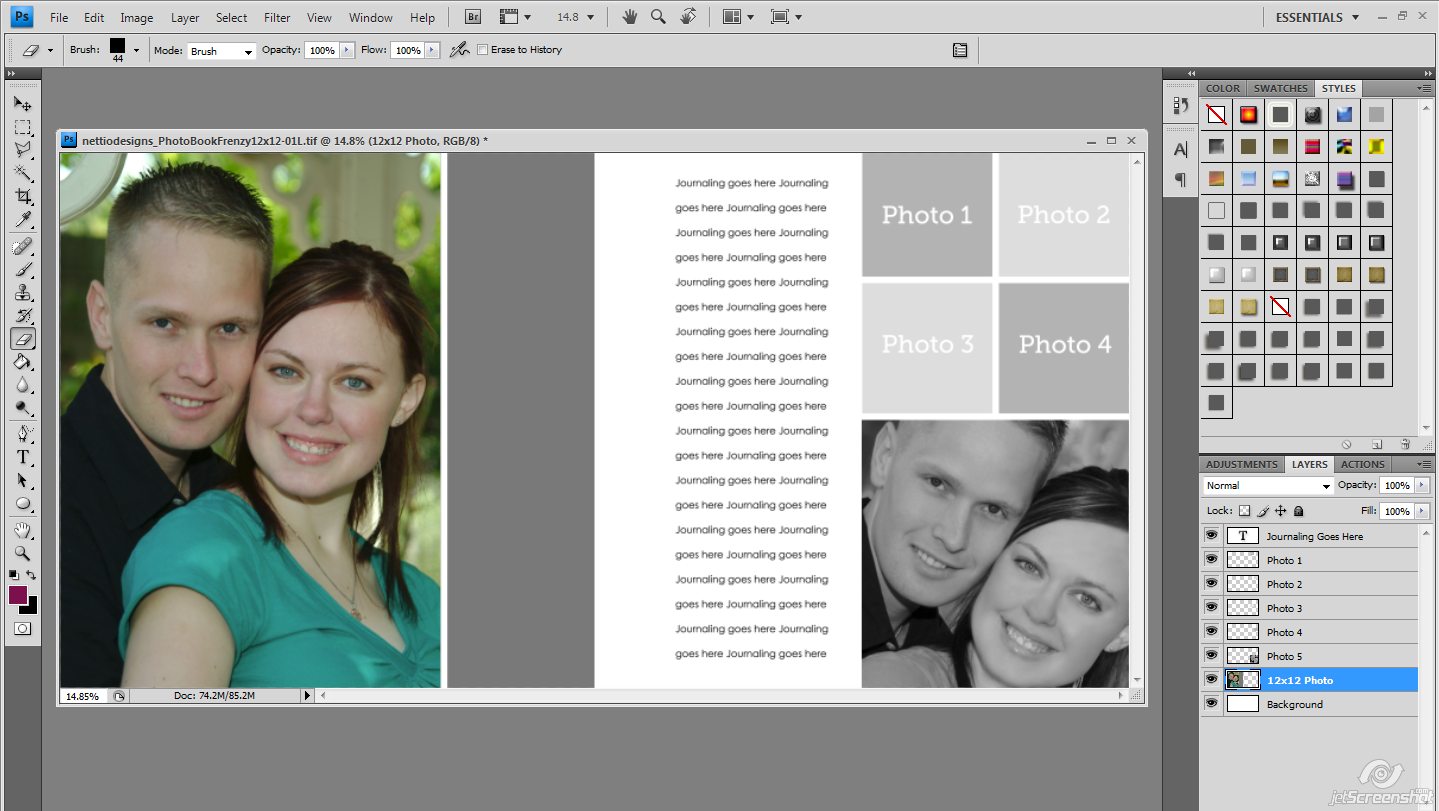
So I decided to just split the large 12×12 photo, depending on how the main photo(s) for the page fell, and use the remainder of the box for the title. After some very scientific testing, I can tell you that the space between photo boxes can be matched with a square eraser set at 44 px. I divided the box as needed, then filled it with a color pulled from my main photo.
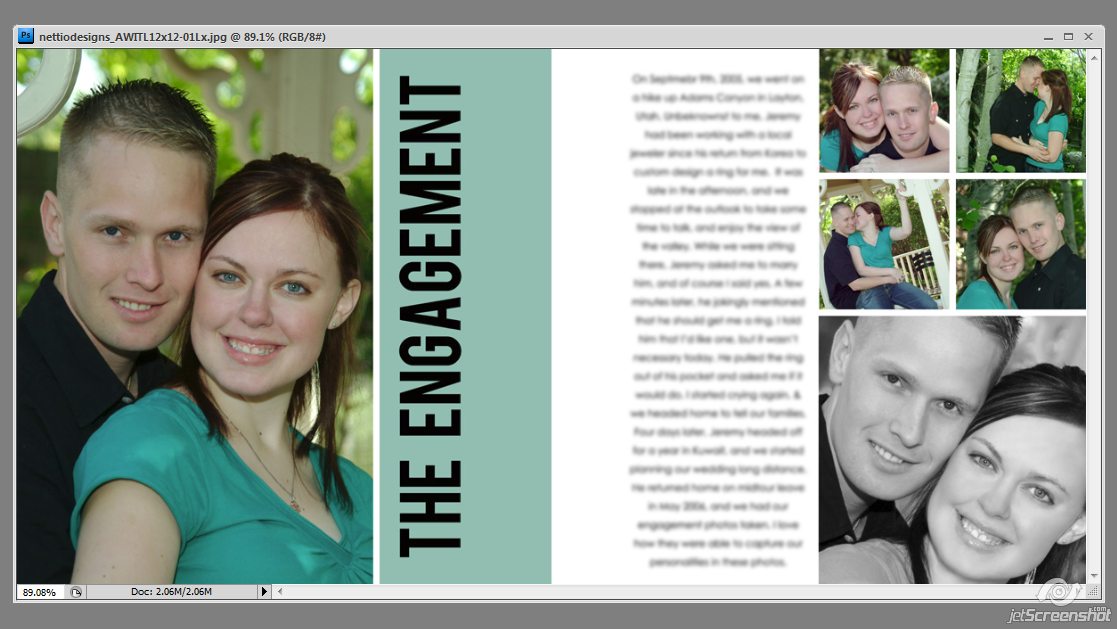
After that, it was simply a matter of titling the layout, and adding my journaling. I made sure to stay away from the center to allow for a binding when I print. I’ll double check all my bleed settings before I print, so make sure to take that into effect when you plan your layouts as well. I edited the templates as needed for each story, and it was so quick to do.

The only part of my album that ended up being completely created by me was the title page and last page in the album. I matched the style of the rest of the album in order to tell our story completely.

In just over 36 hrs, I was able to scrap our entire wedding, and have that story finally told the way I wanted it. It has been nearly two months since I finished scrapping this, and I love the album just as much as the day I did it. I can’t wait to print it later this year, and to be able to see our story in print format on our anniversary this year. This is such a versatile album and I’m planning on using it for many projects to come.

I hope that you can see just how versatile this album is. Even if you don’t do A Week In The Life, it’s so easy to use these templates for any project. Family vacations, December Daily, Pregnancy Albums, Baby’s First Year, Our House, Our Town- any project you can think of, this set of templates can work for it. Don’t be afraid to let your imagination take on these templates. Have fun with them, and enjoy telling your story with this template set.

If you would like to see my entire album, the web size version can be seen on my Flickr, here http://flic.kr/s/aHsjyK64qe

Thanks so much Jen! If you have any questions or comments for Jen, be sure to leave them in the comments section.

Psst…Want to make your own awesome photo frenzy album? Pick up the Photo Book Frenzy templates here at Sweet Shoppe Designs.

How Can Customers Lower Their Remedy Costs

POSTED IN Tips from Team Awesome, Template-y Goodness

A 1st Quarter Update On My 2012 Scrapbooking Resolutions

POSTED ON April 12, 2012 IN Goal Setting, Memory Keeping

Well, it’s official. We’re one quarter of the way done with 2012. Have you made a quarters worth of progress on your 2012 goals? Yeah, that’s what I thought – me either.

To be fair, I didn’t technically set new goals at the start of the year as I’m still working on my Scrap-i-versary and Birthday goals from last April & May. (Which by working on I mean, largely ignoring before realizing it is, uh, in fact now April and I need to get a move on.)

But I did write out a list of “wants” I wanted to focus on with my scrapbooking for this year, so now seems like a good time to reflect on how things have gone so far.

Here was my list:

I WANT…to trade the busy in favor of the meaningful.

Busy? Yes. Meaningful? I’m not sure.

To tell you the truth, I’m at a bit of an odd place in my scrapbooking right now – a place where I’m not totally sure I’m in touch with what exactly “meaningful” means to me anymore.

In a way I’d say it’s the fallout of too much focus on busy scrapbooking the last couple of years. Once the busy-ness is stripped away, I’m not sure I know what I want to fill it with now. But I’m excited to dig into this idea more this year and really focus on finding out what meaningful means to me.

I WANT…to push my creativity to the next level.

Design and creativity are two of my favorite aspects of scrapbooking so for me this one was easy. I’ve definitely  been pushing myself more this year and I’d say I’m happier with my layouts now than I was at the end of last year. Am definitely excited to continuing playing and exploring this year.

I WANT…to stop allowing disorganization to limit my creativity and storytelling.

Of all the items on my wants list, this one is still the biggest issue, and unfortunately, the one I’ve made the least amount of progress on.

The 2nd Annual Great Computer Spring Clean-a-thon was a good start but what I really need is to make some MAJOR progress on my photo organization. I can’t be inspired by my photos if I don’t ever actually look at them in a creative and meaningful way.

Look for lots of action on this one in the next few months.

I WANT…to make time to scrap just for me.

In the last 3 months I did manage to make this happen. Once. For my 30 Days of Lists mini album.

But I know in order for this to happen more, I need to: a) commit to scrapbooking-only (non-designing/blogging) time and b) know what scrapbooking for me means, which again ties into the whole “what is meaningful to me” question from Want #1.

I WANT…to tell the stories that matter most to me.

See my answer for Want #1. Apparently it’s the answer of the day.

Well that’s my first quarter update on my 2012 scrapbooking resolutions. I wouldn’t say I’m off to a running start but I have started and that’s what matters.

I’d love to know – how are your 2012 scrapbooking goals and resolutions going? Made any good progress?

Can diabetes cause erectile dysfunction

POSTED IN Goal Setting, Memory Keeping

Layout Love: 1st Quarter 2012

POSTED ON April 10, 2012 IN Memory Keeping, One Little Word, Stuff I Love

Well, it’s official. We’re one quarter of the way done with 2012. Only nine short months before the end of world, folks, are you ready?

I’ll be back later this week with an update on my 2012 Scrapbooking Resolutions  but in the meantime, I thought it would be fun to share a few of my favorite layouts I’ve done so far this year.

To be fair, it wasn’t really that hard to decide considering I’ve only digital scrapbooked a whopping 15 pages so far this year which I know, I know, most of you do that many layouts in your sleep. But hey, it’s been a busy year so far! And surprisingly that number actually puts me two layouts ahead of where I was at this time last year. That my friends, is progress.

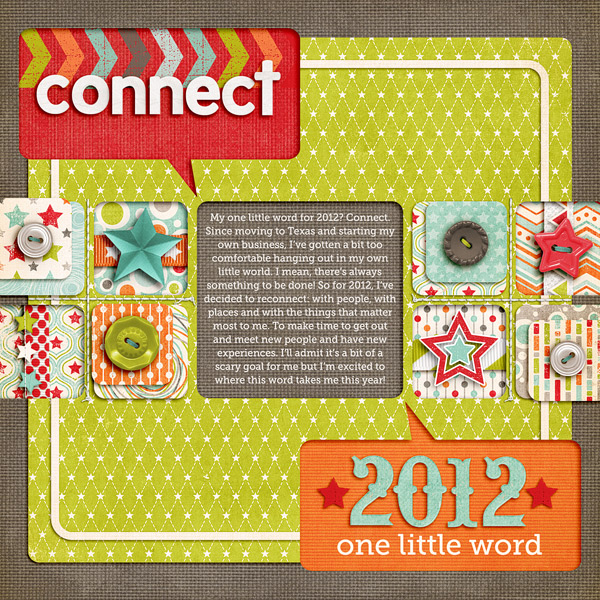
To kick things off I’m starting with the first layout I did this year, my One Little Word layout for 2012.

One Little Word 2012

I never really think to do photo-free layouts but every time I do them, I end up loving them. I especially love how the talk bubble cutouts came out on this one – I just want to reach out and touch them.

One For the Boys by Zoe Pearn; StraightLine Stitched No 2 by Anna Apnes; It’s Goal-tastic Template Pack by Nettio Designs; Font is Museo Slab
 

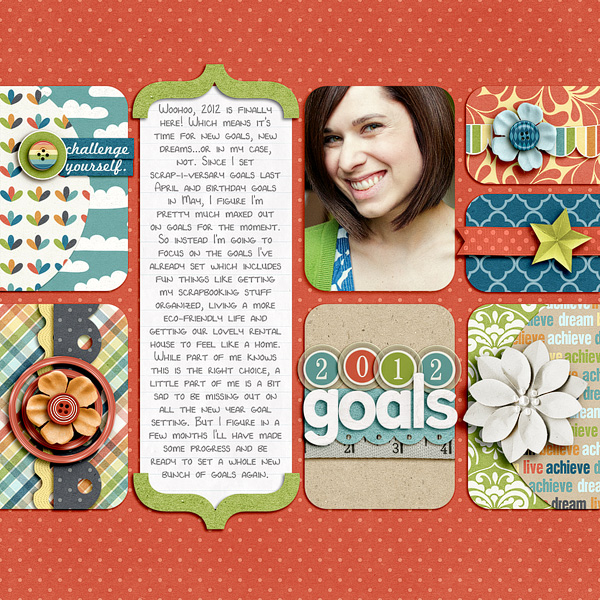
2012 Goals

I’m pretty sure I could do clean, blocked designs like this for the rest of my scrapbooking life and be perfectly happy. I just love the clean lines and all the little homes for the elements. Plus this kit is pretty much a combination of my favorite colors in the whole world which is why my outfit ended up perfectly matching despite being completely unplanned. 
I Can by Shawna Clingerman; Alpha from One for the Boys by Zoe Pearn; It’s Goal-tastic Templates by Nettio Designs; Font is DJB 4 Lynnette by Darcy Baldwin
 

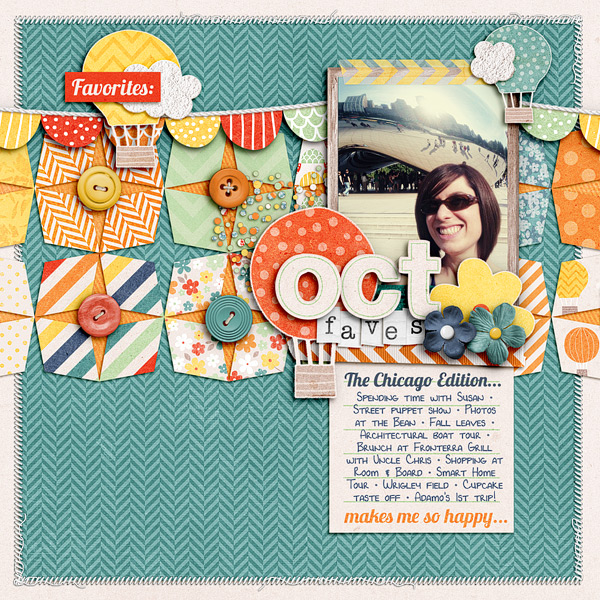
October 2011 Faves

Aww, repeating shapes, how I love thee. The shapes on this page were actually inspired by a design I saw on Pinterest – I love that they’re geometric but still a little wonky. And of course, a Chicago layout (with photos of the Bean, no less) is always a good time because it means I got to hang out with my sis who’s a grad student there.

Happiness Is… by Zoe Pearn; Teeny Type Alpha (retired) by Zoe Pearn; Font is DJB 4 Lynnette by Darcy Baldwin; FAVE-O-RITES Vol. 5 Templates by Nettio Designs
 

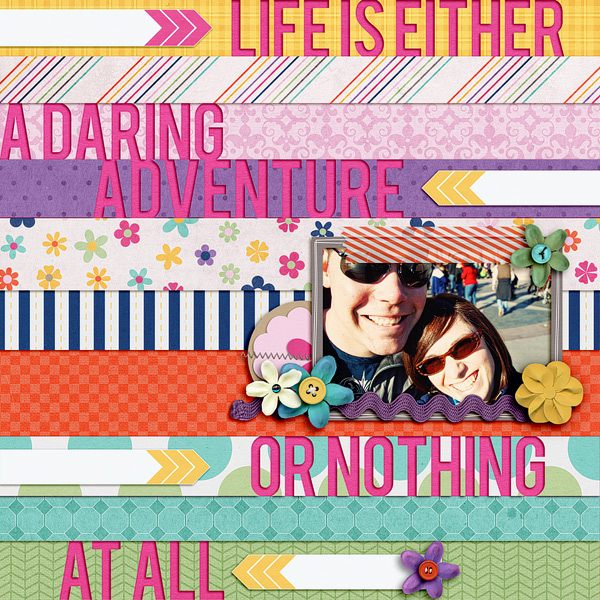
Life is an Adventure

I can’t remember where the inspiration for this layout came from but this was one of those pages that just flowed. Like you come up with the idea and wham, what feels like seconds later, you’ve got an awesome layout you love. That doesn’t happen to me all that often so when it does I’m always amazed. But I love how bold and colorful it is and the cutout title of my life motto is one of my fave trends of the moment.

Life’s An Adventure by Penny Springmann and Becca Bonneville; Font is Bebas
 

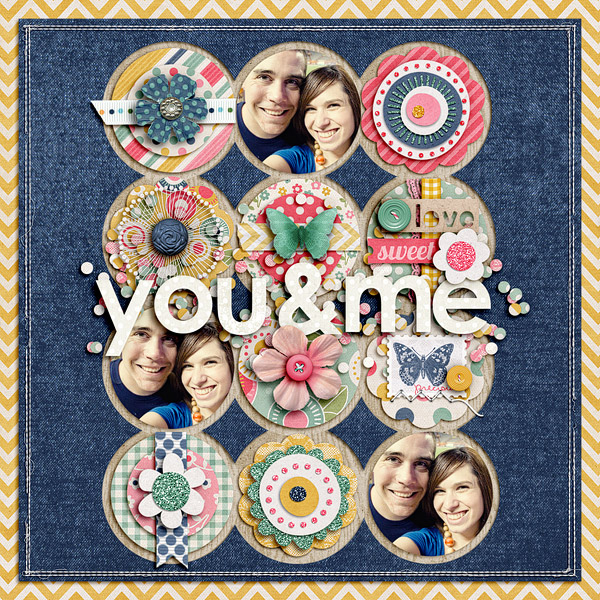
You & Me

This layout is actually a redesign of another older less-loved layout of mine (more on that another day) but I LOVE how it turned out this time. Zoe’s kits always rock my socks and this one was no exception. I would so wallpaper my house in those yellow chevrons if I could. Plus the elements in this kit were to die for – it was so fun to just layer and play.

Credits: Lost & Found by Zoe Pearn; Ginormous Single Stitches Facebook Freebie by Traci Reed; Alpha from Love Birds by Zoe Pearn and Shawna Clingermann; Straight Line Stitching by Anna Apnes; Round N Round Vol. 1 Template Freebie by Nettio Designs
 

Now It’s Your Turn

Well those are some of my favorite layouts from 2012 so far! Now I want to know…

What’s one of your favorite layouts from 2012?

I’d love to see so link me up in the comments and I’ll leave ya some love!

How do I purchase Levitra without going to the doctor

POSTED IN Memory Keeping, One Little Word, Stuff I Love, Digital Scrapbooking, Template-y Goodness

Burning Question: Do You Suffer From Scrapbooker’s Guilt?

POSTED ON March 28, 2012 IN Burning Questions, Memory Keeping

Welcome to another installment of Burning Question, where it’s your turn to share your thoughts!

A couple of days ago on Facebook, I saw an interesting conversation about Project Life on Christine Newman aka Listgirl‘s FB page that went something like this:

Random Male FB Friend: Hobbies shouldn’t be causing you anxiety. The moment it stops being fun… stop. My $0.02.

Christine: Tell that to every scrapbooker. I don’t know any scrapbooker that doesn’t feel some kind of anxiety or guilt about NOT scrapbooking, or even scrapbooking.

Which got me thinking…

Why is it that scrapbooking and guilt seem to go hand in hand?

Nettio guilttrip

Guilt trip notepad from ModCloth

I’d say just about every scrapbooker could tell you that it does, but why is that?

Is it due to the time-focused nature of scrapbooking? Is it somehow a female-based trait (since men don’t seem to have these same reservations)? Or is it simply something that has become accepted as a part of scrapbooking culture?

I admit despite my best intentions to keep my scrapbooking relatively guilt-free, there are definitely times when I feel like I’m not doing enough. Which is kind of crazy because shouldn’t I be playing by my own rules?

So I’m curious to hear from you!

Do you suffer from scrapbooker’s guilt? Where do you think this whole crazy idea of scrapper’s guilt comes from? And what can we do to banish guilt from our scrapbooking once and for all?

How do I purchase Levitra without going to the doctor

POSTED IN Burning Questions, Memory Keeping

From A to Z: How To Organize Your Alphas Without Tearing Out Your Hair

POSTED ON March 22, 2012 IN The Great Computer Spring Clean-a-thon 2012, Tips from Team Awesome


The 2nd Annual Great Computer Spring Clean-a-thon continues on today with the lovely Natalie sharing a peek into her adventure in organizing her alphas. Take it away, Natalie!

Hello, everyone, it’s Natalie(KW) today, talking about alphas. I love to use multiple alphas on a page in my title work. Personally, I find that I just like my pages better when I do.

However, I don’t like the time it takes me to find an alpha that will match or recolor well. I’m not a tagger either, so when someone suggested in the Sweet Shoppe forums to put all of one letter into a folder so you could see all your alphas in one place, I knew I had found my answer.

Fast forward half a year or more, and I’m still sitting in the same spot. I haven’t done a single thing to get this ball rolling. When Nettio mentioned the Spring-clean-a-thon, I knew what my project would be. Organizing my alpha stash!

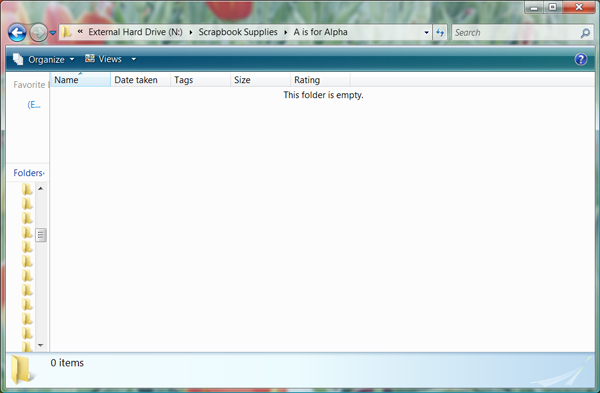
I started by making myself a folder:

Natalie alphas1

My stash is organized by designer: Scrapbook Supplies>Designer>Kit Name.

My plan was to go through each designers folder and each kit/alpha I have from the designer and COPY the alpha into my “A is for Alpha” folder. After I copied the A from each kit, I would rename the copied file Designer Name_Kit Name or Alpha Name if the alpha is a stand alone alpha.

That was the plan…

Immediately, I noticed some issues that would make my process a little harder.

Problem #1: Collaborations

The first thing is that when I save a kit, I save it in the designers folder. No problem.

Except for collabs.

Oh how I love them! Oh, how they made this process a little more complicated. Just because I save a kit in one designer’s folder, doesn’t mean that designer is the one who made the alpha.

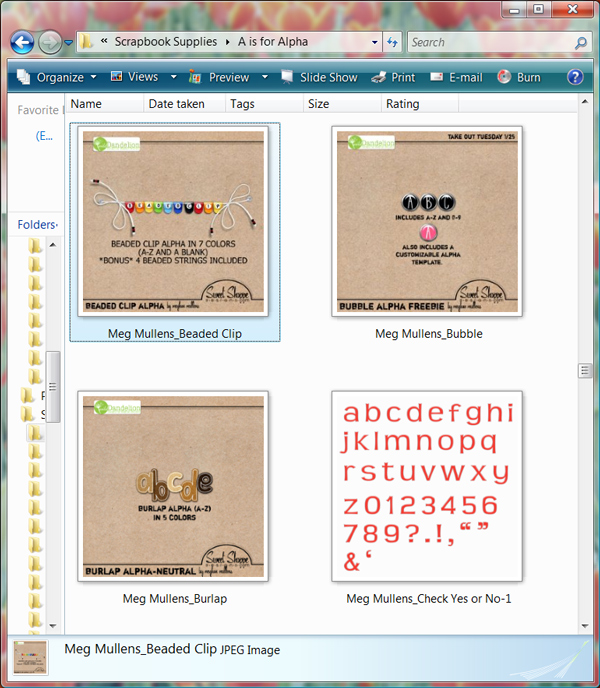
I still saved the copied a file in my “A is for Alpha” folder under the designer’s name and kit such as: Traci Reed_Christmas Countdown. The problem is that this kit is actually in my Meg Mullens’ folder.

As of right now, I didn’t rearrange any kits into the collab partner’s folder because I like to keep collections together. I also like to keep my collabs in the designer’s folder that I CT for. I knew if I decided to start moving folders around that I would make a mess, not be consistent or get confused and I didn’t want to make this process any longer than it was already going to be.

In the end, I hope that when I’m browsing my “A is for Alpha” folding looking for items to use on my page, that if I pick a collab kit’s alpha, that I’ll just remember who the collab partner is. If not, I’ll search it in my Scrap Supplies file or in the store.

Problem #2: Sheet Alphas

The second problem I came across is when the alpha is not broken up into individual png files, but the is on an alpha sheet. I didn’t really want to go to all the work of cutting the A off of the alpha sheet and saving it as a separate png, but my OCD wouldn’t really allow me to do anything different.

So, I actually started cutting the A off of the alpha sheet and saving it as it’s own png file. This added a very significant amount to time to the process and after doing this for approximately 40 alphas, I threw my OCD to the wind and just started saving the whole alpha sheet to my “A is for Alpha” folder. I don’t love that I had to do this, but the amount of time that it saved me was probably at least 6 hours. I have a lot of alpha sheets!

Problem #3: Multi-Colored Alphas

Another thing I learned about half way through was I have several stand alone alphas that come with six alphas packaged together that are the exact same but recolored. I was taking the A from each one of the colors and saving them in my alpha folder.

However, I realized I could just save the alpha preview that shows all the colors on it instead. Here’s a picture, in case you are having a hard time visualizing what I’m talking about:

Natalie alphas2

Problem #4: Kit Specific Alphas

One other thing I decided is that there are some alphas that are so kit specific that I’m never going to use them on a page using any other kit than the kit it came with.

You know the alphas…the ones that are made using a stripe from the kit. It just isn’t realistic that I will ever be able to put it on another kit’s page.

After a while, I stopped copying these alphas to my “A is for Alpha” folder. I feel great about this decision because even on the very off chance that I would use one of these alphas again on a page, realistically, there will be a better choice in my huge alpha folder.

How To Save Time Renaming Alphas

I did learn a little time saver when it comes to renaming multiple alphas the same thing.

If you select all of the alphas from a kit, right-click on one and rename it, it will rename all the selected alphas at once and just number them 1, 2, 3, etc. Great time saver.

HOWEVER, there is a warning with this!! When designers cut apart their alphas, and they have several alphas in a kit, usually they put the separated alphas into different folders. While I was going through each folder, copying the different alphas into my alpha folder, I discovered something bad.

If after I copied one of the alphas to the alpha folder, went back to the kit folder and copied the second alpha to the alpha folder and did this for all the kit alphas, when you go to the alpha folder to rename the files, you have to be careful. It is when you go to rename them that you have to be careful that only the alphas you want to rename are selected.

At one point in my process, I renamed 45 alphas at once instead of the three I needed to. I had to pull out all of the misnamed alphas and figure out what kit and designer they belonged to, and rename them correctly. It was pretty discouraging.

The End Result

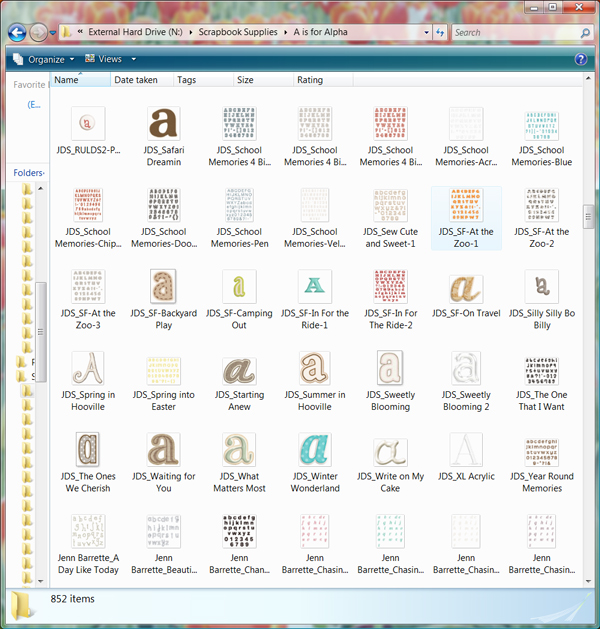
After all is said and done, here’s a little look at what my folder looks like:

Natalie alphas3

A whole 836 alphas copied and renamed later! Now, I’m itching to make a page! Now the key part is to make sure I copy the A or alpha sheet from ever kit I download into the folder so it stays up to date.

I really hope you’ll jump on the band wagon with me and get your alphas organized! Especially now that I figured out some ways to save time, not make mistakes and do it more efficiently! Let me know how your process goes or if you have any questions!

Woohoo, fantastic progress Natalie! I’ve been wanting to do this for forever and you’ve definitely answered some of the questions I had! Have a question for Natalie? Feel free to ask it in the comments.

Can diabetes cause erectile dysfunction

POSTED IN The Great Computer Spring Clean-a-thon 2012, Tips from Team Awesome, Digital Scrapbooking

How To Organize Your DigiScrap Supplies Using Adobe Bridge

POSTED ON March 21, 2012 IN The Great Computer Spring Clean-a-thon 2012, Tips from Team Awesome

Happy Great Computer Spring Clean-a-thon Day 3 everyone! Today’s post is being brought to you by one of my awesome Creative Team members, Inga! She’s going to share a peek into how she organizes her digital scrapbooking supplies using Adobe Bridge, so take it away, Inga!

Hello fellow digi scrappers!

Today I will tell you a  little bit about how I use Adobe Bridge to organise my scrapbooking supplies.

Why I Decided to Use Adobe Bridge

There was that day, you know. That day when I realised, my titles needed to get better and that maybe it would help, if I could find my alphas. And not just use the same three over and over again, because I liked them and knew where they were. Or that questions like “Which summer kit would match those photos?” or “Didn’t I have a perfect mask set for this?” shouldn’t be that hard to answer.

It was the day, I knew I needed to think about organising my supplies.

For a few glorious seconds I thought, I might tag everything. Oh envision the joy of scrapping, if I can just search for a red and pink patterned paper and all options appear! Then reality kicked back in and I reminded myself, that a) I rarely search for these things, but scrap mostly with kits. And that b) I would fail miserably. Tagging all of my existing stuff like that and keeping it up? Hahaha, good joke.

So I started with the most important thing, if you want to get organised. I figured out, what I really wanted and what would really be helpful for me. Working full time and juggling family activities and household work at the weekends, my free time is precious. I definitely didn’t want to spend as much time organising as scrapping. Also, I have a folder system that is ok for saving things, just not great for browsing through them (it’s pretty much shop/designer/kit). With that in mind I came up with a list of what I wanted and what I expected from the program, I intended to use for it:

  1. I scrap with kits mostly, so I just want to be able to browse all my kits in one place easily
  2. I want to find alpha options by seeing all my alphas
  3. Same goes for my templates
  4. I need a certain category for helpful little extras like masks, frame packs, date stamps, tape sets ect.
  5. The program needs to show previews of PSD files
  6. I want to add to my categories by drag and drop, so I can assemble my categories quickly
  7. It needs to be fairly simple
  8. If possible, it should work well with Photoshop
  9. I don’t really want to spend money on it.

 
I looked around a bit, before I realised I already own the right program for me. If you buy Adobe Photoshop, it will usually come with a program called Adobe Bridge. It’s an image browser/organiser that works just great with Photoshop.

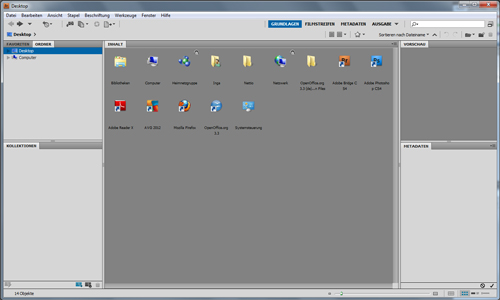
Inga Image1

In fact, you can directly start the program from the PS work space. I found that to be a nice little bonus, that I do not have to swich to my desktop or program list. If you go the Datei/File menu in PS, you will see an option called In Bridge suchen/Search with Bridge. If you click it, Bridge will open.

Btw, I apologize for all the German screen shots. I will always give you button and menu names in the way German/English translation. I’m sure you will be able to figure them out in the English version, even if my translation isn’t exact.

Inga Image2

How Adobe Bridge Works for My Scrapbooking Needs

Right, so how did Bridge work with my scrapbooking needs? From my list I knew, I just needed very few categories: Kits and element or paper packs,  alphas, templates, quickpages and extras. All of this categories I wanted to browse very quick or very detailed, depending on my purposes.

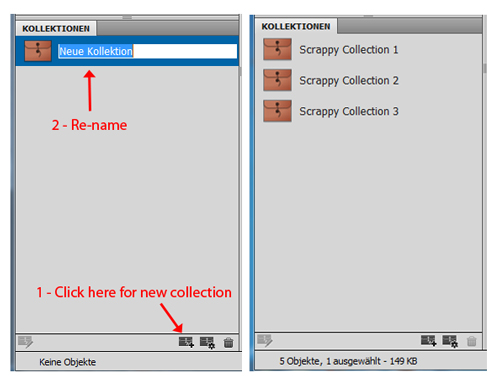
In Bridge the easiest way to achieve that, are the so called Kollektionen/Collections. The collections allow you to quickly assemble certain files into themed collections. Perfect! I quickly set up my desired collections. For this tutorial I have done some sample collections.

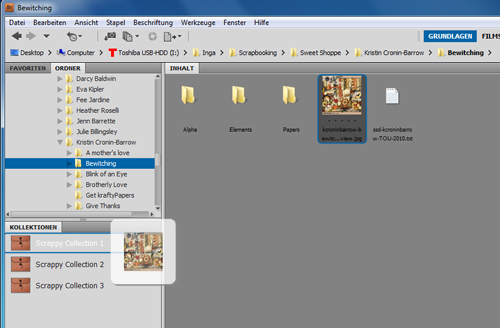
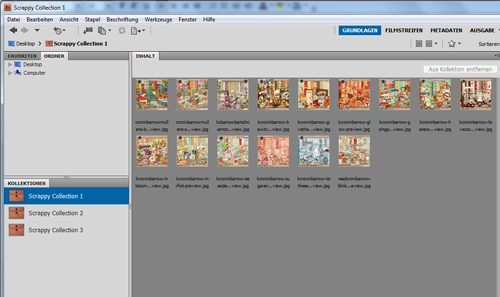
Now it was time to fill them. This is done super easy. You just use the browsing function, click trough your folders and drag and drop the files into the collection. A big help with browsing was the “back” button in the top corner. Here I added previews of all my kits by the talented Kristin Cronin-Barrow to “Scrappy Collection 1”.

Inga Image3

Inga Image4

Back then I systematically browsed through my folders and added previews. The only exception was my alphas, where I added an example letter. I originally thought it would take me weeks to get the initial organising done, but all it took was maybe four evenings with one to two hours each.

The collections allow me to scan my stash very efficiently now. If I’m not sure which kit to use, I will just have a look at all my kits in one place. Same for alphas, templates or quickpages.

You can of course make collections for specific scrapping needs like “Christmas kits” or “Designer XYZ”. However, you cannot make sub-collections to an existing collection. So this approach is only practical, if you want a very basic and simple organising structure. As I wanted to keep my organising a reasonable minimum, it worked great for me.

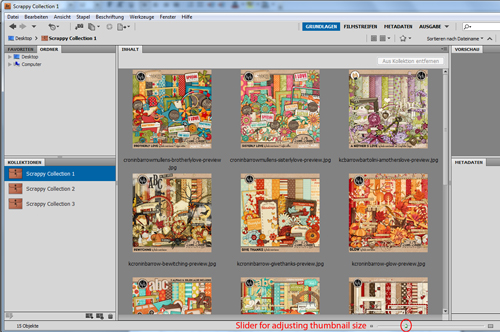
You have many different viewing modes, from full screen previews to lists, thumbnails or the very fun Überprüfungsmodus/Review mode. I mostly use thumbnails for quick browsing, adjusting the size of them to my needs by a simple slider at the bottom.

Inga Image5

Überprüfungsmodus/Review mode is great for relaxed browsing through all the images. I use it a lot, when I want to look at kit options and don’t have anything specific in mind. It will show you each image in a sort of gallery reel.

Inga Image6

As you can see this very simple set-up pretty much covers everything, I had on my wish list. It helped me a great deal with my scrapping, but didn’t cost me a lot of time.

Maintaining My System & Backing Up

Now, how do I keep it up?

When I download supplies, they automatically end up in my download folder. Every few days… or directly if I cannot wait to see and use them… I move them to a folder in my scrap supply folder system called “to be sorted”. I unzip them all (I use a freeware called 7-zip, but I know many prefer WinRar) and then there they sit until I do a short organising session next time. Those sessions include me putting everything nicely sorted into my folder system.

Once I’m done with that, I open Bridge and browse through the folders, adding all the new stuff to the collections. I will usually remember, if I just put something new in a certain shop or designer folder, so that doesn’t take long. Sometimes I do two sessions in one week, sometimes one in a month. It depends on how much I buy, how motivated I am and when the filling up “to be sorted” folder starts to annoy me. I never tried to establish any kind of schedule for it. I’m all about guild-free scrapping and organising.

But how about back-up? To make sure, my collections won’t get lost when I back up and/or re-install my system, I use the Stichwörter/Key words option. They are practically tags written into the meta data of the image files. But as I don’t want anybody to hurt themselves by falling asleep and off their chair (if that hasn’t happened already…), I will just tell you, that there is an option. If you wish to use Bridge for your organising, please feel free to contact me about it!

This is my organising system wrapped up. I hope it might give you some useful ideas for your own way of getting organised. Bridge does have a ton more options, that are great for photos. Things like filters, more complex keywords/tags, rating with a star system, doing batch re-naming, using zoom windows in review mode as well as options, that work with Adobe Camera Raw. I haven’t tried it out much, but I will likely do so in the future, when I start using Bridge for my photos, too. But so far I just love using it as a slightly abused scrap supplies organiser.

Inga

Thanks so much Inga! Awesome tips! I haven’t done much with Adobe Bridge but I’ll definitely be checking it out! Have a question for Inga? Feel free to ask it in the comments section of this post.

Can diabetes cause erectile dysfunction

POSTED IN The Great Computer Spring Clean-a-thon 2012, Tips from Team Awesome, Digital Scrapbooking

  • « Previous Page
  • 1
  • …
  • 5
  • 6
  • 7
  • 8
  • 9
  • …
  • 11
  • Next Page »
HI I'M LYNNETTE. Graphic designer, tech-lovin’ memory keeper and lover of bold colors & patterns, good food and the great outdoors. Here at Nettio Designs, I share a behind the scenes peek at my own creative & life adventures. Read more...

KICKSTART YOUR CREATIVITY


By popular demand, photo book templates are back! Grab all three sets in the shop.
ADVENTURES IN ORGANIZING
GOAL-SETTING
MEMORY KEEPING
PROJECT LOVE
LIFE ADVENTURES
TIPS & TRICKS
BEHIND THE SCENES

POPULAR PROJECTS

TO SEE ALL MY PROJECTS, CLICK HERE

MUST READ POSTS

  • WHY EVERY SCRAPPER SHOULD SCRAP A FAVES PAGE
  • HOW TO CREATE A SCRAP-WORTHY MAP WITH PHOTOSHOP
  • REMEMBERING THE IMPORTANCE OF TELLING YOUR STORY
  • WHAT DOES IT MEAN TO CREATIVELY CAPTURE YOUR LIFE ADVENTURES?
  • BROWSE BY CATEGORY

    BROWSE THE ARCHIVES

    GET IT FOR FREE

    Testing testing

    links goes here

    Copyright © 2026 ·Dynamik Website Builder · Genesis Framework by StudioPress · WordPress · Log in