Nettio Designs

Design + Creativity + Adventure = LOVE

  • HOME
  • JOIN THE 2023 MONTHLY FAVES
  • THE SHOP
  • ABOUT
  • CONTACT

How To Create a Scrap-worthy Map with Photoshop

POSTED ON September 22, 2011 IN Free Stuff

For the Sugarbabe September Portfolio challenge over at Sweet Shoppe Designs, I was tasked with creating a digital scrapbooking layout based on inspiration I had saved/favorited/pinned.

Since I have an love obsession with Pinterest, I turned to my scrapbooking pin board and selected this super awesome layout by one of my absolute favorite paper scrapbookers, Kelly Purkey. She’s a girl after my own paper-lovin’ heart with the way she rocks patterned paper!
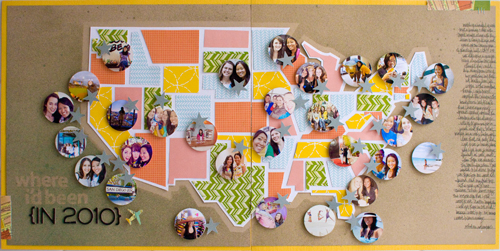
Kellypurkey map

Specifically what inspired me about this layout was the graphic shapes she gave to the states and her bold use of patterned paper against the kraft background (no surprise there, haha).  I also loved all her little circle photos representing all the places she had visited.

Now while I love to travel, I certainly don’t travel as much as she does, so I decided instead to theme my layout around all the places Adam and I have lived so far. Since we have yet to live on the East Coast (it’s on our short list of places to go next since it’s the one US time zone we haven’t lived in yet, haha), I decided to simplify my layout and do a single page featuring the Western half of the United States.

Here’s my finished layout featuring Zoe Pearn’s super adorable Sunshine & Lollipops kit:
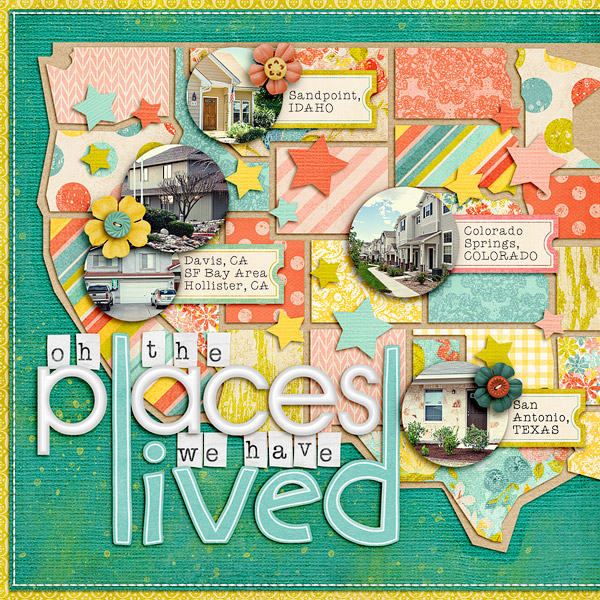
Nettiodesigns placeswevelived

Since I posted this layout over in the Sweet Shoppe gallery earlier this month, I’ve gotten a some questions asking how I put this layout together. Kelly has an awesome tutorial over on her blog showing how she designed her map using paper, but since my layout is 100% digital, I’ve whipped up a little tutorial to show you how you can get this same look using Photoshop.

A little note: this tutorial was written based on Photoshop CS3 so it should work in other versions of Photoshop, but I haven’t tried it using Photoshop Elements. As always, there are a million different ways to do the same thing in Photoshop so I’m just sharing what worked for me.

Ok, on to the tutorial…

Step 1: The first thing you need to is find a map of your desired location. I took a screenshot from Google Maps for my map but any map image will do as long as it has the outlines of the states/countries on it.

Once you have your map, you need to drag it onto your scrapbooking canvas and resize it to the size you want your final map to be. I made my map fill the majority of the page. Don’t worry if your map image ends up pixelated, it won’t show in your final layout.
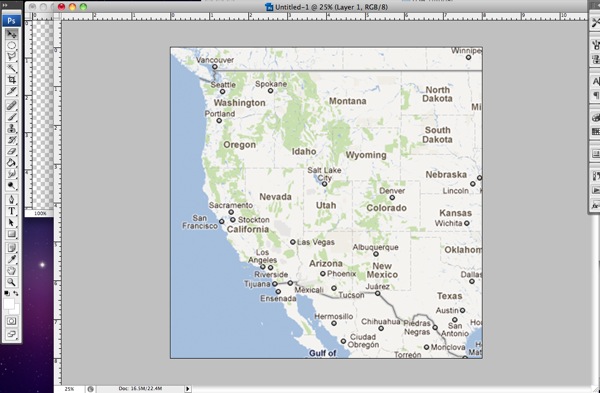
01 googlemap

Step 2: Next, you want to grab your Polygonal Lasso Tool. You’ll find it under the normal Lasso tool –  it’s the lasso with the weird angles on it.
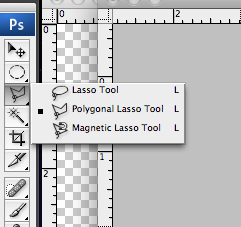
02 polygonallasso

Step 3: Now we’re going to use the Polygonal Lasso Tool to draw a shape around each state using the lines on the map as a guide. Don’t worry about all the little detailed areas, we’re going for the angular look of the shapes in Kelly’s inspiration layout so we want to keep the shape simple.

If you’ve never used the Polygonal Lasso Tool before, it’s really easy. You just point and click where you want to add a corner on your shape. If you want to draw an exact straight line between two points, hold down the Shift key and it will give you either a 90 or 45 degree angled line. To close off your shape, bring your arrow back to your starting point and move it around until you see a small circle. Then click to close the shape.

If you’ve done it correctly, you’ll end up with a shape surrounded by marching ants like this:
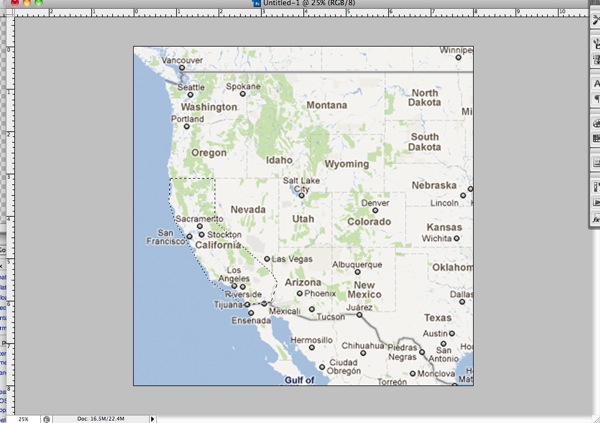
03 marchingants

Step 4: Our next step is to fill the shape we’ve created. The easiest way to do this is to hold down the Shift+F5 key which will bring up the Fill dialog box that looks like this:
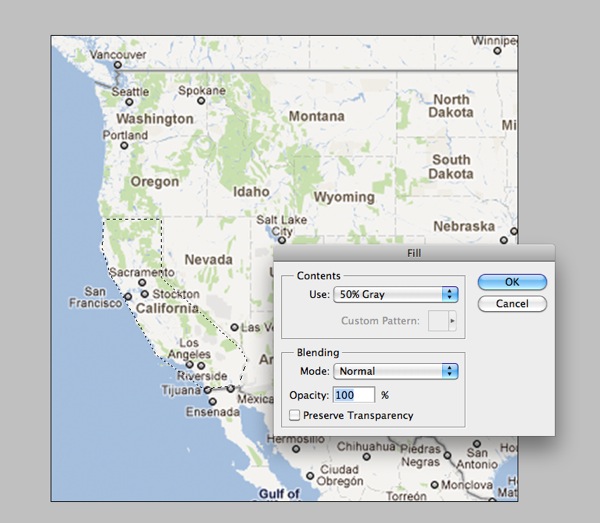
04 filllayer

Step 5: Select a color for your shape (I went with grey tones but it doesn’t really matter) and then click ok. Your shape will now look like this:
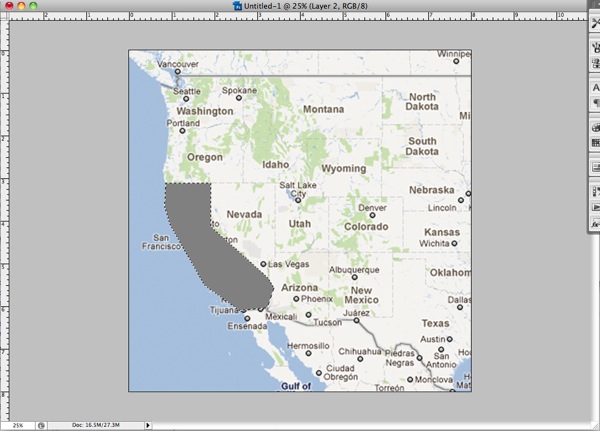
05 filledlayer

Step 6: Now you want to deselect your shape (Cmd+D on a Mac, Ctrl+D on a PC) and repeat steps 1-5 for ALL of the states or countries on your map. For my original layout this meant the entire Western half of the US but for the sake of this tutorial, I’m going to just do four states.

Here’s what your map should look like once you’ve completed all your shapes. Notice at this point there is no space between the shapes – they all fit together nice and tight. That’s what you want.
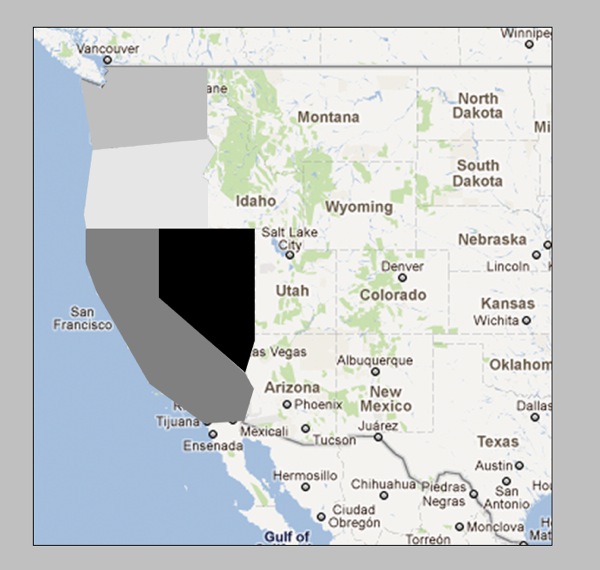
06 filledstates

Step 7: Our next step is going to be to add space between the shapes so our mat layer will show through. (On my layout the mat is kraft, on Kelly’s layout the mat is white.) To do this we’re going to contract each shape down by the same exact amount.

First you need to get the marching ants around your shape again. A really easy way to do this is to hold down the Cmd/Ctrl key and click on the layer thumbnail for that layer in the Layer palette. Once you have your shape selected, go up to your toolbar at the top of your screen and choose Select>Modify>Contract:
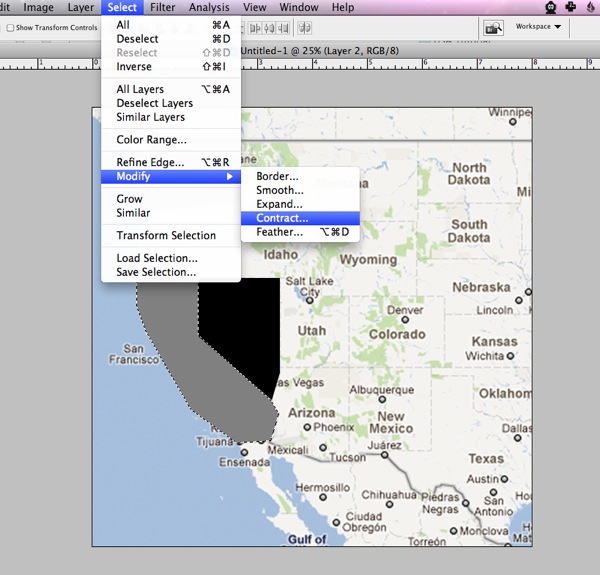
07 modify contract

Step 8: We’re going to contract each shape by 10 pixels so enter a 10 into the dialog box and click ok.
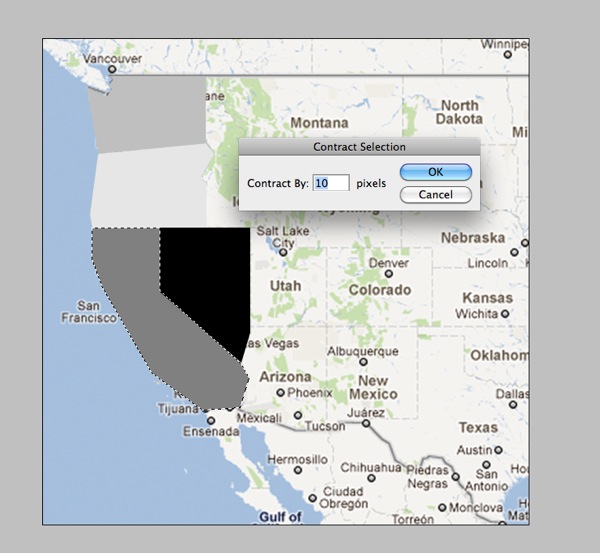
08 contract

Your marching ants should now be slightly smaller than your original shape:
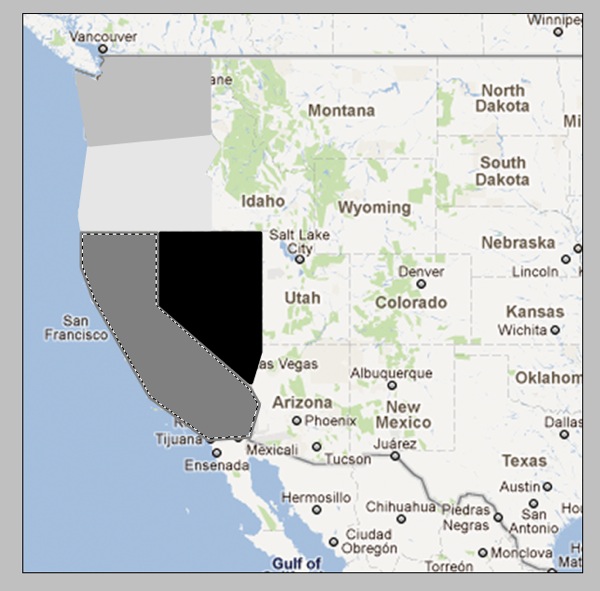
09 contract

Step 10: Now we’re going to inverse the selection by hitting Cmd+Shift+I (Ctrl+Shift+I on a PC) and then hit the Delete key to remove the extra part of the shape like so:
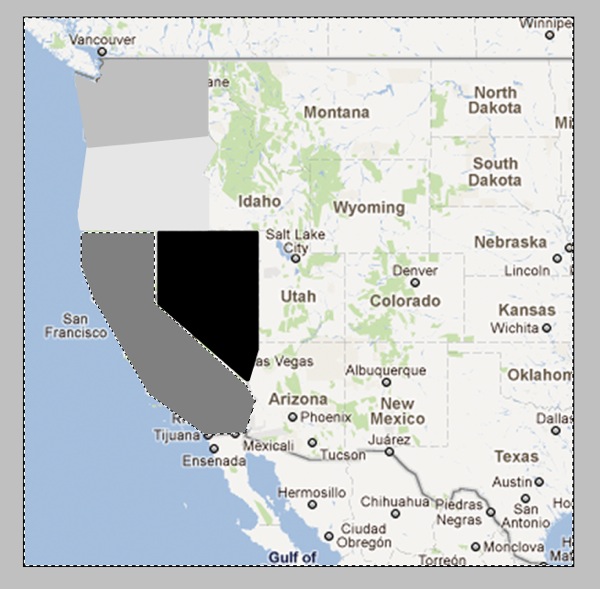
11 inverse

Now your shape should have an empty border around it that separates it from the surrounding shapes:
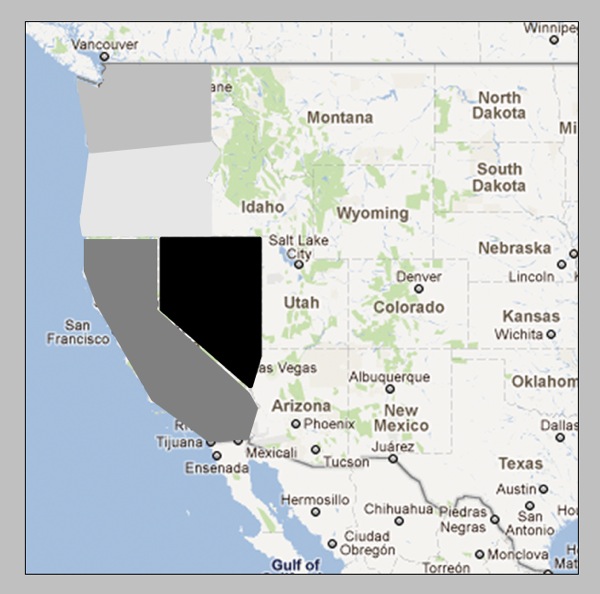
10 contract

Step 11: Now you’re going to repeat Steps 7-10 for all the shapes on your map. As you contract each shape, you may find that you need to adjust the placement of some of the states. Since you have already drawn all your states, you don’t need to worry about the states lining up perfectly with the map layer anymore. How they relate to each other is more important. I just eyeballed the spacing based on what I thought looked best.

Your finished product should look like this:
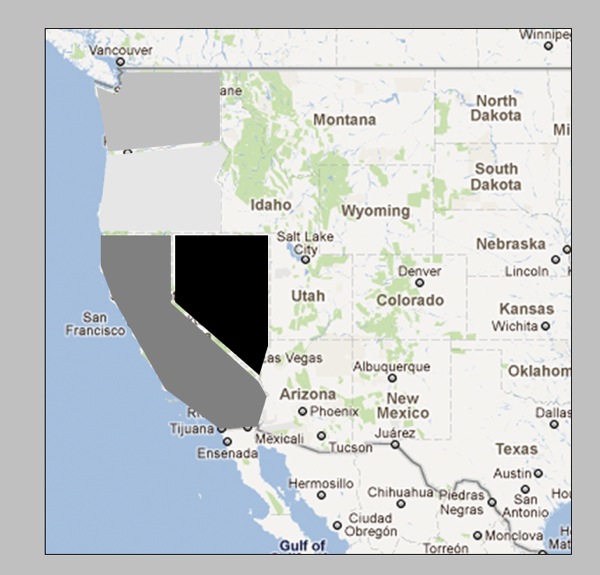
12 contractedshapes

Which if we hide the map layer will look like this:
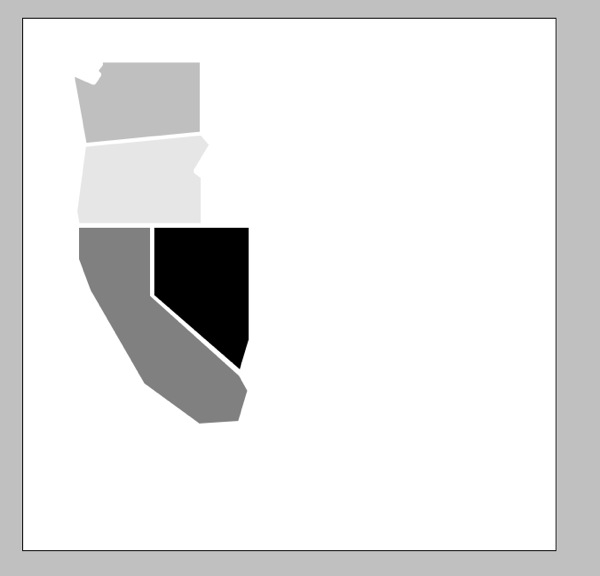
13 withoutmap

See, we have nice even borders between each of the shapes.

Now if you’re wondering why I essentially told you to create each shape twice rather than just contracting the original selection, the answer is because I found it much easier to draw out the shapes when they were all touching. I did try a few different methods for adding space between the shapes but ultimately the Contract & Duplicate gave me the best results. Yes it’s a little tedious this way but once you get into a rhythm it goes pretty quickly.

Step 12: Once you’ve got all your shapes drawn and contracted, the final step is use the Polygonal Lasso Tool to draw a shape for your mat layer. The steps are the same as how you originally created each state, just on a bigger scale.

I didn’t worry about the mat being the exact same size all the way around so I just eyeballed the border to get this:

14 border

And that’s pretty much it! You’ve created your very own map template! Now all you have to do is add in all your photos and papers and elements and you’re good to go.

The great thing is this method will work for any map so if you’re not in the US or are wanting to do something more country or even world focused, you can totally follow the steps in this tutorial to create a layout based on any map your heart desires.

Now I’m sure there are some of you who are reading the tutorial and thinking, “well that’s great, Lynnette, but it sounds like a LOT of work and I would much rather be pinning on Pinterest.”

Which is why I also created a little something extra for all my fellow US-map lovers. And because I was feeling extra generous, I even included all of the Eastern half of the US for you as well.

And best of all?

It’s FREE!

Yes, that’s right I am offering up this awesome template for FREE for personal (non-commercial) use. If you’ve never purchased one of my templates before, here’s your chance to see what NettioDesigns is all about.

All I ask in return is you spread your love for the template on Twitter/Facebook/forums/blogs and let everyone know they can download it right here at NettioDesigns. Oh and if you post your layout in any gallery, please credit NettioDesigns and where allowed, include a link back to this post.

The template is a single 12×24 inch file so if you use the entire template you’ll end up with a two-page layout similar to Kelly’s layout or you can use your crop tool to crop the template to create a single page layout like I did.
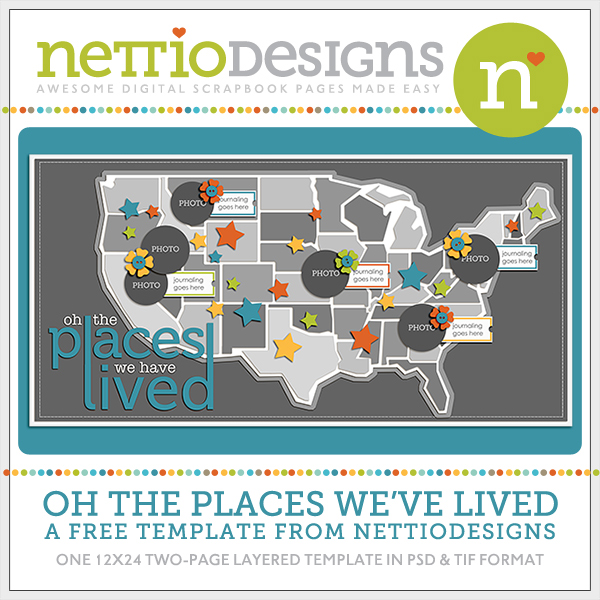
Nettiodesigns OhthePlaces preview

Download here

I can’t wait to see what you create so if you use the template or tutorial, be sure to link me up to your layout!

Happy scrapping!
Benefits Of Using Canadian Pharmacy

POSTED IN Free Stuff, Digital Scrapbooking, Template-y Goodness, Tips & Tricks

A Week In the Life 2011: It’s Blurb-tastic

POSTED ON September 20, 2011 IN A Week In the Life, A Week In the Life 2011

Friday was an awesome day around here. Sure it may have officially been my little sister’s birthday (happy belated birthday, Alyssa!) but the FedEx man arrived with a special gift just for me…

…my A Week In the Life Blurb photobook!
And as promised, I am back with photos of my new prized possession as well as some final thoughts about my entire A Week In the Life 2011 adventure.

Having never ordered a Blurb photo book before (or any photo book for that matter), I’ll admit I was a bit nervous about what to expect. So nervous in fact, that I let the box sit unopened until Adam came home and made me open it, haha.

But I have to say, all my worry was for nothing, as the photo book is gorgeous. In fact, I think my response when I opened it was something like, “wow, it’s like I’ve been published!” Somehow I didn’t expect it to be so, uh, officially book-like, haha.

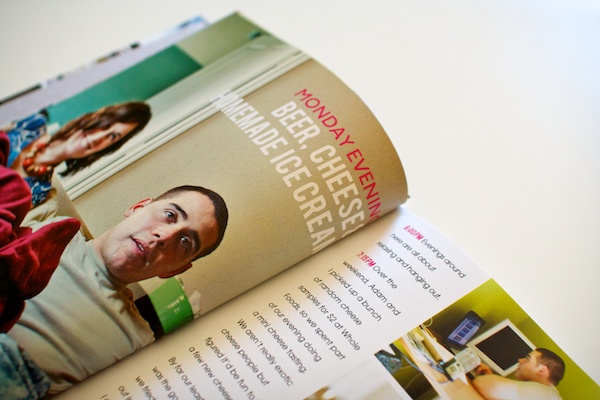
Here’s my AWITL photo book in all it’s hardcover glory. I went with the Image Wrap option which meant my custom designed cover is printed directly on the book and wraps around to the back.

I love love love it.

Nettio blurb01

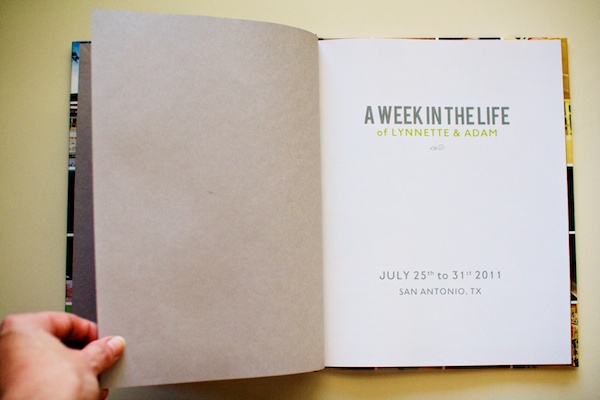
The first and last pages of the album are a really nice grey linen-ish paper.

Nettio blurb03

I’m chose the Premium photo paper for my book and I’m so glad I did. You can definitely tell it’s photo paper – the pages are nice and sturdy without being too thick.

Nettio blurb05

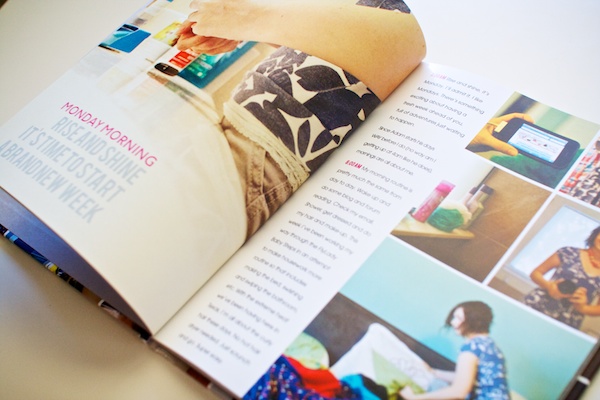
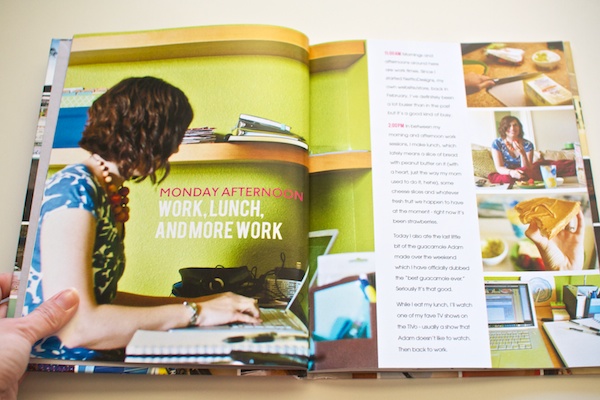
A look at one of the 10×10 photo spreads. These were the pages I was most concerned about because I wasn’t sure how the image would look being spread across the gutter.

Nettio blurb06

I had seen directions online about how to duplicate parts of the image to fill the gutter, but there was a lot of variables involved (like page and book thickness), and no guarantee it would work, so I decided to instead make sure whatever part of the image that was in the gutter was non-essential. If I were to do this again, I might play around with it more but I think it worked out mostly fine.

If you look closely at the bottom of the photo you can see where the computer screen doesn’t quite match up but in person it’s a lot less noticeable than in this photo.

I did have one page where the text ended up in the gutter. I’m not sure what happened but I suspect the title moved when I was doing all my journaling and I somehow didn’t realize it. Lesson learned, definitely double-check that all your text is in that lovely grey safe area box!

Nettio blurb07

If you open the page a little farther, you can see the end of the title, it’s just a wee bit closer than it should have been. Oops. Poor cutoff title.

Nettio blurb08

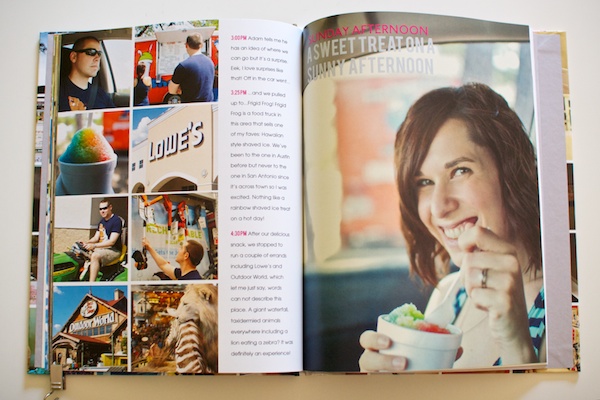
On a happier note, this might be one of my favorite spreads. I really love that photo blocking on the left page.

Nettio blurb09

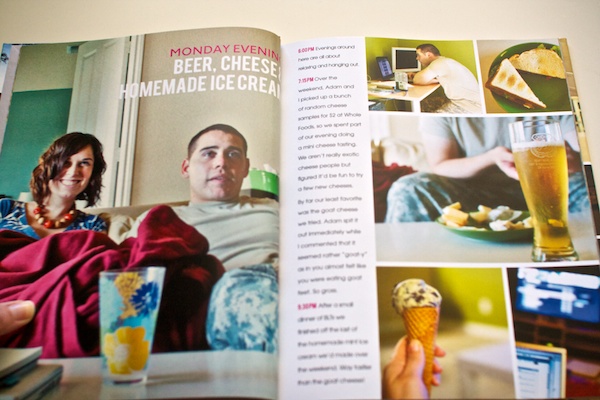
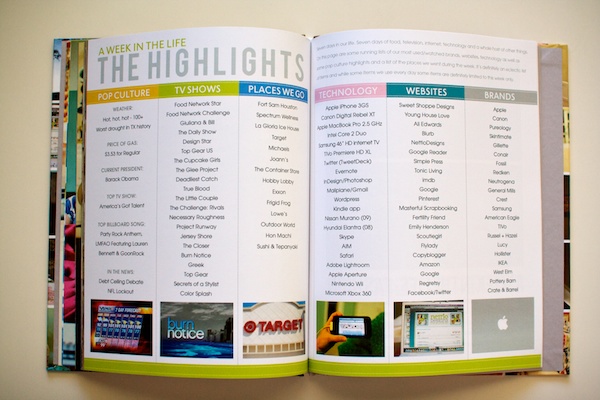
A look at two of the highlights pages:

Nettio blurb010

Nettio blurb011

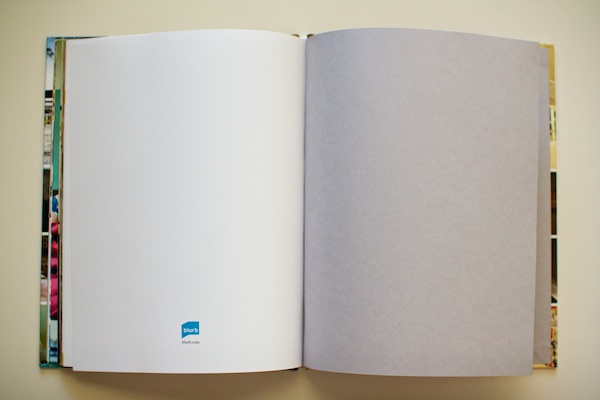
On the last page of the album Blurb included their cute little logo.

Nettio blurb013

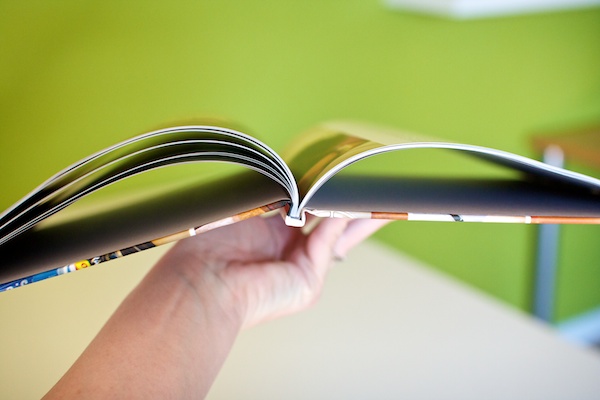
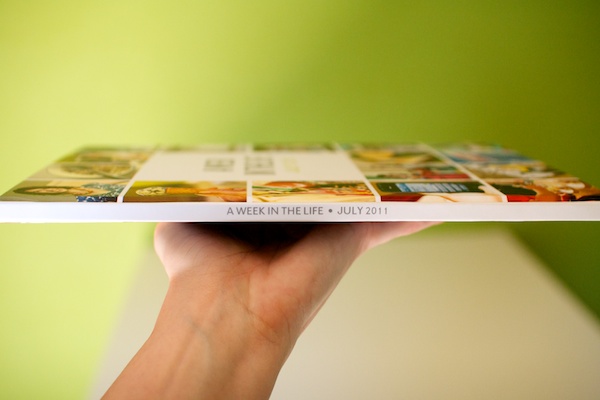
A little peek at the spine:

Nettio blurb015

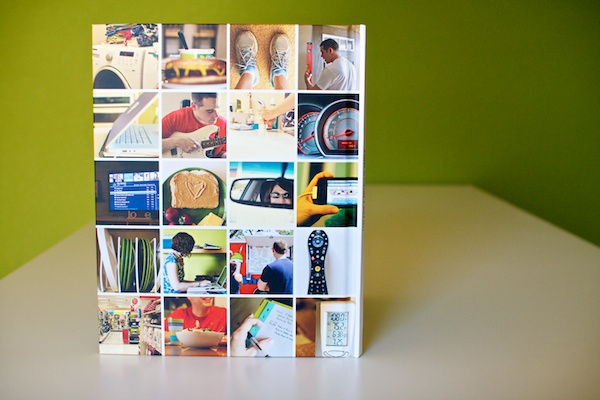
The back cover…

Nettio blurb016

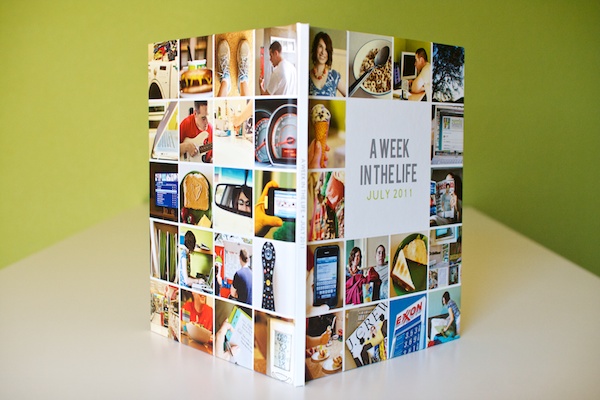
And the entire cover all together:

Nettio blurb017

On the outside spine of the book, I included the title of the album and the date. I can totally imagine a bunch of these books lined up on a shelf.

Nettio blurb014

A Week In the Life 2011: My Final Thoughts

Blurb Photo Book: Blurb definitely gets my stamp of approval. I’d heard a lot of horror stories from other scrapbookers who have printed photo books from other companies, so I wasn’t really sure what to expect, but the quality of the Blurb book is fantastic and the color and trim on the pages is totally true to what I saw on my screen. Plus using their PDF to Book InDesign Plug-in made the whole bookmaking and uploading process SO easy.

Photobooks in general: I definitely see more photo books in my future. I absolutely LOVED the clean photos + words format. I can see so many uses for it. I don’t see myself switching to printing my digital layouts in photobooks any time soon, but this project has definitely inspired me to tackle some of the photobook projects I’ve been wanting to do for awhile, like our wedding book and our year in Korea album.

A Week In the Life: I heart this project. A lot. Sure it’s a TON of work but the end result is so so worth it. Adam said it best – it’s like a time capsule of our life. And that is so so very cool.

Favorite AWITL moment: Adam’s dramatic reading of day one of my A Week In the Life album. If you think it’s weird to have other people read your journaling, try having them read it to you out loud in a dramatic fashion. Totally awkward and hi-larious.

More than anything, what I’m taking from this A Week In the Life 2011 adventure is this: I can do this. I can set out to do one of these major scrapbooking projects and actually finish it. Maybe not as quickly as someone else but as long as I stay focused, I’ll get there in my own time.

As someone who tends to leave behind a wake of unfinished projects, that is one awesome lesson to have learned.

What about you? Have you learned any awesome life lessons lately? Have you seen the photo book light like I have? Have any photo book adventures of your own to share? Feel free to let me know in the comments!

Psst…want more A Week In the Life goodness? See all my AWITL 2011 posts here.

Interested in creating your own album? Check out the Photobook Frenzy Photoshop templates in the shop.

Fraudulent Drugs Are A Huge Global Problem

POSTED IN A Week In the Life, A Week In the Life 2011, Digital Scrapbooking

A Week In the Life 2011: Bringing It All Together with Aperture & InDesign

POSTED ON September 15, 2011 IN A Week In the Life, A Week In the Life 2011

On Tuesday, I shared my completed A Week In the Life album (you can see it in all it’s photo-y goodness here). Now I don’t know about you, but I am always curious nosy when it comes to how people tackle large projects like this, so today I wanted to offer a little behind-the-scenes peek at how I put my Week in the Life photo book together.

Let me preface this by saying that this was my first attempt at creating a photo book so by no means do I consider myself a photo book expert. I’m just sharing what worked for me.

The tools I used:

  • Apple Aperture
  • Adobe InDesign


Yes, you read that right. No Photoshop.

Ok, well, that’s not entirely true. I did use Photoshop to run my most favorite Totally Rad “Lux” action on my big 8×10 and 10×10 focal photos.

If you’re wondering why I chose for this project to go with my first Adobe love, InDesign, over my old scrapbooking standby, Photoshop, there were a couple of reasons:

1) InDesign is designed for multi-page projects

In order create this photo book in Photoshop, I would have had to create a separate document for each page of my album. But because InDesign is built for multi-page print publications (think magazines, newspapers, books, etc), I was able to create one single file that included all 46 pages of my album.

Definitely WAY easier than keeping track of 46 individual Photoshop documents.

2) The Blurb InDesign PDF to Book plug-in

One of the reasons I chose to go with a Blurb is they offer a free downloadable PDF to Book plug-in for InDesign that creates a custom book template for you based on the size and number of pages you want in your photo book. And it includes all of the trim and bleed information right in the template so you don’t have to worry about parts of your text or images getting cut off. Plus you can save the entire file as a PDF and upload it directly to print. So so easy.

Now if you’re wondering if this means you need InDesign to your long digital goodies wish-list, the answer is NO. You can absolutely use Photoshop to create a photo book – lots and lots of scrapbookers do.

BUT if you’re one of those scrapbookers who happens to own the Adobe Creative Suite and has always wondered what you could use InDesign for scrapbookingwise, this post will give you a little overview about the awesomeness that is InDesign.

But before we get to InDesign, I want to talk a little bit about the first big hurdle for this project – the photos.

Part 1: Organizing Photos in Aperture

Over the course of A Week in the Life, I took over 750 photos. That’s a lot of photos! So I needed an easy way to select and edit my most favorite photos.

Enter Apple Aperture.

In another post I’ll explain more about why I’ve made the switch from Adobe Lightroom to Apple Aperture but for now, all you really need to know is that if I didn’t already love Aperture before, this project totally made me head over heels in LOVE with it.

After uploading all my photos from my Canon Digital Rebel XT, my Nikon P&S and my iPhone, I started organizing them in Aperture.

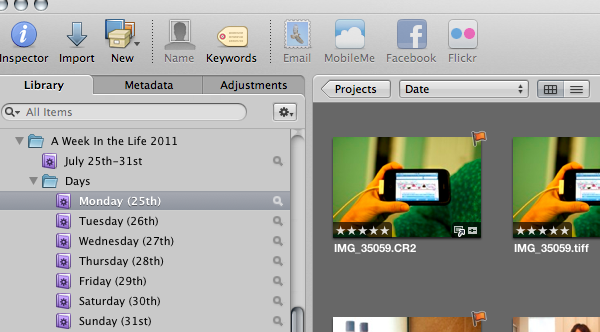
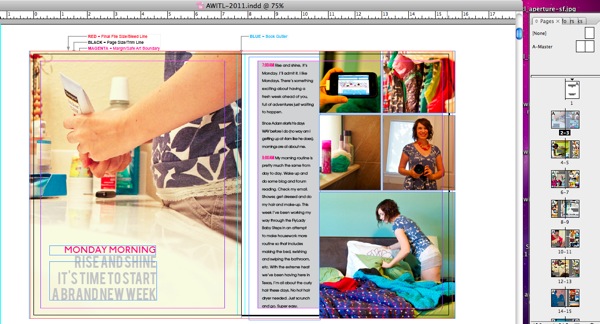
First I made a project folder for A Week In Life 2011 and added Smart Folders that pulled photos taken during the week divided by days:

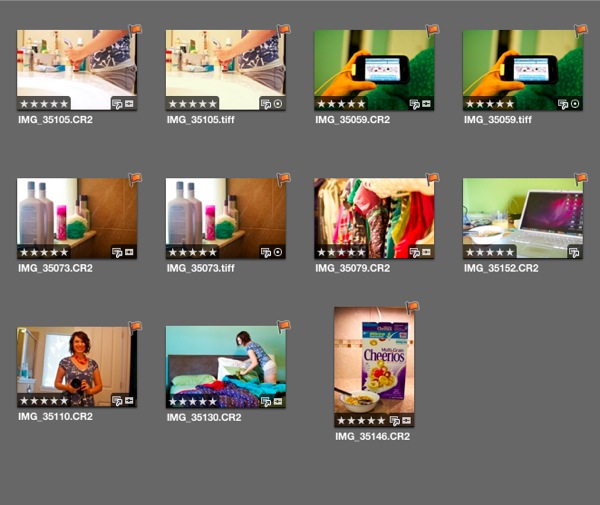
Awitl aperture sf

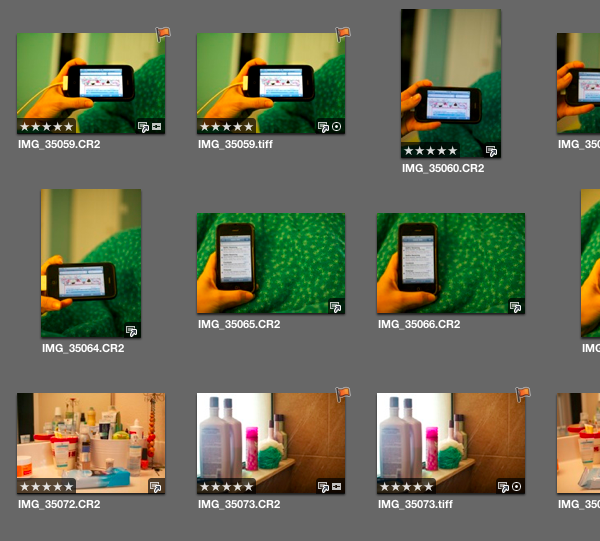
Next I added a five star rating to all the best photos, being careful to limit the number of too similar photos:

Awitl aperture 5star

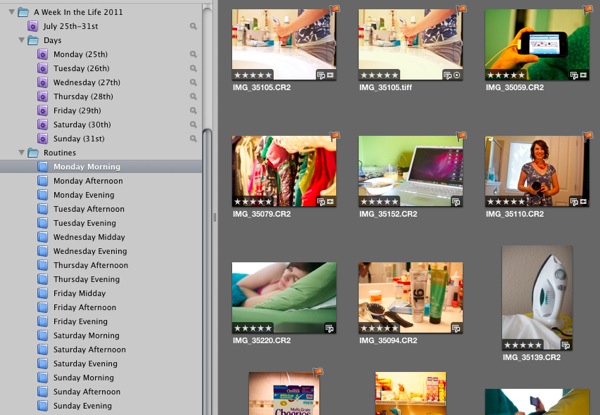
Once I had my five-star photos selected, I created Albums for each section of my days (I called them Routines) and dragged the five-star photos into their correct albums:

Awitl aperture routine

My final step was to Flag the small number of photos I wanted to include on my page. These are the only photos I edited and exported as JPGs to use in InDesign. As I mentioned, I used Aperture to edit the majority of my photos. The only photos that went to Photoshop were the large focal photos so I could add a little extra punch to them with my Totally Rad Actions.

My flagged photos (which you can also see in the earlier photos but only because I’ve already done the project, haha):

Awitl aperture flags

I then repeated this process for each daily routine album.

If you’re wondering why I chose to mix the flags with the star ratings, the answer is personal preference. I liked that it was easy to see the flagged photos rather than trying to see the difference between say 3-star and 5-star photos. You could definitely do it a different way, this was just what worked best for me.

Writing it all out it seems like a lot of steps but it actually went rather quickly. For all you fellow math nerds, here’s a little numbers breakdown of the photos at each step:

  • 162: Number of photos taken on Monday
  • 99: Number of photos that received a 5-star rating
  • 40: Number of 5-star photos which were moved to the Monday Morning routine album
  • 8: Number of flagged photos for Monday Morning which were then edited and exported as JPGs
  • 6: Number of photos that made it onto the final version of the Monday Morning routine page in the photo book

Because I already had my design planned out, I had to be pretty ruthless since I knew at most I could only have 7 photos per spread.

Once I had all my photos edited and exported, it was time for some InDesign fun.

Part 2: Putting It All Together In InDesign

I don’t want to get too detailed about how I use InDesign, only because, if I did we’d be here all day and this post is already getting long, haha.

But I did want to show you the highlights of how I put my album together with InDesign. So if you’re curious in knowing more about InDesign or would like some more specific details/questions answered, please feel free to ask in the comments section.

My first step in InDesign was to download and install the Blurb PDF to Book plug-in. You can find the plug-in here.

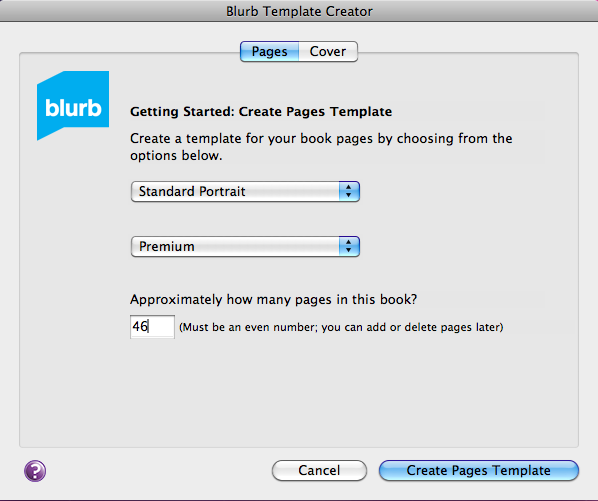
Once you have the plug-in installed, you’ll be able to go to the File menu and find the Blurb Template Creator, which will bring up a dialog box that looks like this:

Awitl blurb dialog

There you’ll choose the size of your book and the type of paper you want (some paper is thicker than others) as well as the number of pages.

If you’re not sure how many pages you’ll need, don’t worry about it. You can always add and remove pages as you work. The only time the correct page count matters is when creating your cover so make sure you don’t create your cover until you’re completely done with your book (or at least 100% sure on your finished book page count).

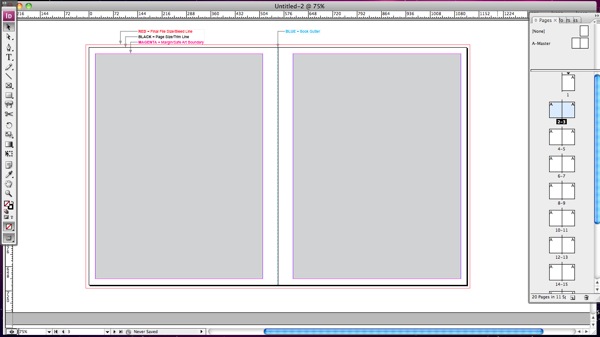
Once you’ve inputted all your book information, Blurb will create a book template that looks like this, a two page side-by-side spread just like you would have in the finished book:

Awitl blurb temp

That main area is where you’ll design your pages and on the right side of the window, you have a list of all your spreads.

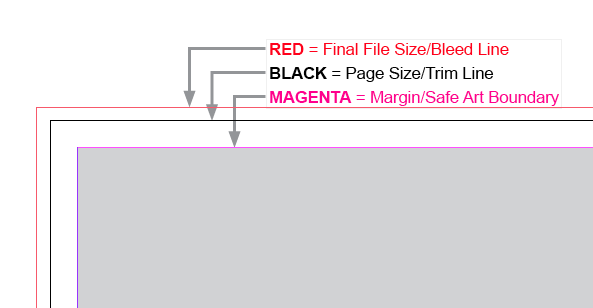
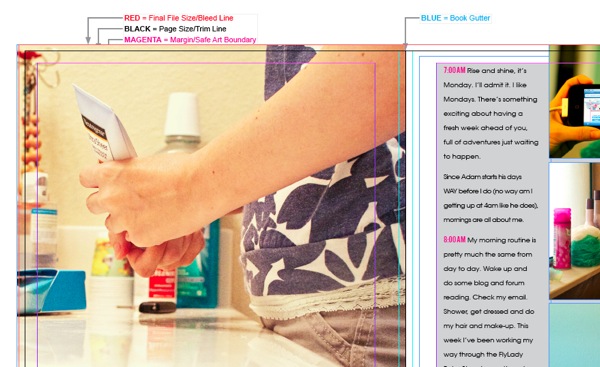
At the top of the page Blurb has included some bleed/trim information for the book. Here’s a closer look:

Awitl blurb info

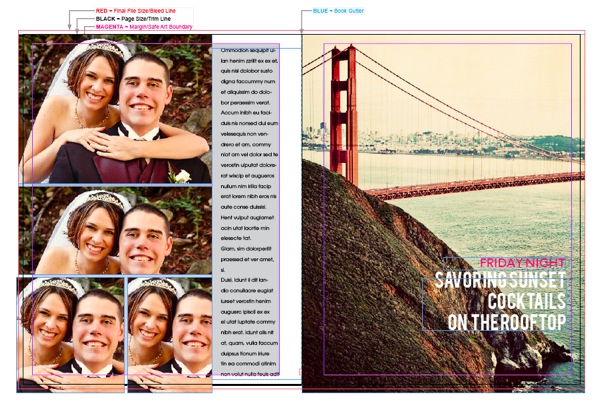
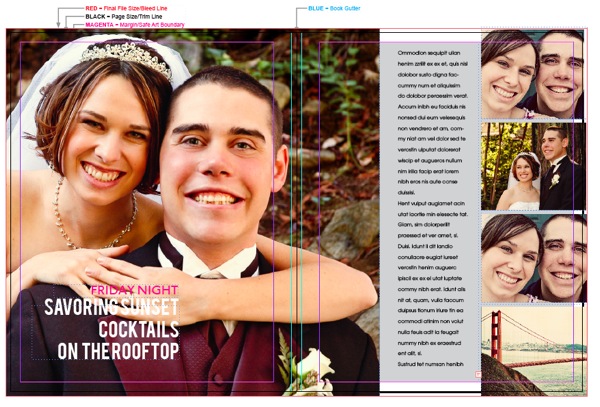
Included are are three sets of lines: one for the safe area, one for the trim area and one for the bleed area.

The black trim line represents the physical edge of the book pages while the big grey box is considered the “safe zone.” Anything important (like text) should go in that grey box as due to trimming inconsistences, Blurb can’t guarantee that anything outside that box will for sure not be trimmed. It shouldn’t be, but it’s a better-to-be-safe kind of thing.

The red outer line represents the bleed line. If you want your photos to bleed to the edge, aka no white edges, you want to make sure your photos go all the way to that red line.

In terms of designing the album, InDesign is a lot more simple than Photoshop in that you don’t deal with layers in the same way. It’s pretty much all boxes: either image boxes or text boxes.

The weekend prior to AWITL, I created two master pages (essentially templates) to serve as foundation pages for my design. This is what my two master pages looked like:

8×10 Focal Photo:

Awitl indesign master2

10×10 Photo:

Awitl indesign master3

haha, yes, those are our wedding photos. They happened to be in an easily to grab folder along with these other prints.

To create my pages, I simply replaced the photos (in InDesign it is MUCH easier than Photoshop to replace and resize photos into pre-done image boxes) and adjusted the image and text boxes based on the number of photos I had chosen for that portion of my day.

Let’s just say there was a lot of repetition in this project – duplicating spreads, replacing photos and adding new text.

As far as planning, other than the basic design of the master pages, I didn’t have all my pages planned out in advance. I just moved the boxes around as I saw fit based on how the overall album was coming together. One of the great advantages of InDesign is you can see ALL of the spreads at once and really get a birds-eye view of how it’s all flowing together.

Now here’s the part in the cooking show where I miraculously pull my pre-made finished dish out of the oven. *cue the wavy time-is-passing lines*

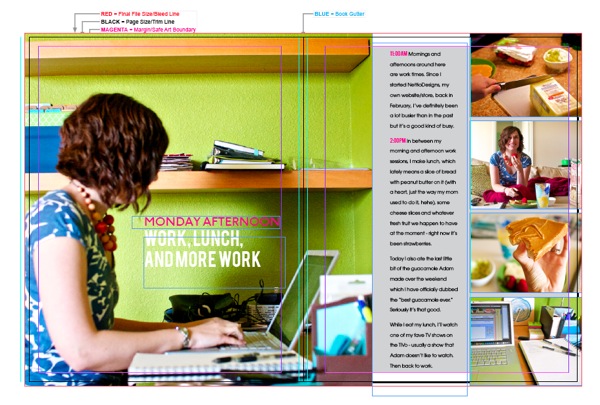
Here’s what my finished album looked like in InDesign after all the moving and replacing:

Awitl indesign lines2

One of the finished square photo pages (if you look closely you can see how the big photo bleeds across the book spine and onto the second page):

Awitl indesign square

A little bit more of a close up:

Awitl indesign full2

So you can see all my text is within that gray safe zone and all my photos bleed to the very edge where the red line is because I didn’t want any white space at the edge.

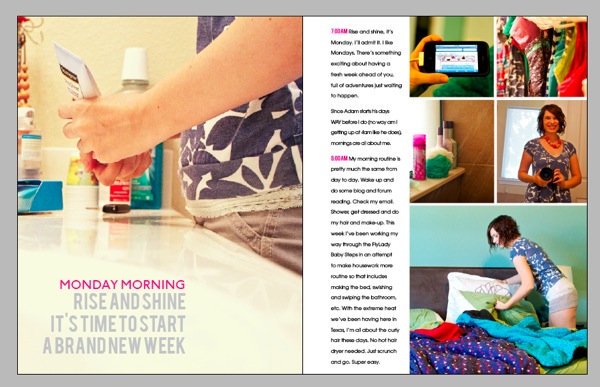
Here’s what the finished page will actually look like in the photo book (minus the grey background):

Awitl indesign nolines

It’s kind of hard to tell from the screenshot, but everything outside of the black trim line has been basically “trimmed” to give a more realistic look of what the book will actually look like in print.

I haven’t received my printed Blurb book yet (possibly Friday!) so I’m not sure how much will really be trimmed off but I’m hoping it’ll be similar to this look. I’ll definitely be sure to share whatever happens!

Anyway, I hope you enjoyed this little long peek into the inner workings of InDesign, Aperture and my A Week In the Life album. If you have any questions or anything, feel free to leave me a note in the comments section!

Psst…want more A Week In the Life 2011 goodness? See all my AWITL posts here.

Can I take Levitra if I am taking other remedies at the same time

POSTED IN A Week In the Life, A Week In the Life 2011, Digital Scrapbooking, Tips & Tricks

A Week In the Life 2011: The Completed Album

POSTED ON September 13, 2011 IN A Week In the Life, A Week In the Life 2011

Woohoo, I have done it!

My A Week In the Life 2011 album is officially finished. In about 3 short days I should have a nice and shiny Blurb photobook arriving on my doorstep.

And I could not be more excited.

Not only because I’m absolutely in LOVE with the finished album but because for the first.time.ever I have completed an Ali Edward’s inspired project.

Yes, that’s right, unlike my previous attempts at December Daily or A Week In the Life, this time around, my AWITL album will not be sitting on a shelf or in a folder on my harddrive mocking me in all it’s unfinished project glory.

Cue scrapbooking happy dance.

I’ll be the first to admit this project was a TON of work. Between spending a week documenting everything, selecting and editing photos, putting it all together, journaling, well…there’s a reason I just put the finishing touches on this album in September.

But I am head over heels in love with the end result, so all that hard work? Totally worth it.

As I mentioned in my pre-AWITL planning post back in July, my plan for my AWITL album was to create an 8×10 Portrait photobook through Blurb which I would design using Adobe InDesign. And I have to say, that plan worked out swimmingly.

When I started brainstorming for my album, I knew I wanted the album design to be focused on words + photos with a clean, magazine style design and I also knew that I wanted to break my day into chunks (like morning, afternoon, evening) in order to simplify the documentation process.

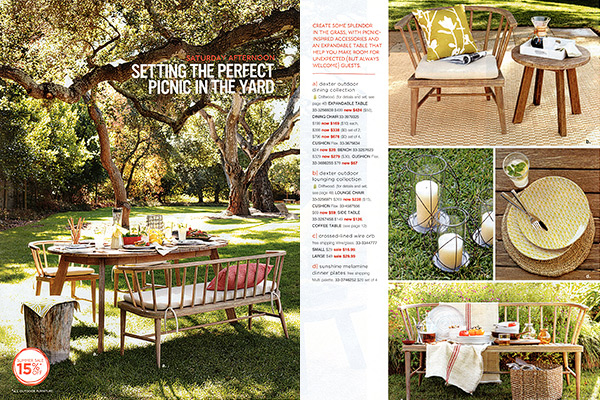
But I wasn’t entirely sure about the exact design for my album until I came across this spread from an old West Elm catalog I had saved…

Magazineinspiration

Not only did I love the clean design, the large focal photo and the fantastic use of type, but the theme for this particular edition of the catalog was exactly what I was looking to do with my AWITL album. The catalog was broken up into daily sections, with each spread themed around the idea of what furniture and accesories would be perfect for that part of the day (above is Saturday afternoon).

So I chose to use that page as inspiration and run with it for my album.

So with that in mind, I bring you my 2011 A Week in the Album…

2011 Completed A Week In the Life Album

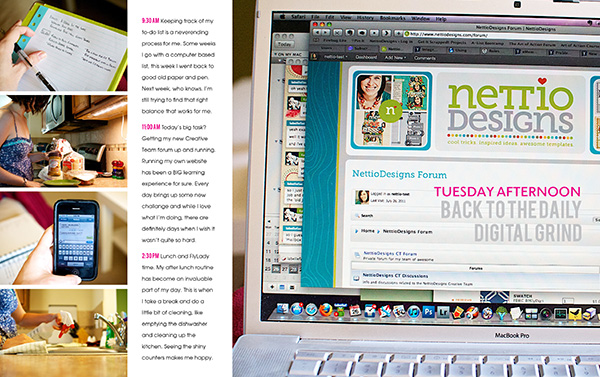
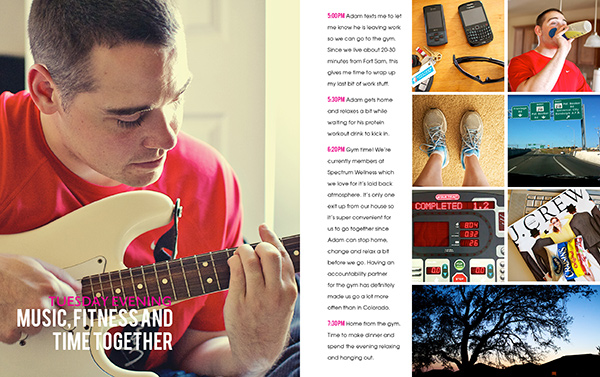
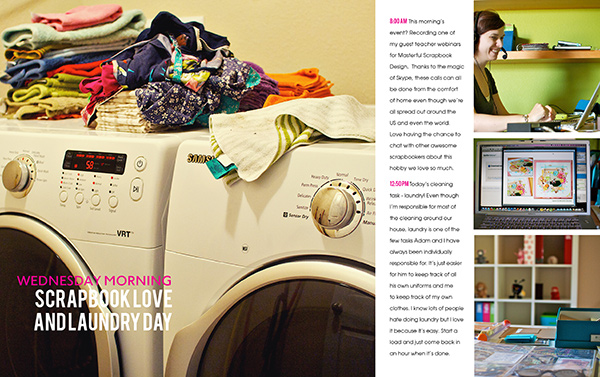
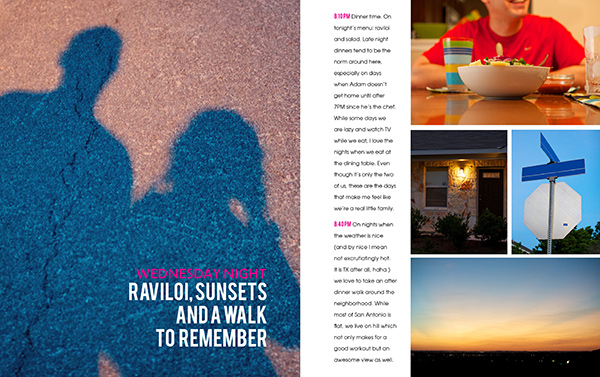
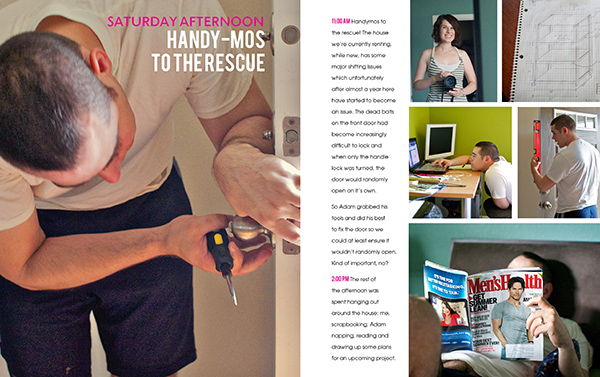
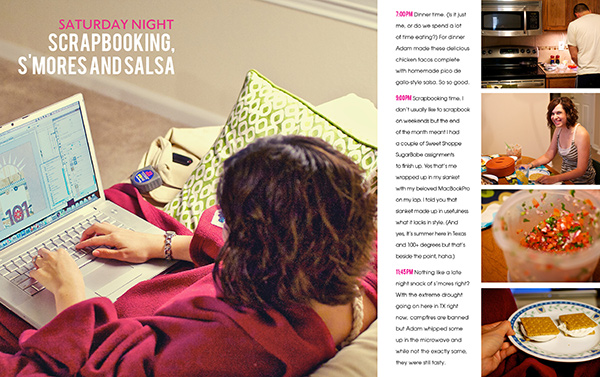
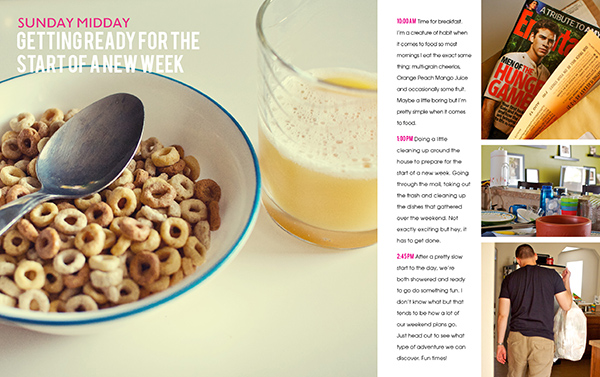
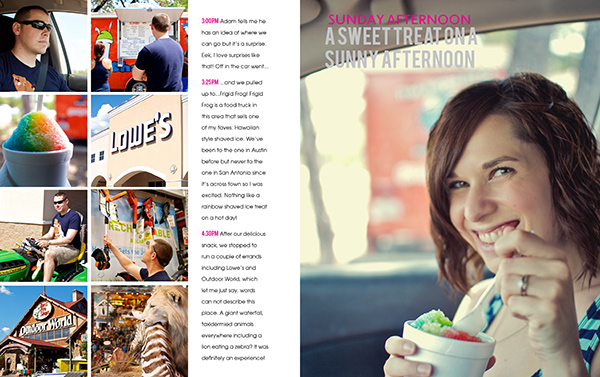
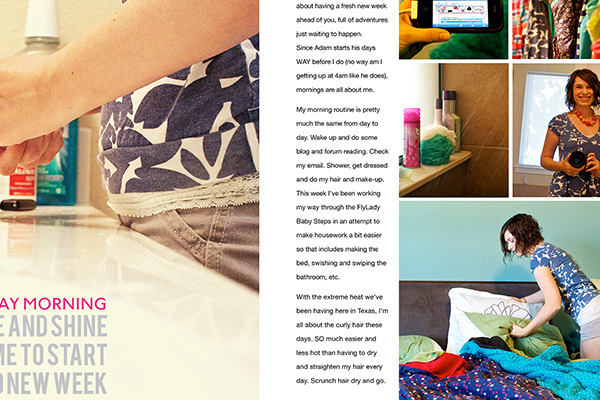
Below you’ll find the pages from my AWITL 2011 album. Each image represents a two-page spread made up of two side-by-side 8×10 pages. Since the spreads are rather small in order to fit on the blog, I’ve linked each image to a larger image on my Flickr account, in case you want to see the details or journaling.

Just a bit of warning, Adam and I are pretty awesome so try not to be too jealous of our super exciting life (and slankets), haha.

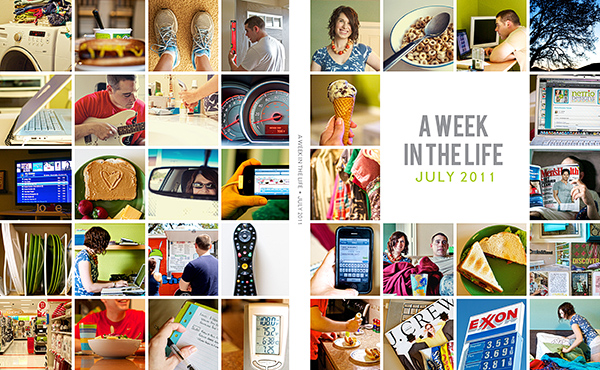
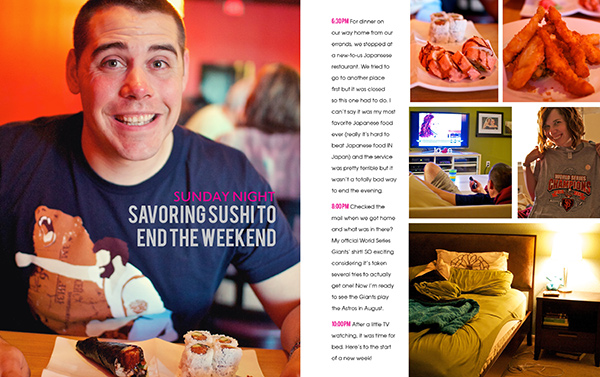
Cover + Intro

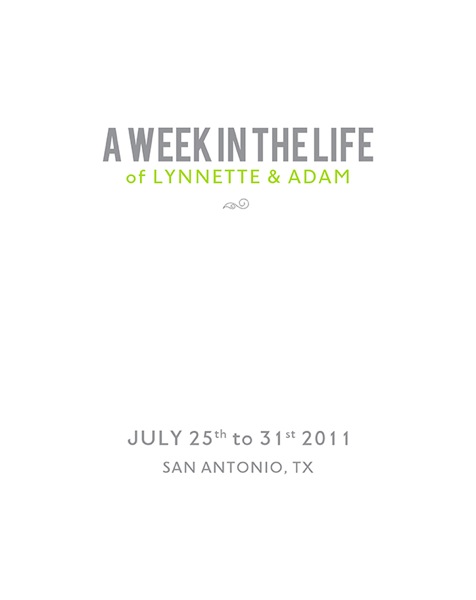
AWITL cover 600

This may just be my favorite page from the album. Clean blocked design, yes please. It really brought everything all together.

AWITL 20111 600

I included our location, along with the date, on the intro page because, as a military family, where we live changes so often that it’s kind of necessary to document it, especially considering had I done this project in July 2010, we would have still been living in Colorado.

Monday

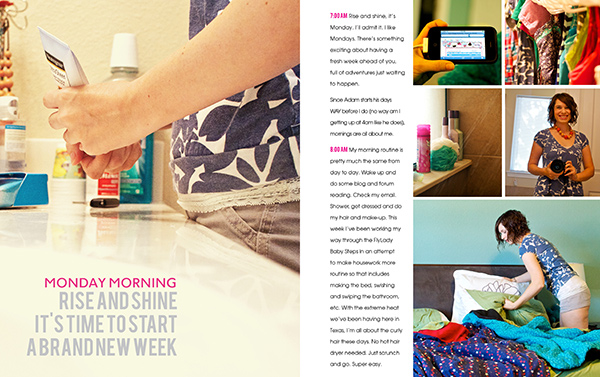
AWITL 20112 600

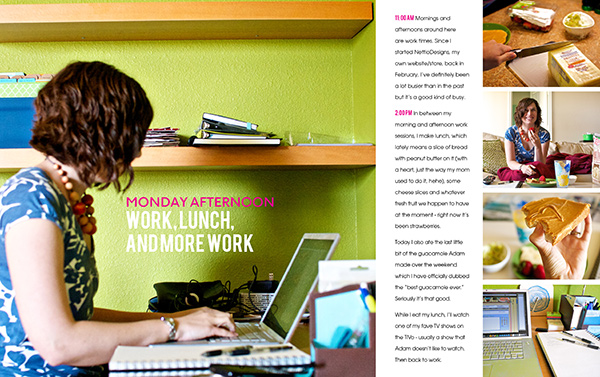
AWITL 20113 600

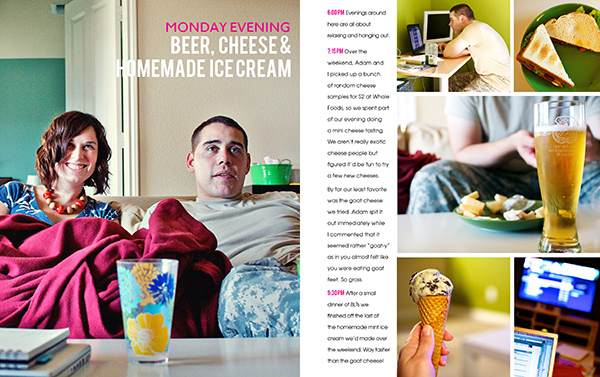
AWITL 20114 600

Tuesday

AWITL 20115 600

AWITL 20116 600

Wednesday

AWITL 20117 600

AWITL 20118 600

Thursday

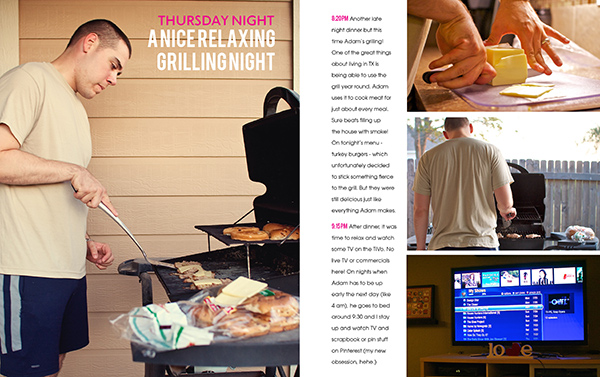
AWITL 20119 600

AWITL 201110 600

Friday

AWITL 201111 600

AWITL 201112 600

AWITL 201113 600

Saturday

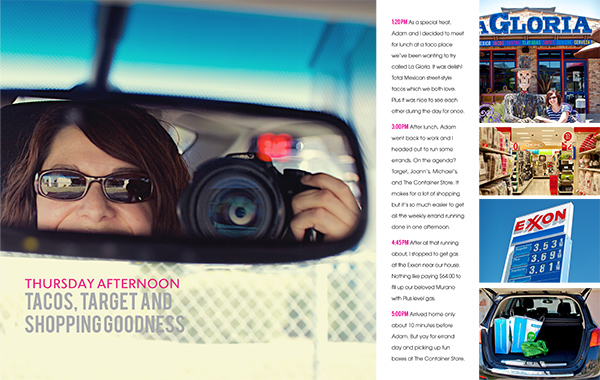
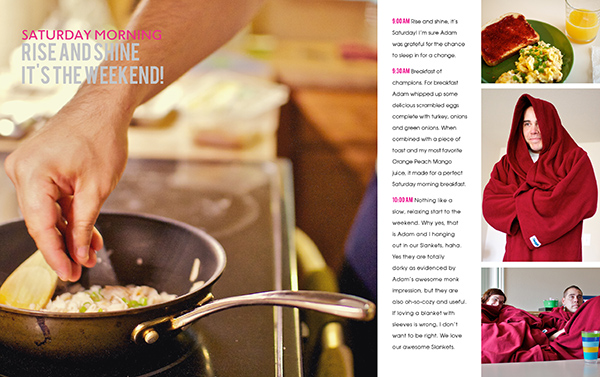
AWITL 201114 600

AWITL 201115 600

AWITL 201116 600

Sunday

AWITL 201117 600

AWITL 201118 600

AWITL 201119 600

A couple of notes about the design:

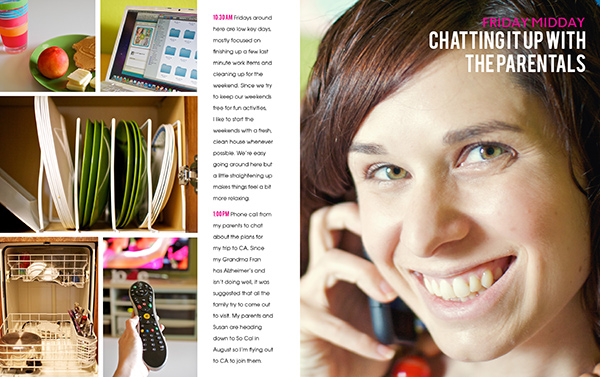
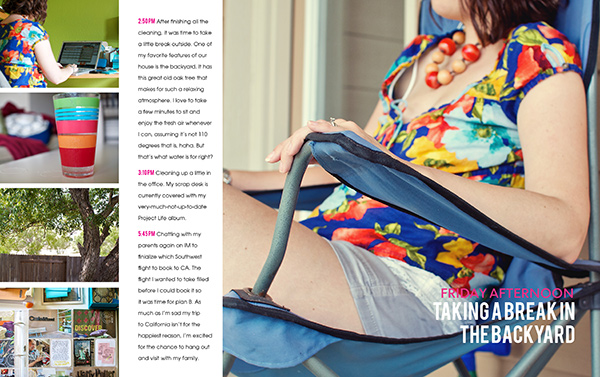
  • Some days have more spreads than others, with a max of three spreads per day (morning, afternoon, evening). I didn’t plan which days would have more spreads ahead of time, it really just came down to which photos I felt told the whole story over the course of the week.
  • It’s hard to tell without the page break line but the large square photos spread across two pages.
  • I used a consistent accent color, pink, to tie all the spreads together. I’m not usually a pink girl but for some reason here I liked it.
  • All the journaling is themed around time. I didn’t document the time as I went – I just used the time stamps from the photos and rounded to a nice number.


Highlight Pages

At the end of the album, I included some highlight pages that document some of the broader themes from our week, like food, clothing, etc. I figure it’ll be fun to look back on these pages years from now and remember laugh at all the things we use that no longer exist, haha.

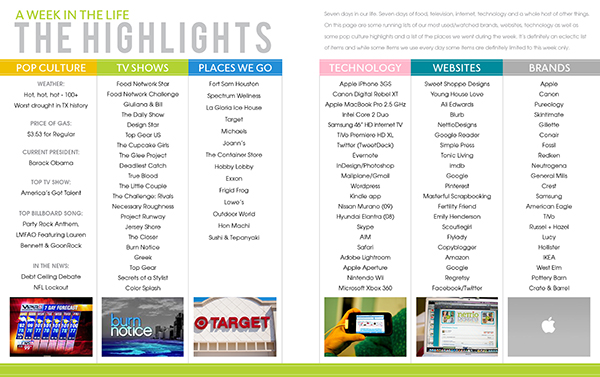
AWITL 201120 600

Weekly Highlights: the journaling on this page came directly from a set of lists I kept in Evernote during the week. I loved the idea of capturing these items now knowing one day some of these items/brands will no longer be around.

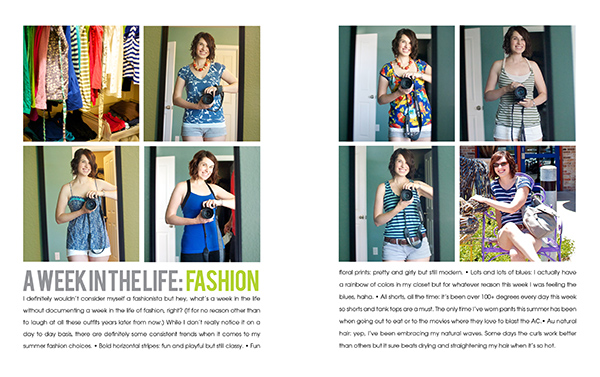
AWITL 201121 600

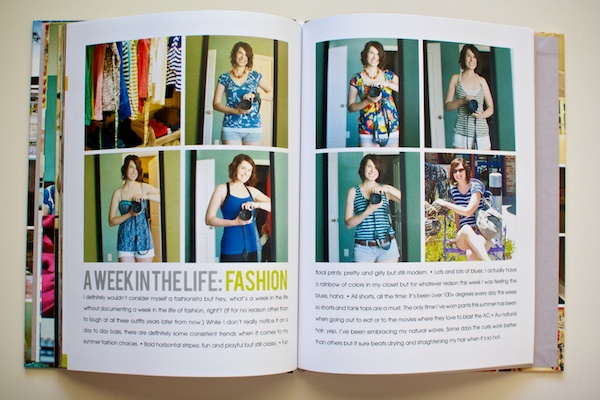
AWITL Fashion: One of my goals for the week was to take a daily photo of myself in the mirror. I’m sure this page will be one of those that I cringe at years from now which is partly why I wanted to include it, haha. I mean, could you imagine if you had a page like this from high school? It’d be craziness.

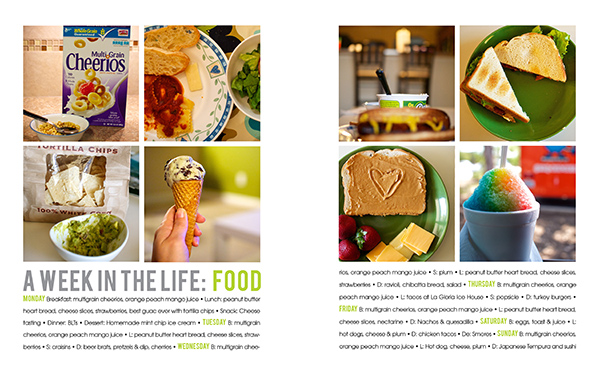
AWITL 201122 600

AWITL Food: A simple list of the food we ate during the week. Again, I kept track of all this in Evernote so I just had to copy and paste it into InDesign.

AWITL 201123 600

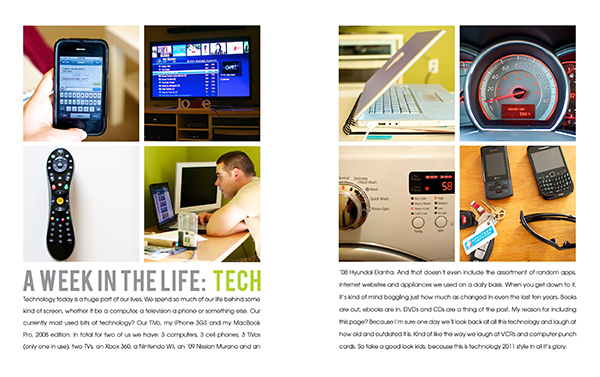
AWITL Technology: A look at some of our most used tech stuff. I figure it will be funny to look back someday at what technology was considered “cool” in 2011. The future generation will probably be laughing at this page from their flying cars and in-brain computers, haha.

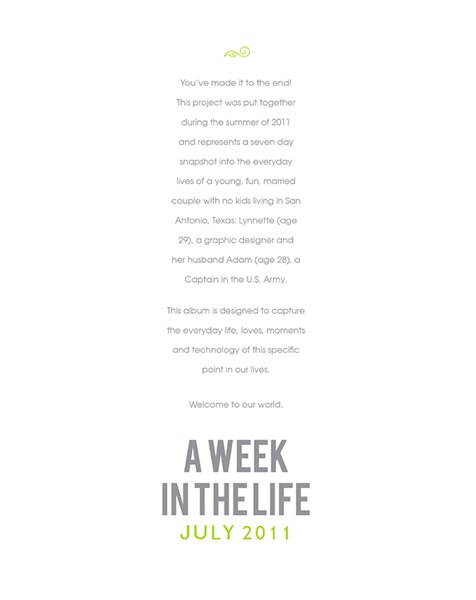
On the last page I included a little summary about who we are and what this album is about. It would have been a great intro page as well but since Blurb requires the first and last pages to be single pages, it worked better to include it here. I think it’s a nice little ending to the book.

AWITL 201124 600

And that’s my A Week In the Life 2011 album! In the end I ended up with 46 pages and I’m super thrilled with how it turned out.

This was my first attempt doing a photobook and I absolutely loved the simplicity and clean design of this format. Definitely something I’ll be doing again!

Lessons Learned from the Week In the Life 2011 Process

So what lessons can I take away from my first completed A Week In the Life album?

1) Having a plan is key

Having a clear design and plan before the week started made things SO much smoother.

Not only did I know what types of photos I needed (like the big focal photos) but it freed me up from feeling I had to capture every moment of every day.

2) Go with the best tools for the job

I’m sure I could have put together this album in Photoshop but using InDesign made it so much easier, especially when combined with the Blurb InDesign plug-in.

3) Take more detailed notes during the week

Next time I’d love to do more in-the-moment journaling rather than just keeping lists. Plus, trying to remember all the details a month later is tough.

4) Schedule time to complete the album

My biggest mistake this time around was underestimating just how much time and work it would take to put the album together. Next time I’d like to schedule time for working on each section of the album so I guarantee I can finished it in a reasonable amount of time.

5) Keep things simple

I know myself well enough to know if I tried to scrap all the pages for this album in my signature paper-lovin’ scrapbooking style, the album would never get done.

Which is exactly why I chose to keep things simple this time around. No fancy scrapbook products. Just words + photos. I LOVED it.

Having a clean, well-designed finished album definitely beats the pants off of an unfinished but super detailed scrapbook album any day.

A Week In the Life: Done and Done

And that’s it for my 2011 Week In the Life album!

By far my biggest take away from this project is I am actually capable of completing one of these major projects. That’s a pretty big exciting step for a girl who gets really excited about projects like this but then FAILS in the execution of them.

How about you? Did you learn any fun lessons from your finished (or unfinished) A Week In the Life album? Anything you would do differently? And is anyone else convinced like I am that Ali Edwards must have scrapbooking elves who come in the night to help her complete these projects? I love her projects but man are they a lot of work, haha.

If you have any questions about my album, please feel free to ask those in the comments section as well.

Can diabetes cause erectile dysfunction

POSTED IN A Week In the Life, A Week In the Life 2011, Digital Scrapbooking

A Week In the Life 2011 Sneaky Peek

POSTED ON August 25, 2011 IN A Week In the Life, A Week In the Life 2011

Hello everyone! Did ya miss me? My apologies for being a bit MIA on the blog front this month.

In addition to putting out some awesome new products this month (which you can check out here & here), I had to take a bit of a family emergency trip back to California last week when both of my grandmothers ended up in the hospital.

While it was great to spend time with my family, it was a pretty stressful trip overall – the kind that makes you feel like you need a vacation to recover from your vacation.

But the good news is things have finally calmed down and I’m ready to jump back onto the blogging and scrapbooking bandwagon.

Which is why I popped in today to show you a little peek at what I’ve been working on the last few days…

That’s right. I am in full on A Week In the Life album creation mode around here. Sure it took me a few extra weeks to get to it but better late than never, right?

As I mentioned before, my plan for my AWITL album was to keep the design really clean and simple and focus on just the words and the photos and I have to say, I am loving the result.

I’m getting really excited to see the finished product, which considering I only have the journaling and a final overview page to go, I’m hoping that will be in the next day or two. So be on the lookout for future post with all the juicy details of my AWITL adventure sometime next week.

So what about you? Anyone else still chugging along on your AWITL album like me? Anyone finished their album and want to share? Feel free to share your AWITL thoughts and links in the comments!

Benefits Of Using Canadian Pharmacy

POSTED IN A Week In the Life, A Week In the Life 2011, Digital Scrapbooking

Are YOU Ready to Scrap Your FAVE-O-RITES?

POSTED ON August 5, 2011 IN Announcements, the Faves

If you’ve been following NettioDesigns or my scrapbooking for awhile, it’ll probably come as no surprise to you that I love scrapbooking Faves layouts.

You can read more about why I believe every scrapbooker should scrap a Faves page here in this post, but it’s pretty safe to say that being a part of the NettioDesigns family means you’re on board with the whole Faves layout lovin.’

So it seemed only fitting that for their first task as members of the NettioDesigns Creative Team (or Team Awesome, as I like to call them around here, haha),  I asked my team of lovely ladies to get their Faves scrapbooking on and boy, did they totally rise to the occasion!

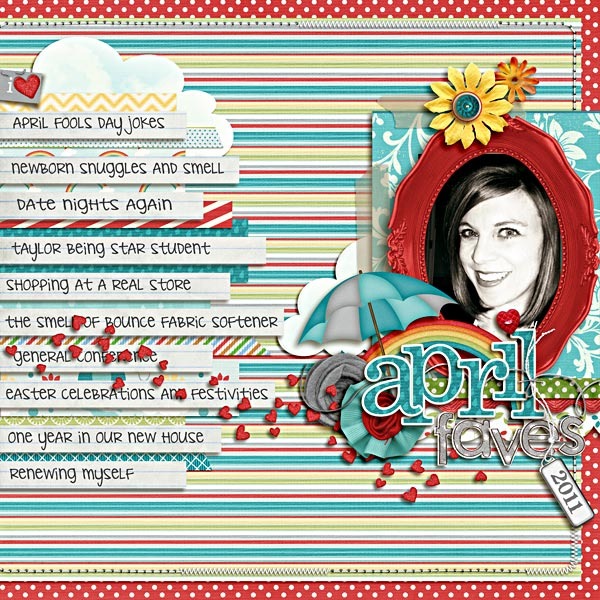
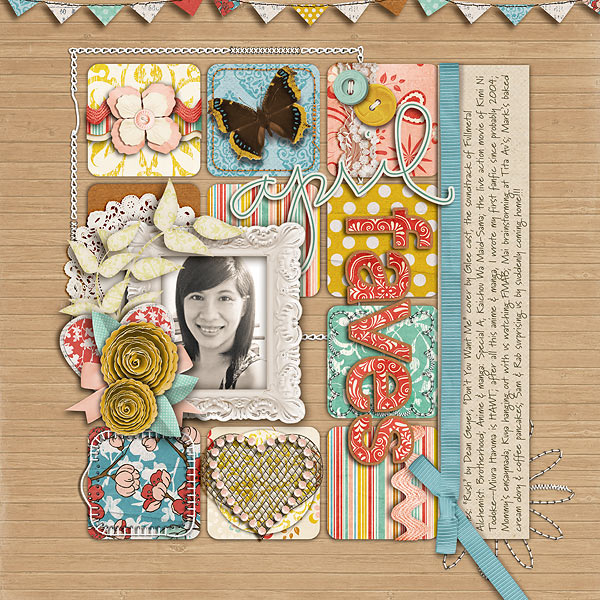
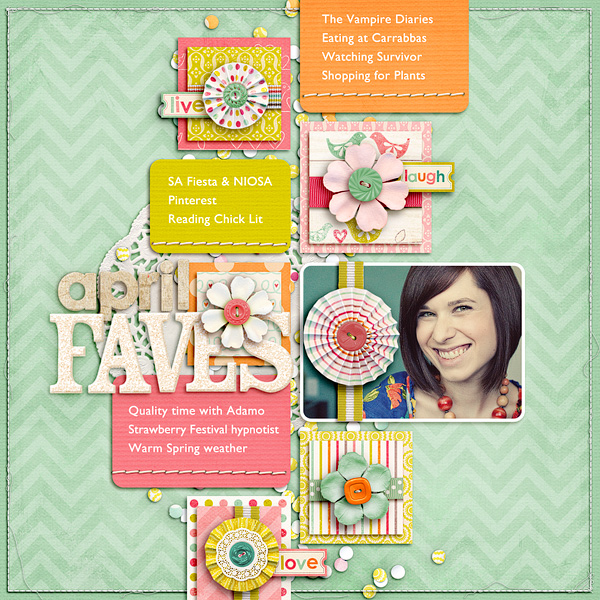
We have Monthly Faves from Aly & Alexis…

April Faves 2011 WEB

April faves

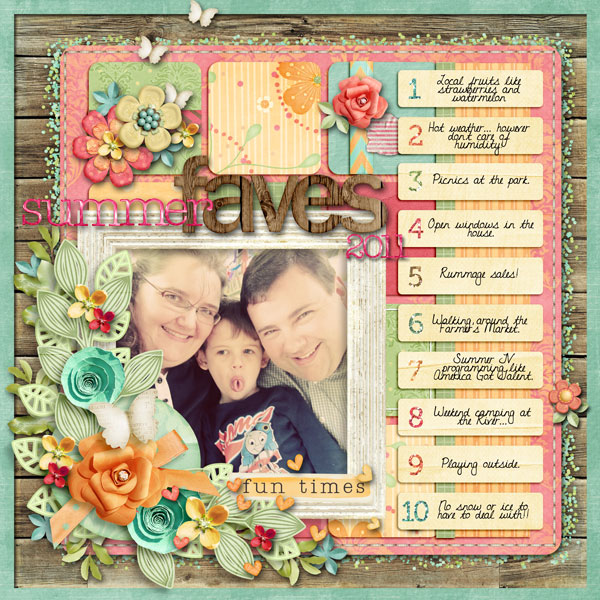
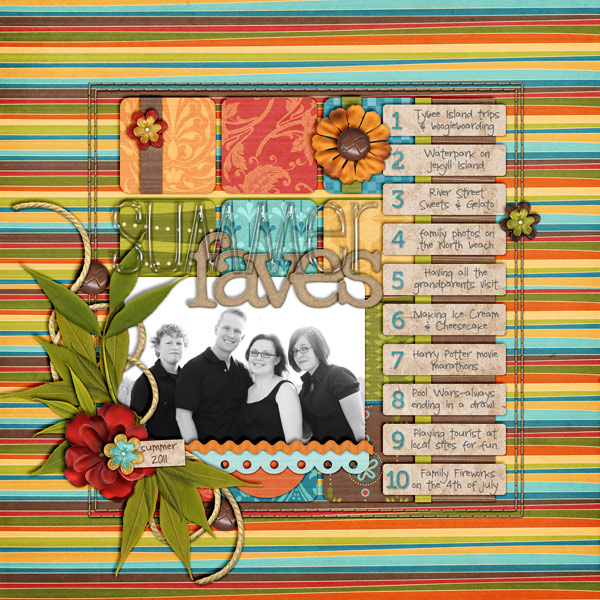
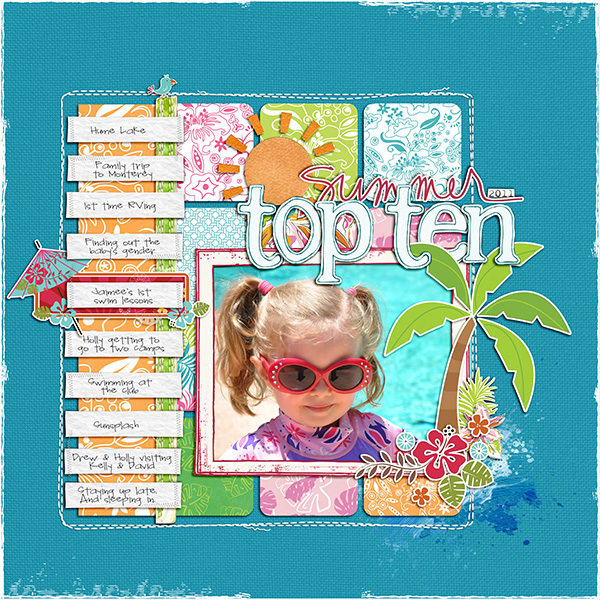
Summer Faves from Rebecca, Jen & Kathleen…

2011 08 Summer faves

Summer faves

Summer2011TopTen

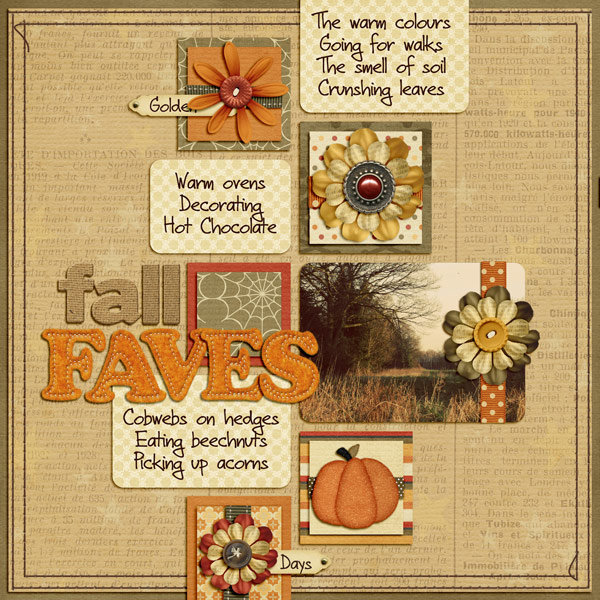
Fall Faves from Inga…

Fall Faves web

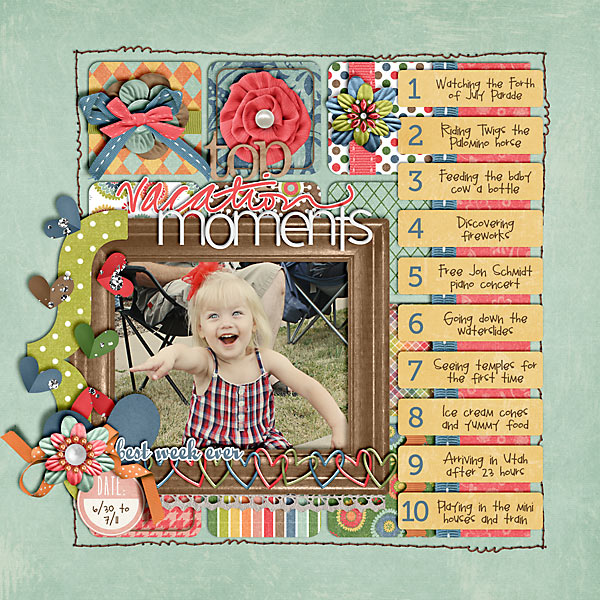
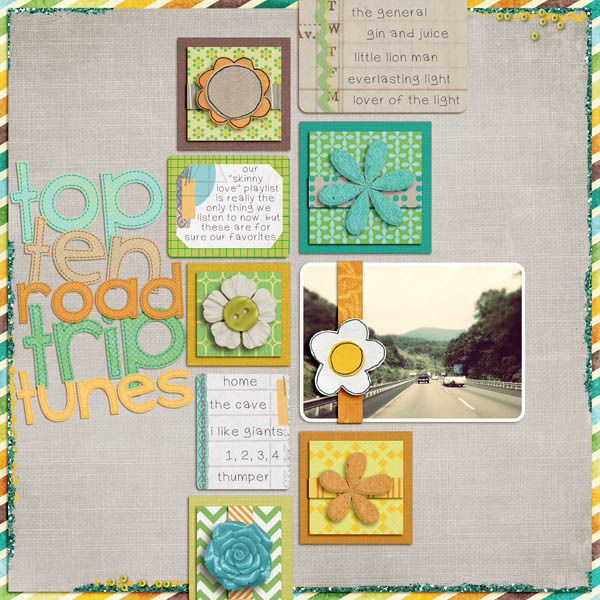
Vacation Faves from Natalie & Heather…

2011 07 11 Top Vacation Moments copy

Roadtriptunes

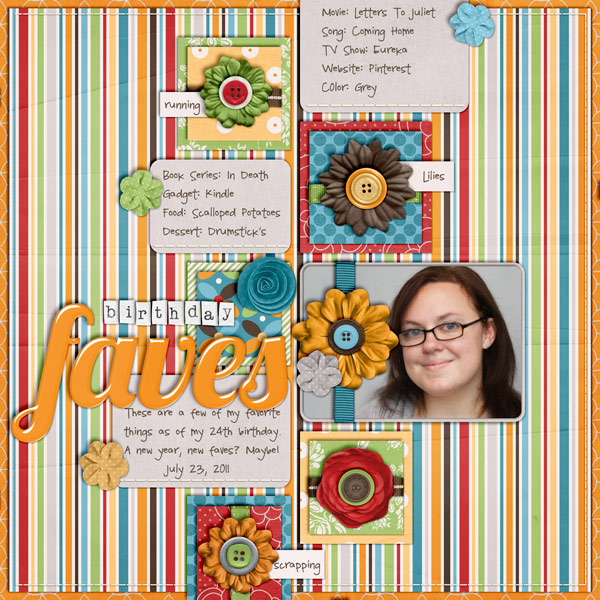
Birthday Faves from Jen…

Birthday faves

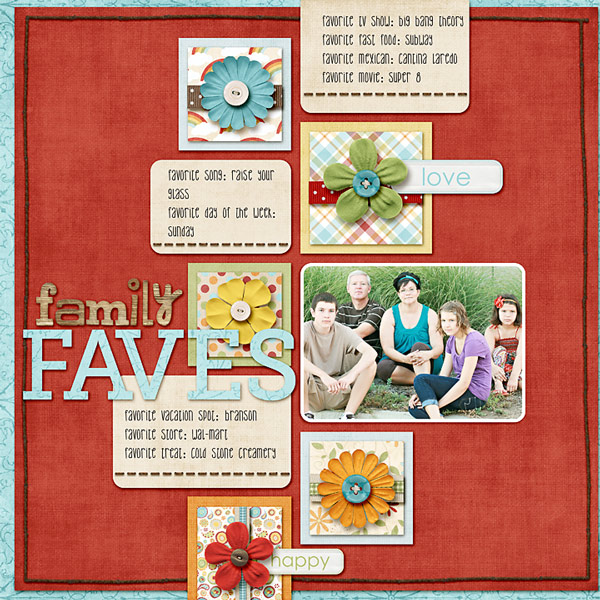
Family Faves from Kim…

Klund familyfaves

A cool spin on my April Faves from Crystal which I am now dying to try…

Book faves

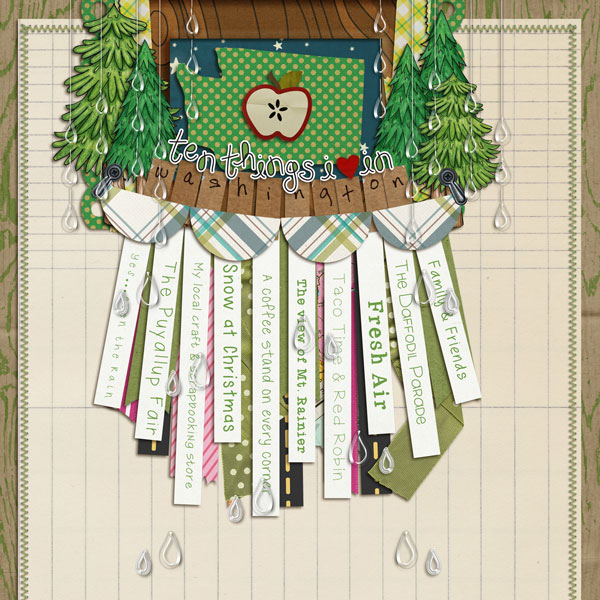
Another spin from Brynn who really made the March Faves template her own…

10thingsWAweb

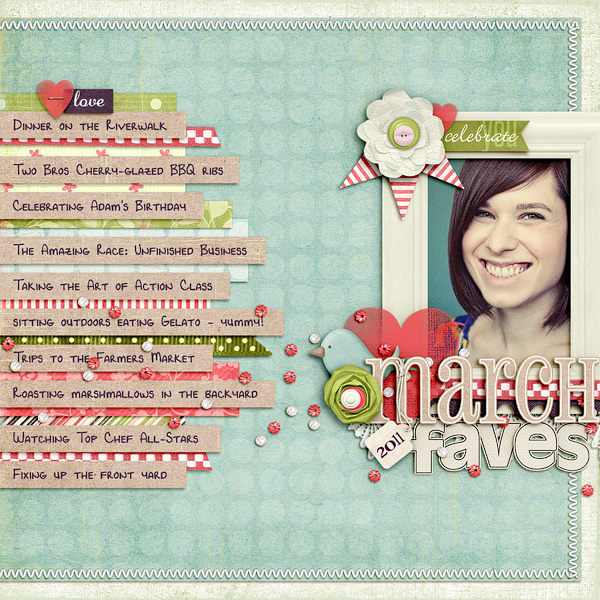
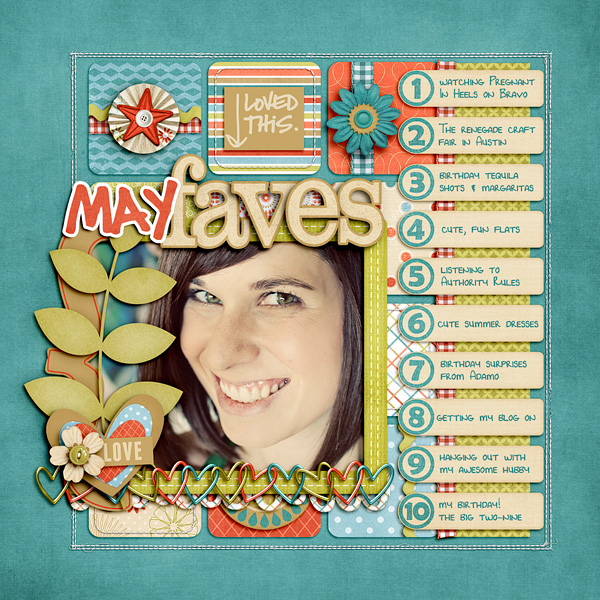
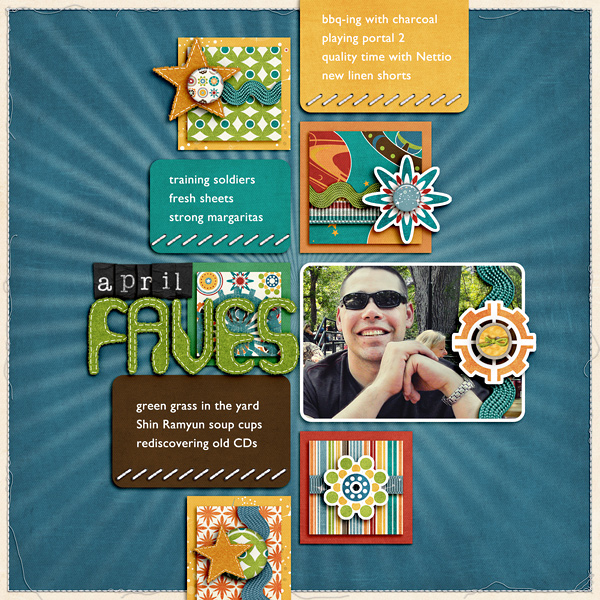
And of course my monthly Faves layouts that served as inspiration for it all…

Nettio 2011faves 03mar

Nettio 2011faves 04apr

Nettio 2011faves 05may

And look! I’ve even got Adam jumping on the Faves bandwagon now…

Nettio adamo aprfaves

This is what I LOVE about templates.

You can give a team of people the same three templates and topic and yet each layout is completely different and unique because each of our lives and stories are totally unique.

The solid modern paper-lovin’-style design may stay the same but by adding in a touch of your own scrapbooking awesomeness, you end up with a layout that is so-very-YOU.

And that’s exactly what these ladies did.

Feeling inspired to scrap your own Faves now?

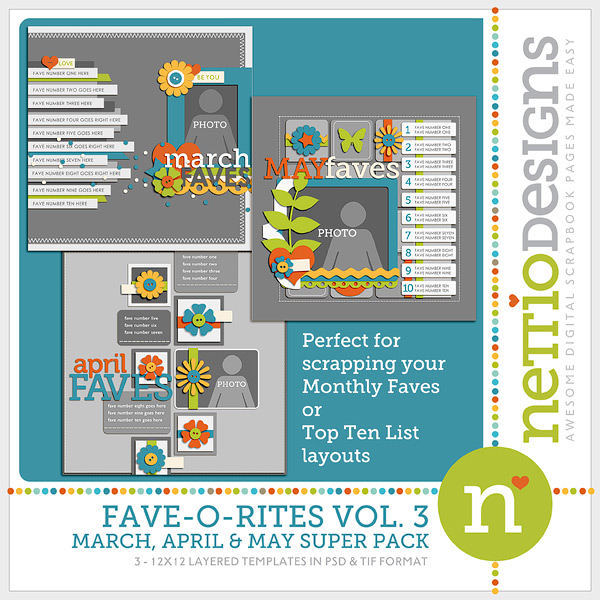
Check out the FAVE-O-RITES Vol. 3 March, April & May Super Pack.

It’s NEW in the NettioDesigns Shoppe today.

0nettiodesigns FAVE O RITES Vol3preview 150

Looking for more Faves templates? Check out FAVE-O-RITES Vol. 1 & Vol. 2.

Scrapbooking some Faves layouts may be the perfect way to beat the summer heat this weekend, I’m just sayin’. ; )

Have a great weekend everyone!

How Can Customers Lower Their Remedy Costs

POSTED IN Announcements, the Faves, Template-y Goodness

  • « Previous Page
  • 1
  • …
  • 42
  • 43
  • 44
  • 45
  • 46
  • …
  • 51
  • Next Page »
HI I'M LYNNETTE. Graphic designer, tech-lovin’ memory keeper and lover of bold colors & patterns, good food and the great outdoors. Here at Nettio Designs, I share a behind the scenes peek at my own creative & life adventures. Read more...

KICKSTART YOUR CREATIVITY


By popular demand, photo book templates are back! Grab all three sets in the shop.
ADVENTURES IN ORGANIZING
GOAL-SETTING
MEMORY KEEPING
PROJECT LOVE
LIFE ADVENTURES
TIPS & TRICKS
BEHIND THE SCENES

POPULAR PROJECTS

TO SEE ALL MY PROJECTS, CLICK HERE

MUST READ POSTS

  • WHY EVERY SCRAPPER SHOULD SCRAP A FAVES PAGE
  • HOW TO CREATE A SCRAP-WORTHY MAP WITH PHOTOSHOP
  • REMEMBERING THE IMPORTANCE OF TELLING YOUR STORY
  • WHAT DOES IT MEAN TO CREATIVELY CAPTURE YOUR LIFE ADVENTURES?
  • BROWSE BY CATEGORY

    BROWSE THE ARCHIVES

    GET IT FOR FREE

    Copyright © 2025 ·Dynamik Website Builder · Genesis Framework by StudioPress · WordPress · Log in