Nettio Designs

Design + Creativity + Adventure = LOVE

  • HOME
  • JOIN THE 2023 MONTHLY FAVES
  • THE SHOP
  • ABOUT
  • CONTACT
You are here: Home / Archives for Digital Scrapbooking

Is It Possible Digital Is a Little Too Perfect?

POSTED ON January 20, 2012 IN Memory Keeping

So an interesting thing happened to me as I was putting together my Holiday Faves hybrid mini album last month.

If you read my first Holiday Faves album update post, you might have seen that my album and I got off to a bit of a rocky start…

I’m not going to lie – this little Holiday Faves album and I got off to a bit of a rocky start this weekend, due to some printing issues and my inability to punch holes on the proper side of the page, haha.

But despite that little non-digital reality check, I’m feeling good about how things are coming together so far.

Well the real story here is we didn’t just get off to a rocky start, we got off to an OMG-why-did-I-choose-to-do-this-as-a-hybrid-album start. The kind of start that seriously had me questioning why I didn’t just stick with my trusty Photoshop and digital scrapbooking since it certainly would have been whole lot easier.

You see, not only did I have to create this turkey page twice due to my not realizing that napkins are 3-ply and therefore would not actually stay glued down to the page…
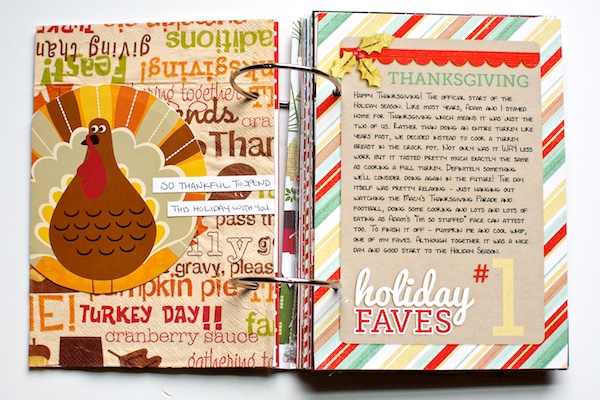
Nettio Faves1 2 7

But I also had to print and reprint…and reprint the journaling page on the right after my attempts at printing my journaling resulted in the text printing over the ribbon instead. Nevermind that my non-color test print came out just fine, of course.

Then there was this lovely photo of Adam which at one point ended up with text printed directly over his face. Not exactly the look I was going for, haha.
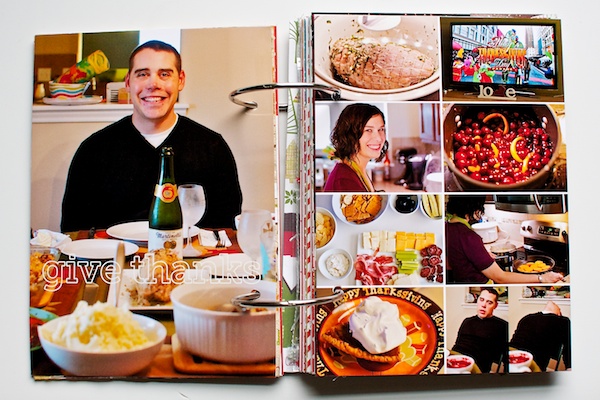
Nettio Faves1 2 9

The final straw came when after finally getting all the printing, gluing and trimming figured out, I went to insert the page into the book and realized I had punched the holes on the wrong side resulting in the entire page being upside down in the album.

#hybridFAIL
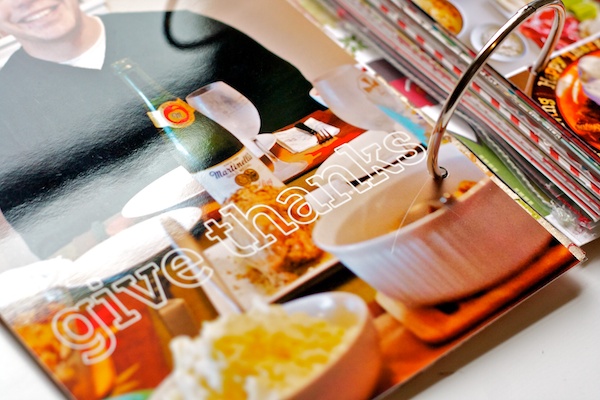
Nettio Faves1 2 10

Yes, give thanks indeed. I would have given a whole lot of thanks at that point to be able to crawl back to the safety and comfort of my beloved Photoshop.

But I pushed through and by the end I had completed one pretty sweet little Holiday Faves hybrid mini album.

Holiday Faves Mini Album 2011 from Lynnette Penacho on Vimeo.

Now let’s fast forward to this past weekend where as part of my Operation Home Sweet Home birthday goal, I decided to spiff up our office wall with some stripes, which seemed like a simple enough project…

…that it is until I actually started measuring, spacing, leveling and taping off the lines and realized this was a WAY more tedious project than I thought.
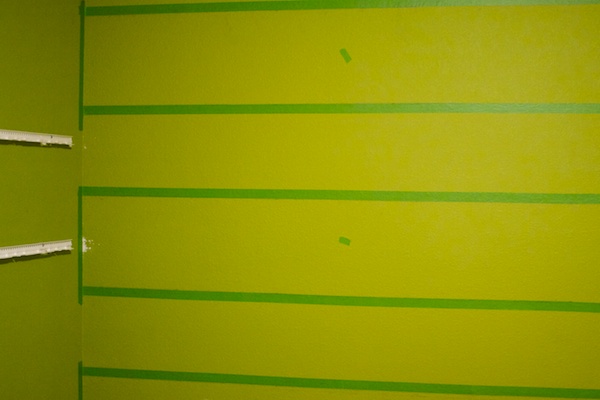
Nettio walltape

And as I measured and taped and fought with the level, the one thing running through my head over and over again was…

This would be so much easier in Photoshop.

Because really, how easy would it have been to draw out some shape boxes and fill them with the chosen color?! It would take all of what, 0.2 seconds?

But I pushed on with the project using you know, regular paint, haha, and despite some paint bleeding through the tape, which probably only I will notice (apparently I didn’t pre-paint over the tape quite enough), I’m pretty happy with how it turned out.

And once we get the office all put back together I think it’s going to look really cool.
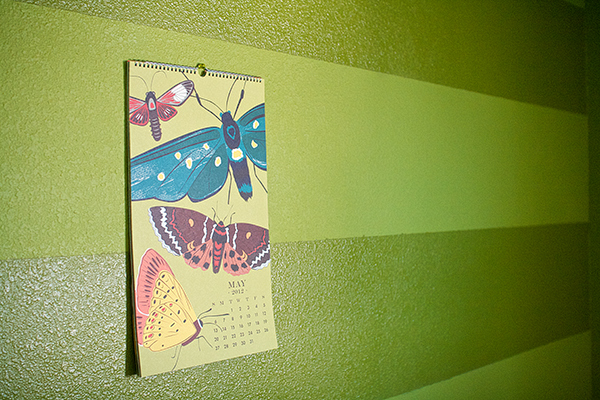
Nettio wallstripes

But as much as it I hate to admit it, it took me a couple of days to get to that point. Because my first reaction when I pulled the painter’s tape off and saw the bleeding lines was…

These lines would have been perfect in Photoshop.

Which is more than a bit crazy, no?

I mean, life is NOT Photoshop. Obviously. I know that.

Yet there’s a little part of me that has gotten so used to the ease of achieving perfection in digital scrapbooking, like clean straight lines, perfect evenly spaced squares, etc., that it almost irks me a little bit when I can’t get that all the time.

And it got me thinking…

Are we as digital scrapbookers possibly too used to perfection?

Has our love of Photoshop spoiled us so much that we now set an impossibly high standard for what is and isn’t possible in the non-digital world?

Because if I’m being really honest, I kind of think it has for me.

I mean, this isn’t the first time I’ve thought “This would be so much easier if I could do it with Photoshop.” Or wished I could Cmd+Z (undo) something for real. Or recolor something in real life (although wouldn’t that be amazing? Just think of the home decor/fashion possibilities!).

Then again I’ve also wished I could Google something when it’s gone missing in my house so perhaps technology and I are just a little too intertwined, haha.

So I’d love to know…do you think your love for digital scrapbooking and/or Photoshop has blurred the lines of perfection in your real life? Have you ever wished you could Cmd+Z something? Or google the mustard? (Not that I’ve thought that before, no, never, hehe.)

Please tell me I’m not the only one, haha.
Can diabetes cause erectile dysfunction

POSTED IN Memory Keeping, Digital Scrapbooking

2012 Scrapbooking Resolutions: Busy vs Meaningful & 5 Wants for the New Year

POSTED ON January 6, 2012 IN Goal Setting

Happy New Year everyone! After two solid weeks of rest and relaxation, I am finally back in Texas and ready to tackle the new year!

One of the great things about the past two weeks is all that downtime gave me a lot of time to think and reflect about the past year, my scrapbooking and where I want to go this next year.

2011 was a really interesting scrapbooking year around here. In addition to my regular scrapbooking and Creative Teams, I opened up NettioDesigns, celebrated my 5th Scrap-i-versary, guest taught over at Masterful Scrapbook Design and completed one of my favorite projects ever with my A Week In the Life photo book.

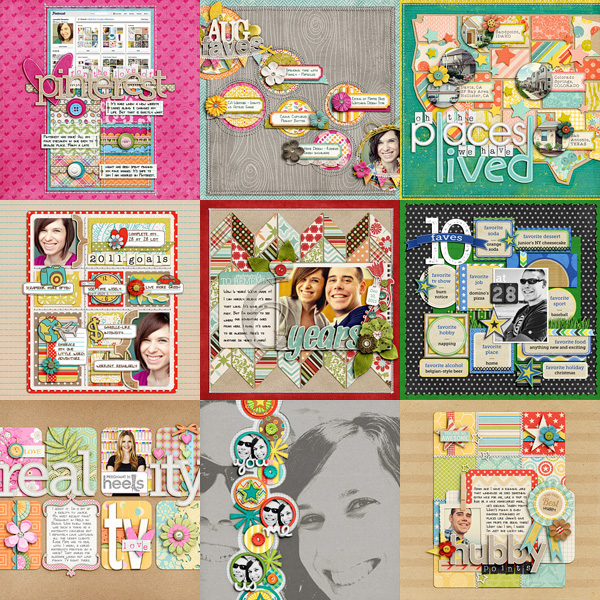
Nettio 2012layoutcollage

But what I realized in looking through my layouts from the past year is that while I like the individual layouts I created, I feel like there’s a disconnect between the stories I want to be telling and the stories I’m actually telling – gaps where meaningful stories are missing.

And if I’m being honest, I’ve been feeling this way for quite some time.

In a lot of ways it feels like I’ve been on scrapbooking and storytelling autopilot, not necessarily disliking what I’m doing but not feeling totally fulfilled either.

Busy vs Meaningful

Peppermint of One Little Bird had a great post on her blog about this topic earlier this week and there was definitely lots of nodding going on as I read it. If you haven’t had a chance to check it out, I highly recommend you do.

One of the key things I took away from her post is that when it comes to scrapbooking, there’s a difference between being busy and being meaningful. And when we try to do too much, especially with labor intensive projects like P365 or Project Life, we often sacrifice the meaningful in exchange for the busy work.

This quote especially resonated with me:

The common thread with all three of the projects was that they kept me really busy – busy taking pictures, busy jotting down notes, busy buying supplies and organizing supplies. All of that busy work made me feel like I was documenting our lives. But they didn’t leave me feeling fulfilled. Instead I felt like I spent my time living up to arbitrary obligations that I’d set in my own head while ignoring what I truly love – which is sitting down at my computer and pouring my heart out onto a 3600 x 3600 px canvas in Photoshop. A photo from last week, a photo from last year, an experience from today or an emotion that happened to flutter through my heart.

Can we say lightbulb moment?

This feeling of scrapbooking and storytelling disconnect for me started in 2009 when I began my Deployment 365 photo-a-day project. At the time I chalked it up to Adam being deployed and life being in an odd state of flux that messed with my mojo.

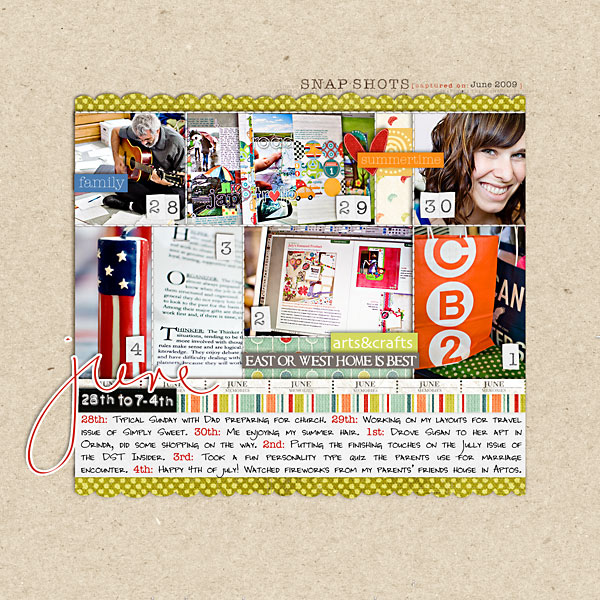
Wk4 6 28 to 7 4

But looking back from the perspective of now, I’m realizing the other part of the story is I allowed the pressure of keeping up with that project (and others like it) distract me from telling deeper, more meaningful stories. I listened to the little voice reminding me that I was way behind, that I wasn’t keeping up and I neglected what made me fall in love with scrapbooking in the first place – amazing designs and awesome stories.

Don’t get me wrong, there were lots of things I loved about P365 and I have no intention of giving up projects all together. But I want to make sure in the future that any project I choose to take on, especially an ongoing time intensive one, is done out of a place of genuine LOVE and not only because it’s the it-trend of the moment.

And if I get part way into the process and realize I’m not feeling it anymore, I want to give myself permission to let it go. To call it done and move on. I don’t want my unfinished projects of the past to limit my creativity today.

There’s no room for scrapbooking guilt around here.

So with the start of the new year, I am ready to wipe the slate clean. To move on, let go of the guilt of old unfinished projects and get back to telling and creating the stories and pages I love.

My 5 Scrapbooking Wants for 2012

And to get things started, I decided to write a list of what I want to get out of my scrapbooking this next year. Since I’m still working on the Scrap-i-versary and Birthday Goals I set in 2011 these aren’t goals per se, but more like resolutions to keep in mind throughout 2012.

I WANT…to trade the busy in favor of the meaningful.

No more stressful guilt-inducing projects at the expense of meaningful pages. Unless I absolutely love the process (like my AWITL album), it’s not worth it.

I WANT…to push my creativity to the next level.

Challenge myself more. Expand my skills. Design pages that make me want to happy dance with creativity and excitement.

I WANT…to stop allowing disorganization to limit my creativity and storytelling.

My photos and supplies need to work for me. Reusing photos just to avoid hunting for new ones is craziness.

I WANT…to make time to scrap just for me.

Scrap for stories, not just to showcase product. And be ok with telling stories without product.

I WANT…to tell the stories that matter most to me.

More meaning, less routine.

Now It’s Your Turn

So there’s a little bit about my plans for the new year but I’m curious to know…

What’s one of your scrapbooking wants for this year?

I’d love to hear from you so let me know in the comments. 🙂

Fraudulent Drugs Are A Huge Global Problem

POSTED IN Goal Setting, Digital Scrapbooking

Ask Nettio: How Do You Remember Your Faves?

POSTED ON October 18, 2011 IN Ask Nettio, the Faves

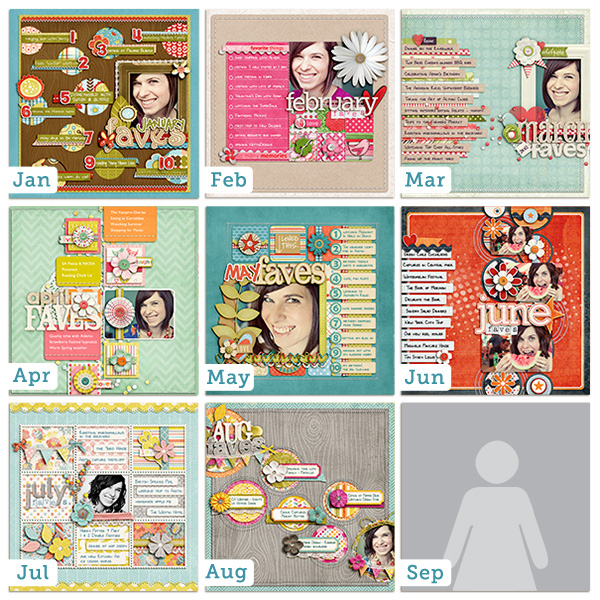
As I mentioned in my last post, after getting a bit behind over the summer on my 2011 Faves layouts, I have finally gotten caught up through August. Only September left to go!

Faves2011

But that brings up a question I have been asked quite a few times and that is:

How do you remember your Faves when your scrapbooking, say, a July page in September or a June page in October?

 
Well as much as I’d love to say I’m a super organized scrapbooker who keeps a running list of her Faves each month, I am most definitely not, haha.

But that’s good news for you because it means YOU can use the same tricks I do for creating your own awesome Faves pages long after any month is over.

So without further ado, here is a list of my go-to tricks for remembering my Faves each month:

1) Browse Your Photos

As a scrapbooker I take a lot of photos over the course of the month on a random variety of topics: events, places, people, things.

So the first place I look when I’m starting a new Faves page is my photos from that month.

Not only do they provide a visual representation of all the moments that mattered to me most that month but odds are if I took the time to document something, there’s a good chance it’s a fave of mine.

2) Browse Your Completed Layouts

In the same vein as photos, the stories I scrapbook say a lot about what matters most to me at a given time. If I take the time to scrap a certain story, like my love for Pinterest or our trip to Sea World, it’s probably something I was lovin’ at that time.

3) Check Your Social Media Accounts

Facebook, Twitter, IM, texts, emails and forums are all great places to look for your Faves because thanks to the wonders of technology, it’s easy to go  back in your history and see what loves you’ve been chatting about recently.

4) Include an Old Standby

We all have those favorite things of ours that don’t change month to month. For me this would include things like: hanging out with Adam, my iPhone, American Eagle jeans, cheese, margaritas, traveling, etc.

So anytime I need a few more Faves for my monthly list, I know I can call on one of these stand-bys to fit the bill.

5) Don’t Stress About the Date

Number 5 on this list is perhaps the most important lesson I have learned in 2 years of doing this Faves project, and that is this:

No one, including you, will remember a year or even a couple of months from now, whether something was actually a Fave of yours that specific month or not.

So if all you can remember is you loved a certain television show over the summer but don’t know whether it was on in June or July, don’t worry about it.

Yes, the foundation of the Faves project is themed around the idea of monthly Faves, but the truth is the date doesn’t matter. What is most important is that you took the time to document you and your Faves in the first place.

Don’t let your date perfectionism get in the way of getting more of YOU into your scrapbooks.

So there you have it! Five of my go-to tricks for getting my Faves scrapbooked. I hope this helps you get your Faves scrapbooked too! 

Psst…Want a little extra help documenting your Faves? Be sure to check out my FAVE-O-RITES templates Volumes 1, 2, 3 and 4 in the NettioDesigns Shoppe.

Psssst…have a burning question you’d like to see answered in a future installment of Ask Nettio? Send me a note or leave a comment and let me know!

Benefits Of Using Canadian Pharmacy

POSTED IN Ask Nettio, the Faves, Digital Scrapbooking, Tips & Tricks

Pop Culture Scrapbooking: This Day In History

POSTED ON October 4, 2011 IN Memory Keeping

Hello October! This month I am guest teaching over at Masterful Scrapbook Design, where alongside four other super talented paper and digital scrapbookers, I am sharing my tips and tricks for scrapbooking one of my favorite topics: pop culture!

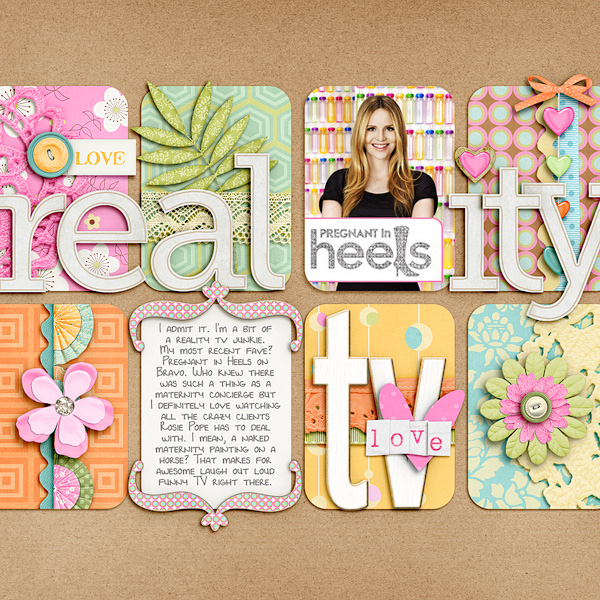
I’ve never been one to shy away from including pop culture in my scrapbooking pages, whether it’s professing my love for reality TV…

Pregnantinheels 250

Credits: Retro Chic by Melissa Bennett; 12 Months Alpha by Penny Springmann; Get Krafty by Kristin Cronin-Barrow; Layered Up In You: Shapes by Lauren Grier; Tiny Type Alpha by Zoe Pearn (retired); Chunky Chipboard Letters by Amber Clegg; Font is DJB Lynnette

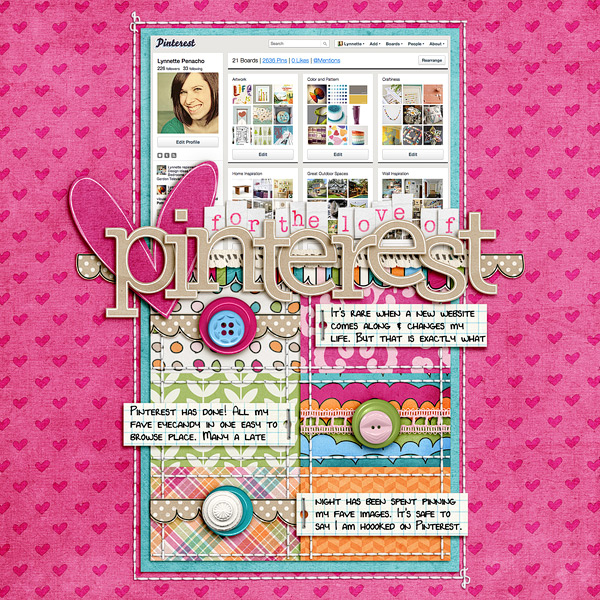
Or my current obsession with Pinterest…

Pinterest

Credits: I Heart Paper Vol 1 Templates by NettioDesigns; Golden Afternoon by Shawna Clingerman and Penny Springmann; 12 Months: Alphas by Penny Springmann; Layered Up In You: Shapes by Lauren Grier; Teeny Type Alpha (retired) by Zoe Pearn; StraightLine Stitched No 1 by Anna Apnes; Font is DJB Lynnette

I’m all about keeping it real when it comes to documenting my pop culture loves in my scrapbooks.

So in preparation for this class I’ve been thinking a lot about different ways I can get my love for pop culture and our current world into my scrapbooks.

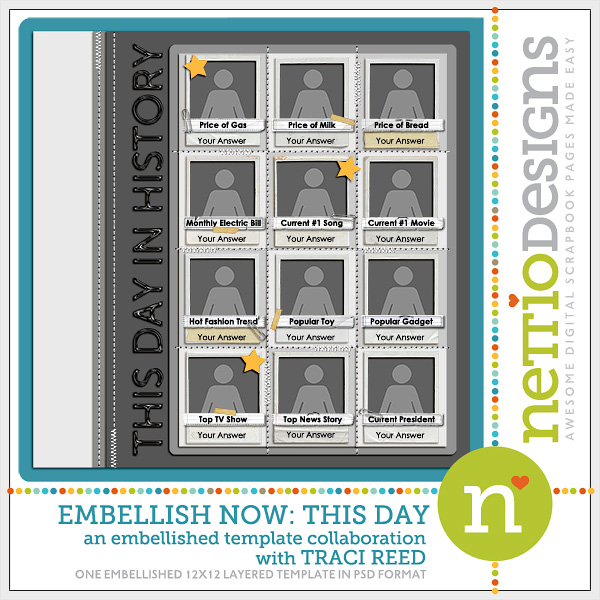
Which inspired me to use one of my very own templates: the This Day In History template from my Embellish Now collaboration with Traci Reed.

Embellishnow single thisday

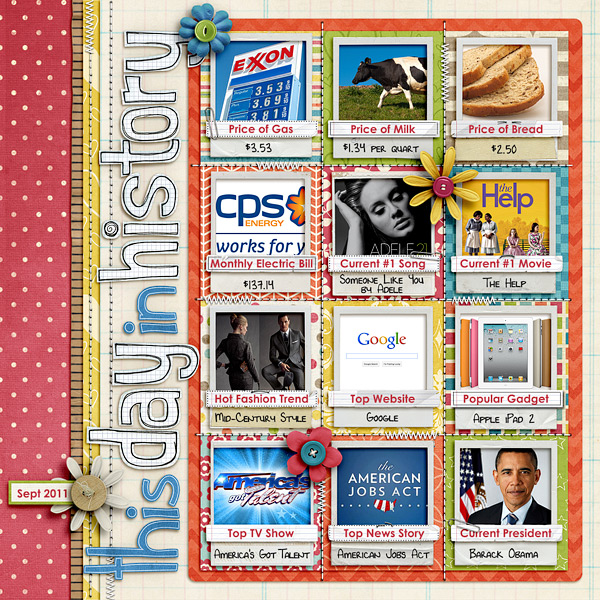
Traci and I had always imagined this page to be used as a kind of pop culture overview – a way to take a snapshot of the world as it is right now.

So that’s exactly what I chose to do thanks to a little help from Google and this super adorable kit by Penny Springmann.

Nettio thisdayinhistory 250

Credits: 12 Months: August and Knowledge Factory by Penny Springmann; Life of the Party (alpha) by Dani Mogstad; Maths Class Alpha by Kate Hadfield; Embellish Now template by NettioDesigns and Traci Reed; Fonts are DJB Lynnette and Century Gothic

Could you imagine how fun it would be to have a page like this from your parents? Or even your grandparents?

Granted they wouldn’t be documenting their top website, haha, but it makes me wonder, what would they have documented?

Which is exactly why I love scrapbooking pop culture and the world around us. Because with the rate at which our world is constantly changing, what’s popular today, may be gone tomorrow.

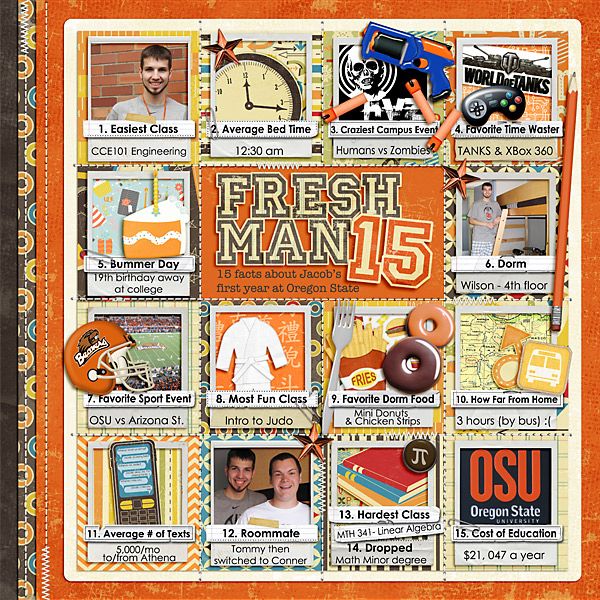
And hey, in case you’re in need of some extra pop culture inspiration for using the Embellish Now: This Day In History template in a different way, check out this AMAZING layout Sweet Shoppe Designer Julie Billinglsey made, documenting 15 facts about her son’s freshman year in college:

Julie freshman15

Credits: Embellish Now by Traci Reed and Nettio Designs Template (This Day in History – modified), School Spirit, School Spirit Add a Grad and Life of the Party by Dani Mogstad; At the Dojo and Rapid Fire by Traci Reed; Technophile by Traci Reed and Lliella Designs; Cheeseburger in Paradise by Heather Roselli; A Dozen Reasons by Jenn Barrette; Zoom Zoom by Zoe Pearn; 1st and 10 and Pi Are Squared by Libby Pritchett; Turkey Day by Melissa Bennett

Is that not totally awesome?!

I absolutely LOVE her theme, her title work and the way she added an extra row of photos so she had room for all 15 facts. I can definitely think of a bunch of variations on the “facts” theme I’d love to scrapbook with this template, so thanks so much for the inspiration Julie!

How about you? Are you a pop culture scrapbooker like me or do you love to keep your scrapbooking to holidays and everyday moments? Have you done any pop culture scrapbooking lately? Professed your undying love for your current pop culture obsession? Let me know in the comments!

Psst…Want to document your own This Day In History layout? Pick up the This Day In History single template here or save some cash by buying the entire Embellish Now template four-pack here.

Psssst…Looking for more ways you can incorporate pop culture, current events, trends and fads into your scrapbooks? Check out this month’s Masterful Scrapbook Design seminar here.

Can diabetes cause erectile dysfunction

POSTED IN Memory Keeping, Digital Scrapbooking, Template-y Goodness

Ask Nettio: How Do I Crop A Two-Page Template?

POSTED ON September 29, 2011 IN Ask Nettio

Last week I released my first ever FREE two-page template here at NettioDesigns. Since then I’ve gotten some questions about the best way to crop the template into a 12×12 page so I’ve whipped up a little tutorial with some tips to show you just how easy it is to do.

If you haven’t already, you can download your own copy of the template here.

Step 1: Open the template in your scrapbooking program of choice (for me that is Photoshop CS3). The template is 12×24 inches so it’s really two 12×12 pages side-by-side in a single document.

Usacrop 01

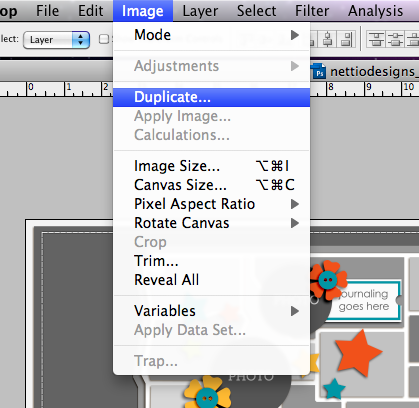
Step 2: Save a duplicate copy of the template so you don’t accidentally crop your original copy.

To do this, you can either go to File>Save As to save the existing document with the new name or you can go to Image>Duplicate to create a copy and then Save the duplicate copy. I recommend using Image>Duplicate so that you can have both the new cropped version and the original template open in Photoshop at the same time.

Usacrop 02

Step 3: Grab your Crop tool Crop tool and starting in the top left or right corner (top left corner for the West Coast, top right corner for the East Coast), hold down the Shift key and drag a box out towards the center of the template. Holding down the Shift key is key because it will guarantee you get a perfect square crop.
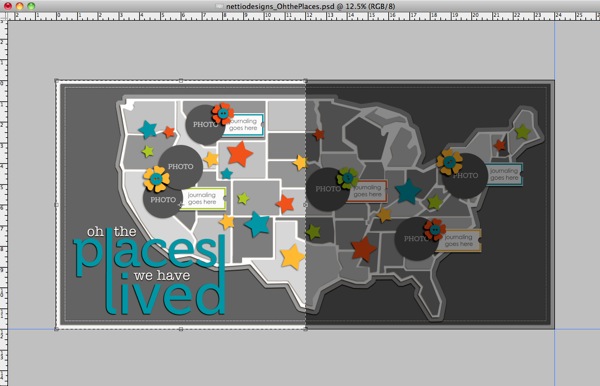
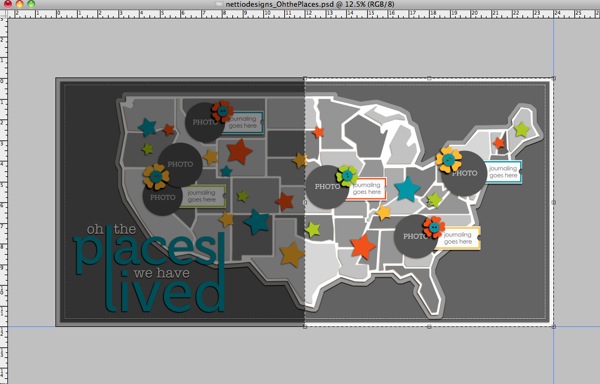
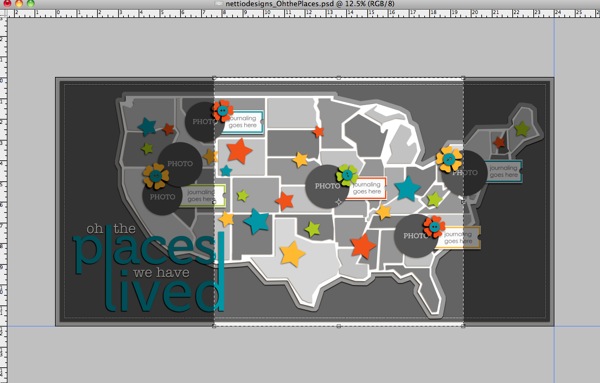
Your crop box would now look like this for the West Coast:

Usacrop 03 west

This for the East Coast:

Usacrop 03 east

Or you can even go with something like this for the Mid West:

Usacrop 03 mid

Once you’ve drawn out your crop box, check to make sure any elements or states you want to include are within the highlighted crop box.

If they’re not, cancel the crop and move those elements into the area you plan to crop so they won’t get lost when you crop the template. You can also transform the map to a smaller size to include more states or move the states closer to the left side of the page if you want to include more of the Western half of the US.

Step 4: Once you’re happy with the area within your crop box, press Enter to crop the template.

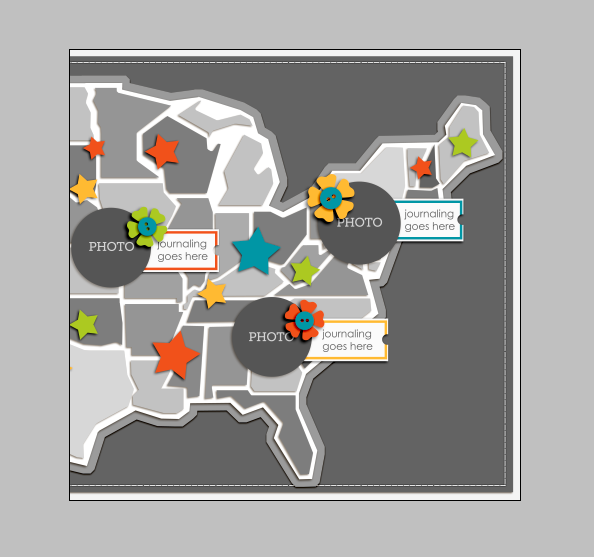
Your template should now look something like this:

Usacrop cropped

Step 5: Now add your own papers, photos and elements to the template like you normally would to create your page!

If you’d like to use the entire two page template, create your page first and then follow these same directions to crop each left and right page to 12×12 so you can upload them to be printed later on.

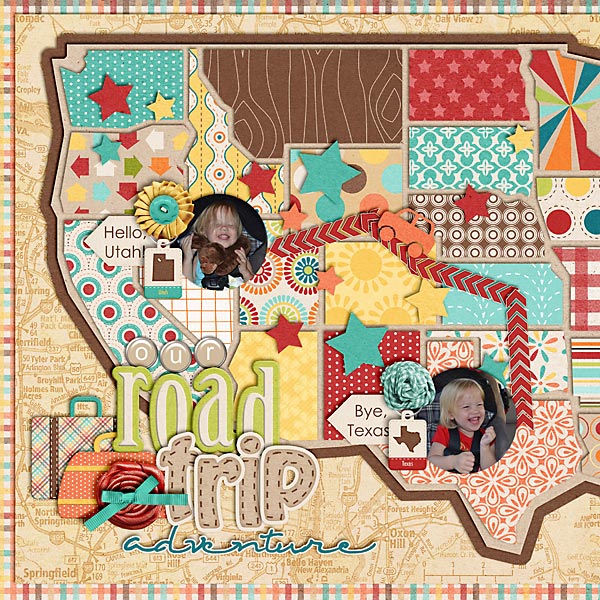
And in case you’re in need of some layout inspiration, check out this super cute Road Trip page from NettioDesigns CT Member Natalie. She moved the map portion of the template closer to the left hand side of the page to get more of the Western US and then cropped her page to 12×12. I just love the little car zipping between the states!

2011 06 30 07 11 Our Road Trip Adventure copy

Hope this helps and if you have any questions, just let me know!

Can diabetes cause erectile dysfunction

POSTED IN Ask Nettio, Digital Scrapbooking, Template-y Goodness, Tips & Tricks

How To Create a Scrap-worthy Map with Photoshop

POSTED ON September 22, 2011 IN Free Stuff

For the Sugarbabe September Portfolio challenge over at Sweet Shoppe Designs, I was tasked with creating a digital scrapbooking layout based on inspiration I had saved/favorited/pinned.

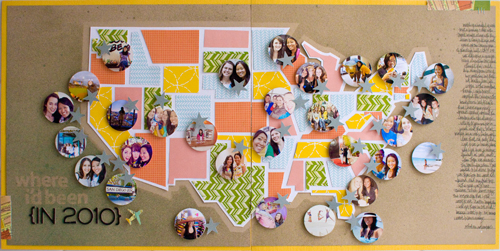
Since I have an love obsession with Pinterest, I turned to my scrapbooking pin board and selected this super awesome layout by one of my absolute favorite paper scrapbookers, Kelly Purkey. She’s a girl after my own paper-lovin’ heart with the way she rocks patterned paper!

Kellypurkey map

Specifically what inspired me about this layout was the graphic shapes she gave to the states and her bold use of patterned paper against the kraft background (no surprise there, haha).  I also loved all her little circle photos representing all the places she had visited.

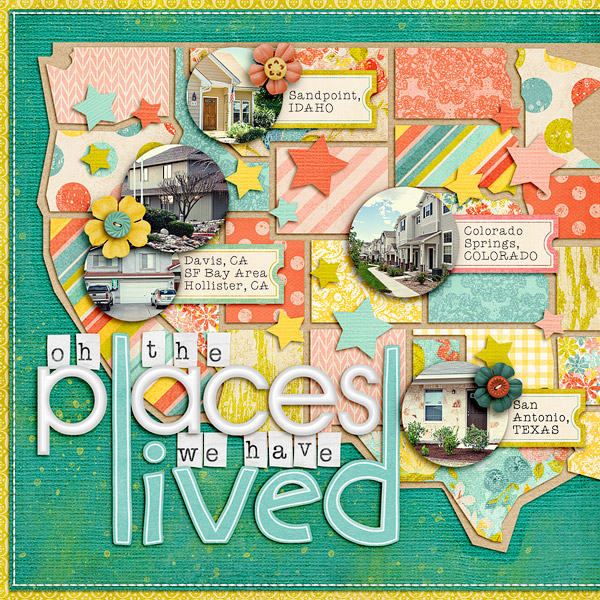
Now while I love to travel, I certainly don’t travel as much as she does, so I decided instead to theme my layout around all the places Adam and I have lived so far. Since we have yet to live on the East Coast (it’s on our short list of places to go next since it’s the one US time zone we haven’t lived in yet, haha), I decided to simplify my layout and do a single page featuring the Western half of the United States.

Here’s my finished layout featuring Zoe Pearn’s super adorable Sunshine & Lollipops kit:

Nettiodesigns placeswevelived

Since I posted this layout over in the Sweet Shoppe gallery earlier this month, I’ve gotten a some questions asking how I put this layout together. Kelly has an awesome tutorial over on her blog showing how she designed her map using paper, but since my layout is 100% digital, I’ve whipped up a little tutorial to show you how you can get this same look using Photoshop.

A little note: this tutorial was written based on Photoshop CS3 so it should work in other versions of Photoshop, but I haven’t tried it using Photoshop Elements. As always, there are a million different ways to do the same thing in Photoshop so I’m just sharing what worked for me.

Ok, on to the tutorial…

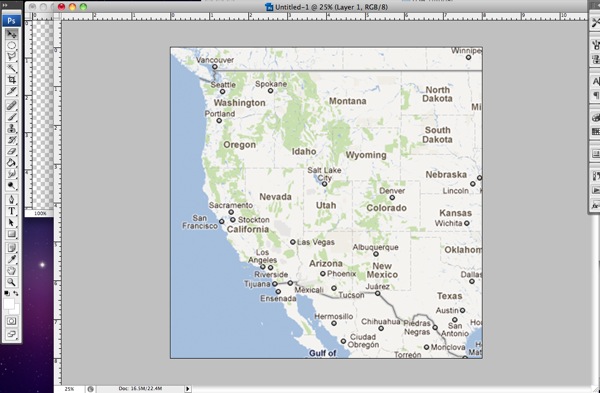
Step 1: The first thing you need to is find a map of your desired location. I took a screenshot from Google Maps for my map but any map image will do as long as it has the outlines of the states/countries on it.

Once you have your map, you need to drag it onto your scrapbooking canvas and resize it to the size you want your final map to be. I made my map fill the majority of the page. Don’t worry if your map image ends up pixelated, it won’t show in your final layout.

01 googlemap

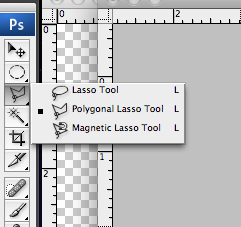
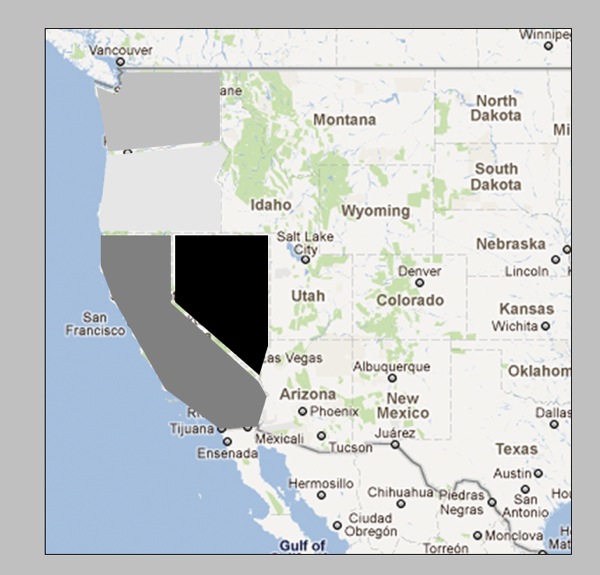
Step 2: Next, you want to grab your Polygonal Lasso Tool. You’ll find it under the normal Lasso tool –  it’s the lasso with the weird angles on it.

02 polygonallasso

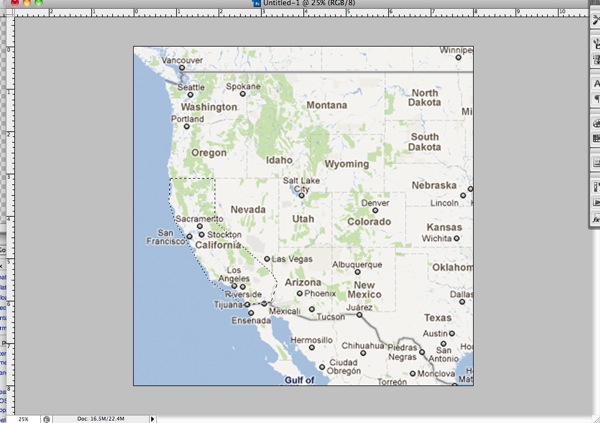
Step 3: Now we’re going to use the Polygonal Lasso Tool to draw a shape around each state using the lines on the map as a guide. Don’t worry about all the little detailed areas, we’re going for the angular look of the shapes in Kelly’s inspiration layout so we want to keep the shape simple.

If you’ve never used the Polygonal Lasso Tool before, it’s really easy. You just point and click where you want to add a corner on your shape. If you want to draw an exact straight line between two points, hold down the Shift key and it will give you either a 90 or 45 degree angled line. To close off your shape, bring your arrow back to your starting point and move it around until you see a small circle. Then click to close the shape.

If you’ve done it correctly, you’ll end up with a shape surrounded by marching ants like this:

03 marchingants

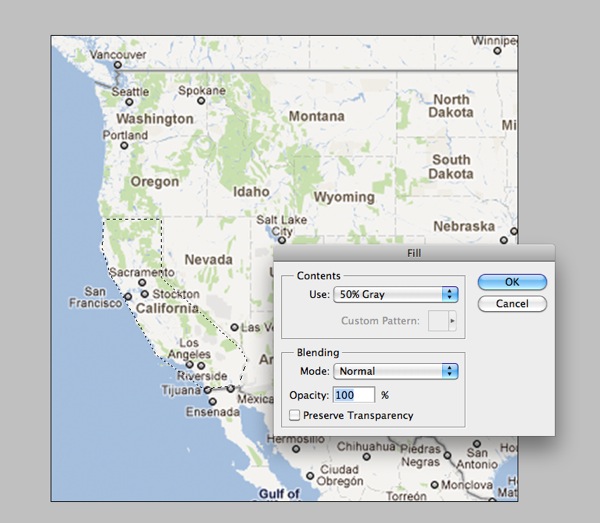
Step 4: Our next step is to fill the shape we’ve created. The easiest way to do this is to hold down the Shift+F5 key which will bring up the Fill dialog box that looks like this:

04 filllayer

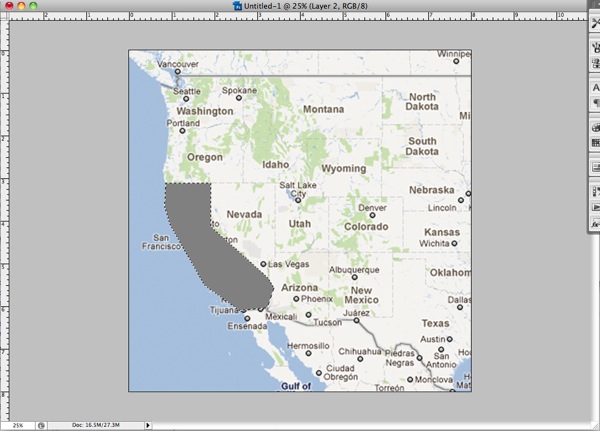
Step 5: Select a color for your shape (I went with grey tones but it doesn’t really matter) and then click ok. Your shape will now look like this:

05 filledlayer

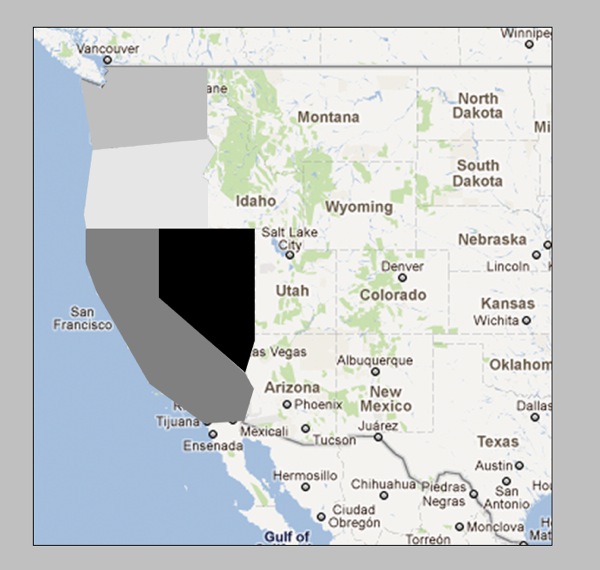
Step 6: Now you want to deselect your shape (Cmd+D on a Mac, Ctrl+D on a PC) and repeat steps 1-5 for ALL of the states or countries on your map. For my original layout this meant the entire Western half of the US but for the sake of this tutorial, I’m going to just do four states.

Here’s what your map should look like once you’ve completed all your shapes. Notice at this point there is no space between the shapes – they all fit together nice and tight. That’s what you want.

06 filledstates

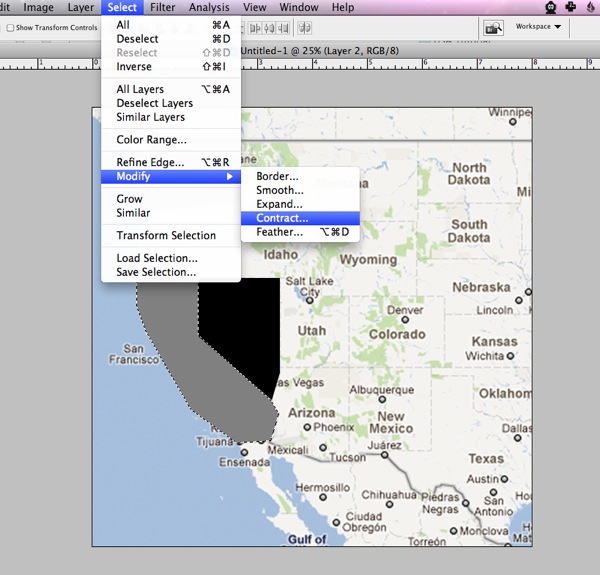
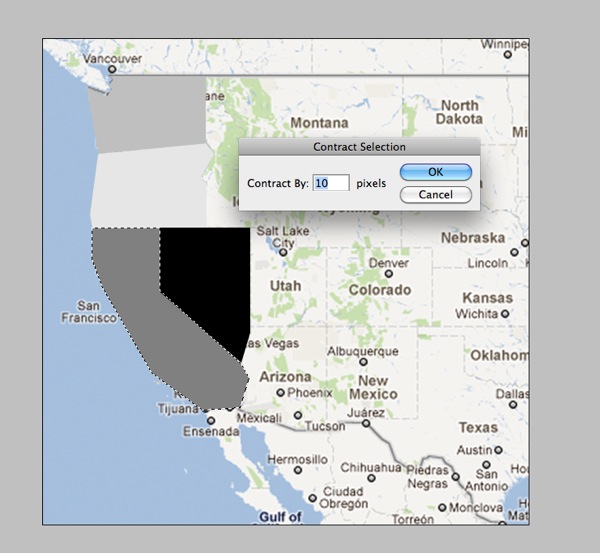
Step 7: Our next step is going to be to add space between the shapes so our mat layer will show through. (On my layout the mat is kraft, on Kelly’s layout the mat is white.) To do this we’re going to contract each shape down by the same exact amount.

First you need to get the marching ants around your shape again. A really easy way to do this is to hold down the Cmd/Ctrl key and click on the layer thumbnail for that layer in the Layer palette. Once you have your shape selected, go up to your toolbar at the top of your screen and choose Select>Modify>Contract:

07 modify contract

Step 8: We’re going to contract each shape by 10 pixels so enter a 10 into the dialog box and click ok.

08 contract

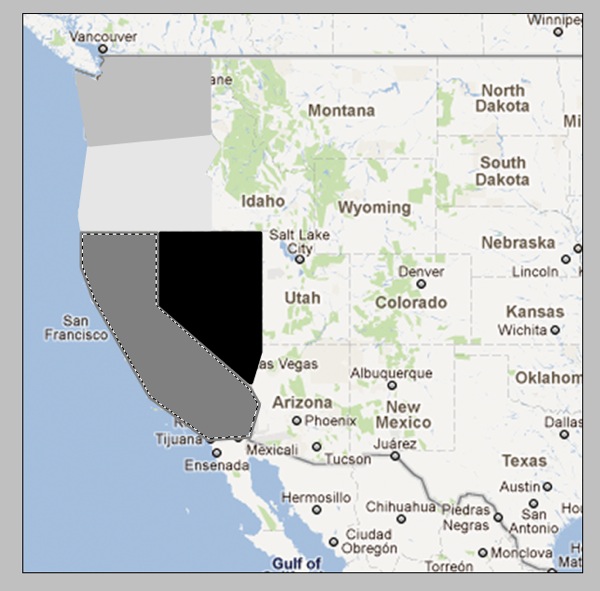
Your marching ants should now be slightly smaller than your original shape:

09 contract

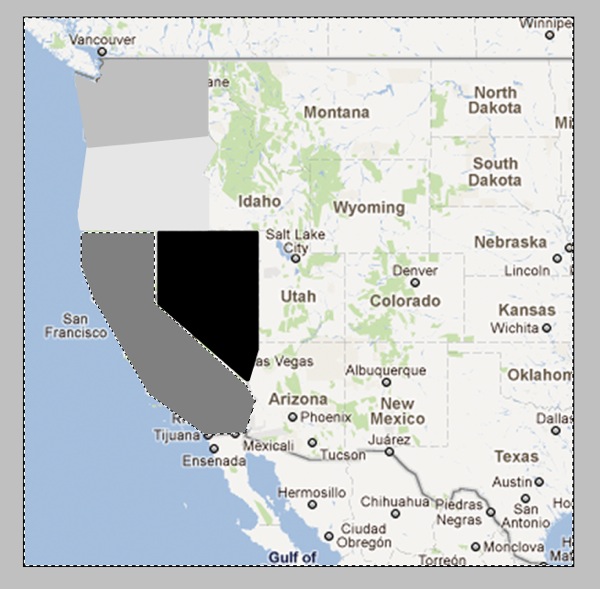
Step 10: Now we’re going to inverse the selection by hitting Cmd+Shift+I (Ctrl+Shift+I on a PC) and then hit the Delete key to remove the extra part of the shape like so:

11 inverse

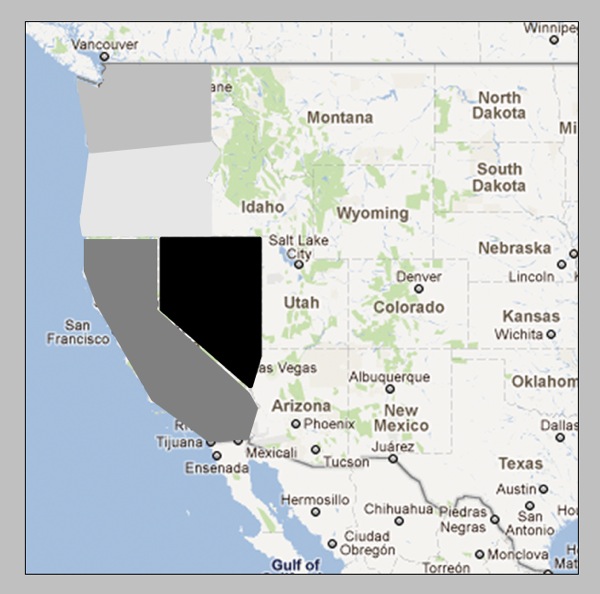
Now your shape should have an empty border around it that separates it from the surrounding shapes:

10 contract

Step 11: Now you’re going to repeat Steps 7-10 for all the shapes on your map. As you contract each shape, you may find that you need to adjust the placement of some of the states. Since you have already drawn all your states, you don’t need to worry about the states lining up perfectly with the map layer anymore. How they relate to each other is more important. I just eyeballed the spacing based on what I thought looked best.

Your finished product should look like this:

12 contractedshapes

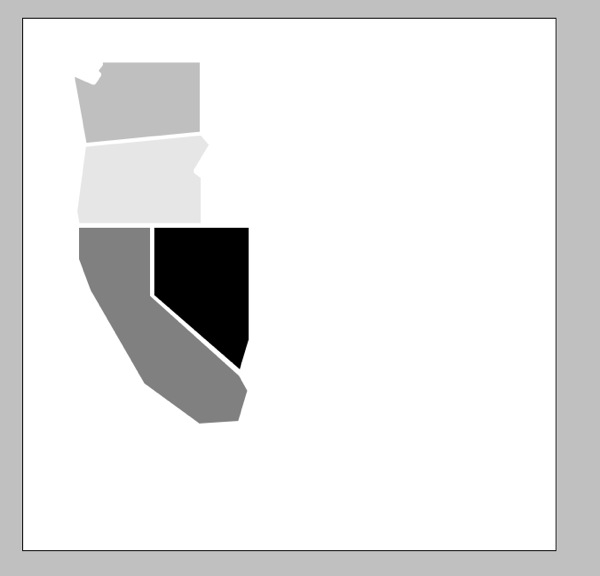
Which if we hide the map layer will look like this:

13 withoutmap

See, we have nice even borders between each of the shapes.

Now if you’re wondering why I essentially told you to create each shape twice rather than just contracting the original selection, the answer is because I found it much easier to draw out the shapes when they were all touching. I did try a few different methods for adding space between the shapes but ultimately the Contract & Duplicate gave me the best results. Yes it’s a little tedious this way but once you get into a rhythm it goes pretty quickly.

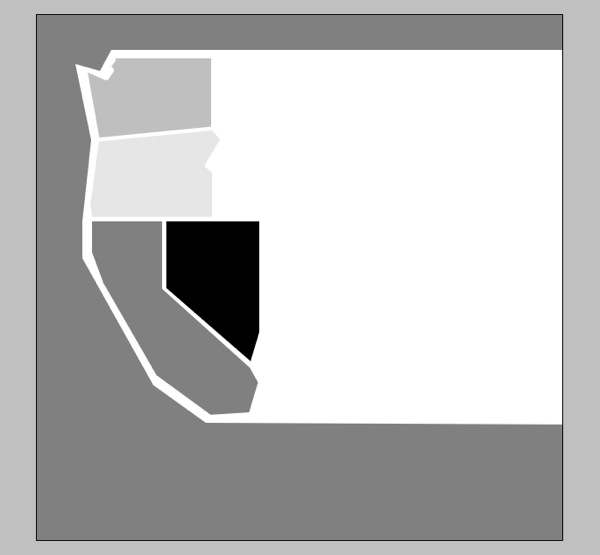
Step 12: Once you’ve got all your shapes drawn and contracted, the final step is use the Polygonal Lasso Tool to draw a shape for your mat layer. The steps are the same as how you originally created each state, just on a bigger scale.

I didn’t worry about the mat being the exact same size all the way around so I just eyeballed the border to get this:

14 border

And that’s pretty much it! You’ve created your very own map template! Now all you have to do is add in all your photos and papers and elements and you’re good to go.

The great thing is this method will work for any map so if you’re not in the US or are wanting to do something more country or even world focused, you can totally follow the steps in this tutorial to create a layout based on any map your heart desires.

Now I’m sure there are some of you who are reading the tutorial and thinking, “well that’s great, Lynnette, but it sounds like a LOT of work and I would much rather be pinning on Pinterest.”

Which is why I also created a little something extra for all my fellow US-map lovers. And because I was feeling extra generous, I even included all of the Eastern half of the US for you as well.

And best of all?

It’s FREE!

Yes, that’s right I am offering up this awesome template for FREE for personal (non-commercial) use. If you’ve never purchased one of my templates before, here’s your chance to see what NettioDesigns is all about.

All I ask in return is you spread your love for the template on Twitter/Facebook/forums/blogs and let everyone know they can download it right here at NettioDesigns. Oh and if you post your layout in any gallery, please credit NettioDesigns and where allowed, include a link back to this post.

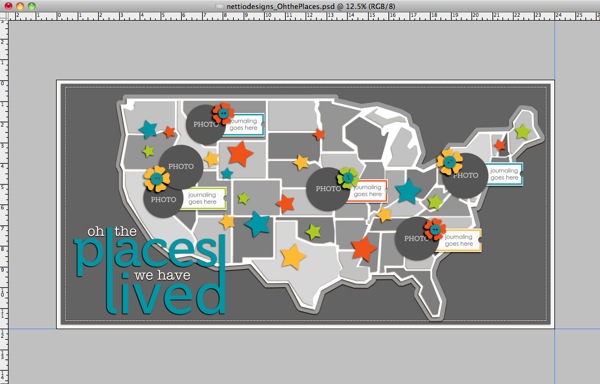
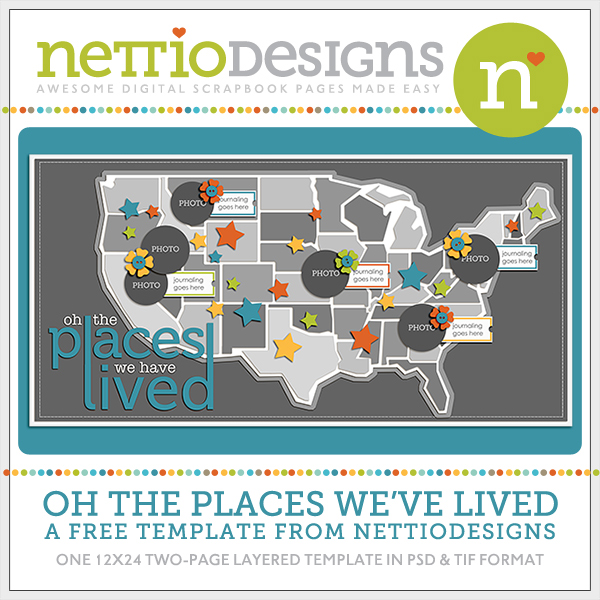
The template is a single 12×24 inch file so if you use the entire template you’ll end up with a two-page layout similar to Kelly’s layout or you can use your crop tool to crop the template to create a single page layout like I did.

Nettiodesigns OhthePlaces preview

Download here

I can’t wait to see what you create so if you use the template or tutorial, be sure to link me up to your layout!

Happy scrapping!

Benefits Of Using Canadian Pharmacy

POSTED IN Free Stuff, Digital Scrapbooking, Template-y Goodness, Tips & Tricks

  • « Previous Page
  • 1
  • 2
  • 3
  • 4
  • 5
  • 6
  • 7
  • Next Page »
HI I'M LYNNETTE. Graphic designer, tech-lovin’ memory keeper and lover of bold colors & patterns, good food and the great outdoors. Here at Nettio Designs, I share a behind the scenes peek at my own creative & life adventures. Read more...

KICKSTART YOUR CREATIVITY


By popular demand, photo book templates are back! Grab all three sets in the shop.
ADVENTURES IN ORGANIZING
GOAL-SETTING
MEMORY KEEPING
PROJECT LOVE
LIFE ADVENTURES
TIPS & TRICKS
BEHIND THE SCENES

POPULAR PROJECTS

TO SEE ALL MY PROJECTS, CLICK HERE

MUST READ POSTS

  • WHY EVERY SCRAPPER SHOULD SCRAP A FAVES PAGE
  • HOW TO CREATE A SCRAP-WORTHY MAP WITH PHOTOSHOP
  • REMEMBERING THE IMPORTANCE OF TELLING YOUR STORY
  • WHAT DOES IT MEAN TO CREATIVELY CAPTURE YOUR LIFE ADVENTURES?
  • BROWSE BY CATEGORY

    BROWSE THE ARCHIVES

    GET IT FOR FREE

    Testing testing

    links goes here

    Copyright © 2026 ·Dynamik Website Builder · Genesis Framework by StudioPress · WordPress · Log in